Dead Pixels on Laptop Screen: What That Dot Means
Dead pixels on laptop screen glass are not a smudge and not a driver bug. One addressable cell has stopped transmitting light, so you see a pinprick of black that stays put while windows slide underneath it. People who type what is dead pixels on laptop screen want that definition, a way to tell the speck from a stuck subpixel or a lid bruise, and a yes-or-no on software repair.
This page stays on the built-in laptop panel. You will separate a factory dark cell from pressure damage, learn why a screenshot is the wrong evidence, and decide whether the next move is a retailer return, a pixel-policy claim, or living with a single black square.

What Dead Pixels on a Laptop Screen Actually Are
A dead pixel is one picture element whose red, green, and blue subpixels all stay off. Dell's display pixel guidelines call this a dark pixel: a black dot you can see on white or colored backgrounds, but not on black. The usual hardware story is a failed thin-film transistor that no longer opens that cell, so backlight never reaches your eye at that address.
The speck is tiny. On a 1920×1080 panel you are looking at one of about 2.07 million pixels. At a normal laptop viewing distance of roughly 35 to 50 cm, the same distance Dell uses for warranty inspection, it reads as a grain of pepper. Zoom with a loupe and you may find smaller fragments Dell classifies as partial subpixel anomalies, which the company does not treat as defects. If you need magnification to be sure the mark exists, stop counting it as a claim.
A true dead pixel has four properties that ranking pages mix together. It is square, one pixel wide. It is black on white, red, green, and blue. It nearly vanishes on a black field because there is no light to fail to emit. It does not appear in a screenshot file, because the framebuffer is fine and the panel cell is not. Dust fails the first wipe. A pressure bruise fails the size test. A stuck subpixel fails the color test.
The generic dead pixel hub covers the same physics on any display. This article is the laptop fork: lid pressure, backpack crush, retailer return windows, and vendor pixel tables written for notebooks rather than desktop monitors.
Can a dead pixel be white? Not in the strict sense. A permanently white pinprick is a bright pixel, all three subpixels stuck on. Dell groups that with stuck pixels, not dead ones. Warranty language is harsher on bright defects than on dark ones, which is why the color of the speck changes the ticket. A tinted speck, slightly not-black on white, is often a single dark subpixel rather than a full dead pixel. HP calls those always-off dots and still counts them toward replacement thresholds.
Can you see dead pixels when the screen is off? You cannot. With the backlight dark there is no missing transmission to notice. Scratches, polarizer dents, and grit on the glass remain visible on a powered-off lid in room light. That is the cheapest fork in the whole diagnosis: power the laptop down, look at the glass, and see whether the mark is still there.
Stuck Pixel, Broken Pixels, and Burnt Pixels Are Not the Same Fault
Searchers lump every bad cell under one name. The repair path splits immediately. A stuck pixel on laptop screen glass still has power. One or more subpixels are frozen on, so you see a fixed red, green, blue, or white glow, loudest on a black field. Color-cycling tools exist for that class. Dell still warns against them on covered products because pressure and unofficial software can void a claim. Dead cells do not belong in that experiment.
Broken pixels on laptop screen glass is the phrase people use when they mean damage, not a factory dark cell. A cracked cell, a crushed interlayer, or a polarizer dent is larger than one pixel, often soft-edged, and still visible when you tilt the lid. HP's panel glossary separates always-off dots from spots, which are irregular dark areas from foreign material inside the cell, and from polarizer dents, which are pockmarks after a strike. Those nouns do not share a price.
Burnt pixels on laptop screen glass are a third object. Burn-in and image retention are ghosts of static content, usually a taskbar, a logo, or a game HUD, spread over a region rather than one sharp square. HP's discoloration writeup treats retention as a faint leftover image. A dead pixel is not a ghost. It is a hole. If the mark is a soft shadow that fades after varied content, you are not on this page.
| Mark | What you see | Best test field | Screenshot | Software hope |
|---|---|---|---|---|
| Dead pixel | Sharp black square | Solid white | Clean | Almost none |
| Dark subpixel | Slightly tinted dark speck | Complementary solid color | Clean | Almost none |
| Stuck / bright pixel | Fixed red, green, blue, or white | Solid black | Clean | Sometimes, color cycling |
| Pressure bruise | Soft patch, several millimeters | White and off-axis tilt | Clean | None. Physical crush |
| Burn-in / retention | Faint ghost of UI, not a pinprick | Mid gray after static content | Often in the file if it is the image | Retention may fade |
| Dirt on glass | Moves or wipes | Any solid color | Clean after wipe | Wipe |
Use the table, not the search term. Black, broken, burnt, and stuck are four photographs. Treat a pressure patch as a laptop screen black spot and leave this page. Treat a streak as a line fault in the next heading. Treat a single black square as a dead pixel and keep reading.
A black spot that is a blotch, not a pixel, is a different claim. Do not spend a week cycling colors on a bruise the lid made.
What Causes Dead Pixels on a Laptop
What causes dead pixels on laptop panels is mostly decided before you open the box. LaptopScreen.com's parts-side writeup puts the usual factory story as dust, misalignment, or a bad cut in the LCD matrix during production. Vendors inspect panels and still ship a small allowed count. That is not a conspiracy. ISO 9241-307 Class II, the class TUXEDO Computers assigns to its notebooks unless a listing says otherwise, permits two permanently black pixels per million. On Full HD that scales to four type-2 defects. One isolated dark cell is inside that industrial floor.
A dead pixel on new laptop glass that is already there on the unboxing white field is that factory path. It was not caused by your brightness slider. It will not be caused by a Windows update tomorrow. Photograph it before the retailer window closes.
Lid pressure is the laptop-specific cause ranking pages under-explain. Closing the lid on a charger brick, a pen, or a grain of grit crushes a liquid-crystal gap that is only micrometers thick. It Still Works describes a pressure mark as crystals that have lost the ability to filter backlight, or that have been twisted out of position. The photograph is larger than one pixel. A single dead cell after a clean unbox is not that bruise. A cluster that appeared the morning after a backpack commute probably is.
Can water cause dead pixels? Liquid that reaches the display cable or the sealed stack can short cells, stain the polarizer, or kill a row. iFixit's liquid-damage wiki is blunt: power off, disconnect power, do not use rice, and treat a soaked display as a replacement candidate. Water does not create a tidy one-pixel factory defect. It creates irregular staining, corrosion at connectors, and sometimes a line. If the laptop was wet, this is no longer a pixel-policy ticket. It is accidental damage.
Dying pixels laptop searches catch a slower photograph: cells that flicker, shift color, then go dark over days or weeks. That pattern is aging, heat, or a panel that is losing drive on a region, not a single manufacturing miss. Pixels that keep joining the dark set, or that travel with a growing bruise, are a panel on the way out. One stable pinprick from day one is not dying. It is already dead.
Heat is a supporting actor, not the lead. A machine that compiles in a sleeve can cook adhesives and accelerate wear. It does not usually pick a single transistor at random in the first week. If the only defect is one black square and the chassis is not swollen, do not invent a thermal story.
Factory Defect Versus Lid Pressure
Tell them apart on purpose. A factory dead pixel is present on the first solid-white test, one pixel wide, and unchanged after you store the laptop flat. A lid-pressure failure often sits over the keyboard's high points, near a camera bump, or along the edge that rode the bottom of a bag. It may be joined by a faint halo. Jerry Wheeler on an iFixit Answers thread put a pressure-caused dead line down to cracked glass or a failed flex-cable bond, neither of which massaging will restore. If your mark grew from a point into a streak after the lid was forced, you have left the single-pixel article.
Do not press the glass to confirm the theory. Dell's pixel article says pressure can crack the panel and void warranty. The test you actually need is a photograph on day zero and a photograph a week later, same white field, same viewing distance.
How to Check Dead Pixels Before You File a Claim
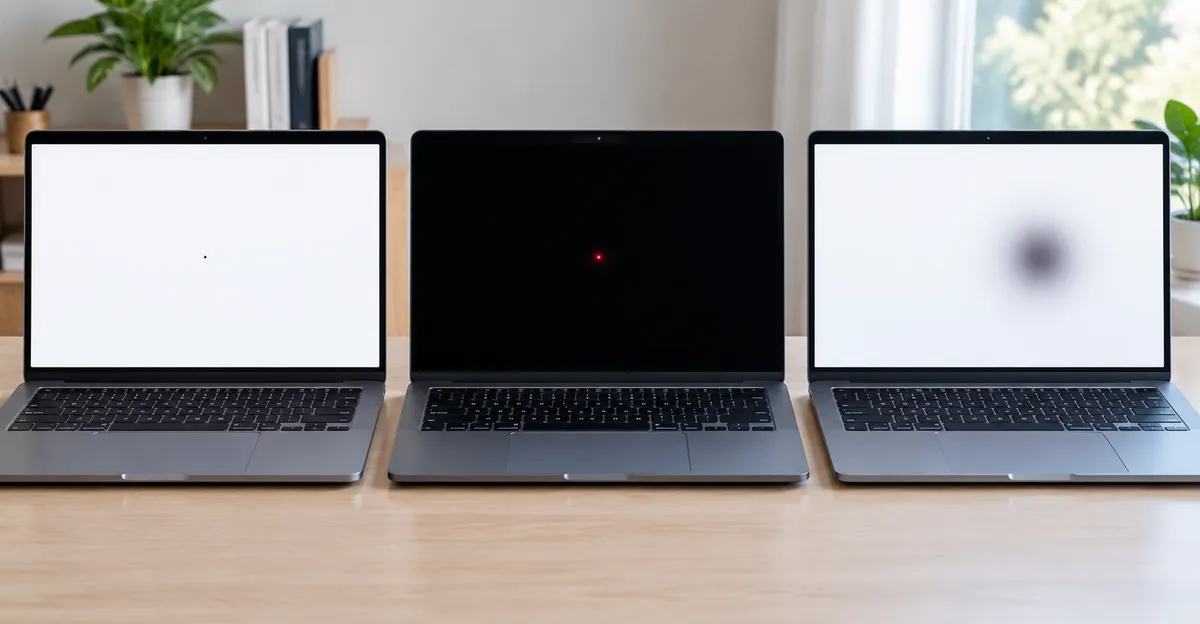
How to check dead pixels is a five-minute procedure, not a driver reinstall. Wipe the glass with a dry lint-free cloth. Dust is the most common false positive. Then fill the built-in panel with solid colors. White exposes dark cells. Black exposes bright stuck cells. Red, green, and blue catch single-channel failures that hide on white. Scan in rows, top-left to bottom-right, at normal viewing distance. Do not hunt with a loupe unless the vendor policy asks for it. Dell only counts defects visible without magnification.
The Screen Test tool runs those fields fullscreen in the browser. Use it on the laptop's own panel, not on a mirrored external monitor. An external display that is clean only proves the GPU can draw white. It does not prove the lid is healthy, and it does not prove the lid is sick. You still have to look at the built-in glass.
Dell laptops add a hardware path. Dell's LCD built-in self-test starts from a shutdown: hold D and press power, or use F12 diagnostics, until the panel cycles white, black, red, green, and blue without Windows. A pinprick that survives that cycle is in the panel. A pinprick that vanishes when the OS is out of the loop was never a dead pixel.
HP's defect article asks you to inspect at native resolution on the brightest and darkest backgrounds, because some subpixel failures hide on one field. That is why a single white screenshot is not a complete test.
Screenshot Versus Phone Photo
This is the fork official pixel policies leave hanging. A screenshot captures the framebuffer before the image reaches the glass. A physical dead cell does not live in that file. Open the capture on a phone. If the black speck is in the file, you have a GPU, overlay, or content problem, not a panel claim. If the file is clean and the glass still shows the pinprick, you have hardware.
For a warranty or return ticket, the evidence that works is a phone photo of the solid-white field, plus the same photo on black, red, green, and blue, taken straight-on in a dim room. Date the files. Note the pixel's location, for example "12 mm below the top edge, one-third from the left." Dell asks you to count bright defects and dark defects separately. HP asks for clusters within 25 mm for always-on dots. A vague "there is a spot" email loses.
Do not press, heat, or run unofficial pixel-fixers before you have those photos if the laptop is in a return window or under warranty. Dell's written position is that DIY pressure and unsupported software can damage the panel and void coverage. You can cycle colors later if the vendor already refused the claim and you have confirmed a stuck pixel, not a dead one.
How to Fix Dead Pixels on a Laptop
How to fix dead pixels on laptop panels is a short list once the cell is truly dead. Dell's guideline is explicit: a dead pixel cannot be fixed, and the only solution is replacing the display panel. Driver updates, refresh-rate changes, and cable reseats do not restore a failed transistor. If those steps change the speck, it was never a dead pixel.
Stuck pixels are the only class with a non-zero software hope. Rapid color cycling for ten to twenty minutes, sometimes longer, can unstick a subpixel that still has power. Photosensitive readers should skip that method. Even then, Dell tells owners of covered displays not to try it. If the serial is in warranty, photograph and claim first. If the vendor already said the count is within policy and the speck is colored rather than black, cycling is the leftover experiment, not the opening move.
Pressure massages, pencil erasers, and hairdryers belong in the refuse pile. LaptopScreen.com reports never seeing heat work and warns it can damage neighbors. It Still Works notes that color-flash tricks target electrical stuck cells, not crushed crystal. A lid bruise does not care about your GIF.
Can dead pixels go away on their own? Almost never if they are dark on every field for days. A cell that appeared after a long, hot session and vanished after an hour powered off was heat-related stuck behavior, not a dead transistor. Dell's FAQ on bright pixels says a stuck pixel stays stuck until the display is replaced. Treat a stable black pinprick the same way. Waiting a week is reasonable documentation. Waiting a quarter hoping for a resurrection is not a plan.
Practical options, in order:
- Retailer return or exchange, if the laptop is still inside that window. This is the only path that often ignores pixel-count tables.
- Manufacturer pixel-policy claim, if the count or cluster exceeds the table for your resolution.
- Live with a single edge pixel that does not sit in your working area.
- Paid panel replacement after warranty. Parts and labor commonly land in the mid hundreds of dollars depending on touch, OLED, and resolution. If the quote approaches the price of a comparable used machine, keep the laptop and add an external monitor.
There is no registry key, BIOS toggle, or GPU-driver rollback that repairs a dark cell. If a technician offers to "reflow the panel" for one pixel, you are paying for theater.

A Line of Dead Pixels on a Laptop Is a Different Failure
A line of dead pixels on laptop glass is not a pile of independent transistor failures. It is a row or column whose gate or source path has dropped. You see a hairline of black from one edge toward the other, sometimes the full width. iFixit answers treat a pressure-caused dead line as cracked glass or a failed bond between the flex cable and the circuitry etched into the glass. Neither is a pixel-fix candidate.
Do not run color cycling on a streak. Do not press along the line. If the streak changes with lid angle, you are in cable or hinge territory, covered by the laptop screen lines guide. If the streak is present from the logo screen onward, at every hinge angle, on the Dell or HP self-test colors, the panel or its driver bond is the part.
The dedicated dead pixel line article owns that photograph. This page only exists so you do not spend Thursday counting ISO Class II allowances on a defect that is already a line-level failure. One isolated square stays here. A continuous dark strip leaves.
A Dead Pixel on a New Laptop Versus Pixel Policy
A dead pixel on new laptop glass feels like a lemon. The policy tables often disagree. That gap is the reason people waste the return window waiting for a manufacturer to "see the photos."
Dell's laptop table is the clearest published notebook rule. HD+ (1600×900) and higher: zero bright pixels or bright subpixels, up to five dark subpixels, five total combined defects. HD (1366×768) and lower: up to two bright, up to five dark. Premium Panel Exchange on those HD+ and higher lids is zero-tolerance for bright defects, not for a single black cell. One dark pinprick on a Dell FHD laptop is usually inside the allowed five. The manufacturer can legally call the panel good.
HP's notebook criteria count always-on and always-off dots together and add proximity rules. On FHD, UXGA, and WSXGA+ panels under 2.1 million pixels, replacement starts at eight or more dots in any combination, or any two always-on dots within 25 mm of each other. A lone dead pixel on an HP FHD lid does not meet that bar. A tight cluster might.
ISO 9241-307 Class II, as TUXEDO publishes it, allows two type-2 (permanently black) pixels per million. Full HD therefore allows four black pixels before the industrial class is exceeded. Class I is tighter. Class III is far looser. Your vendor may be stricter than ISO, as Dell is on bright pixels, and still looser than your patience on dark ones.
| Path | Typical trigger | What they will not do |
|---|---|---|
| Retailer return (often 14–30 days) | Any defect you will not live with, plus receipt | Wait for ISO math |
| Dell HD+ laptop pixel policy | 0 bright; more than 5 dark subpixels | Swap a panel for one black cell |
| HP FHD notebook policy | 8+ on/off dots, or 2 always-on within 25 mm | Swap for one isolated dead pixel |
| ISO 9241-307 Class II on FHD | More than 4 permanently black pixels per the scaled table | Define your brand's actual policy |
| Accidental-damage plan | Lid crush, liquid, cracked glass after inspection | Pretend a bruise is a factory pixel |
The original decision, which vendor pages stop before answering: if the laptop is still returnable, return it. Do not open a manufacturer ticket first and burn two weeks of the window. If the window has closed, count defects at 35–50 cm, photograph the self-test colors, and compare to the table for your exact model. If you are under the count, the honest options are live with it or pay for a panel. Pressing the glass to "improve the photos" converts a maybe-covered pixel into customer-induced damage.
Keep using a single stable dead pixel if it sits in a corner, does not multiply, and the lid closes evenly. Stop using the machine if the dark set is growing, a line has appeared, the enclosure is bulging, or liquid reached the stack. A swollen battery is not a display problem you wait out.
Conclusion
Dead pixels on laptop screen panels are failed cells, not settings. They stay black on every solid color, miss the screenshot file, and ignore drivers. Stuck pixels glow. Pressure bruises are bigger. Burn-in is a ghost. A line is a different part.
Check with white and RGB fields, a screenshot versus a phone photo, and the vendor self-test when the laptop has one. Fix paths that work are a retailer return, a pixel-policy swap when the count actually qualifies, or a paid panel. Paths that do not work are apps, thumbs, and heat.
When you finish reading, run the Screen Test on the built-in panel. Solid white first. Then black. Then red, green, and blue. Photograph what you see. That sequence is the entire diagnosis.