Acer Laptop Screen Problems: What They Mean
An Acer laptop screen that stays black, flickers, or draws lines is a split between a stuck power state, a Windows setting, the backlight, the hinge cable, and the panel itself. Aspire, Swift, Nitro, and Predator machines share that split even when the parts differ. This guide uses the checks published by repair desks and by Acer, then answers the decisions those pages leave open: black only after login, black only on the charger, lines that ignore the lid, a broken hinge with intact glass, and a replacement panel that does not match the one Acer shipped.
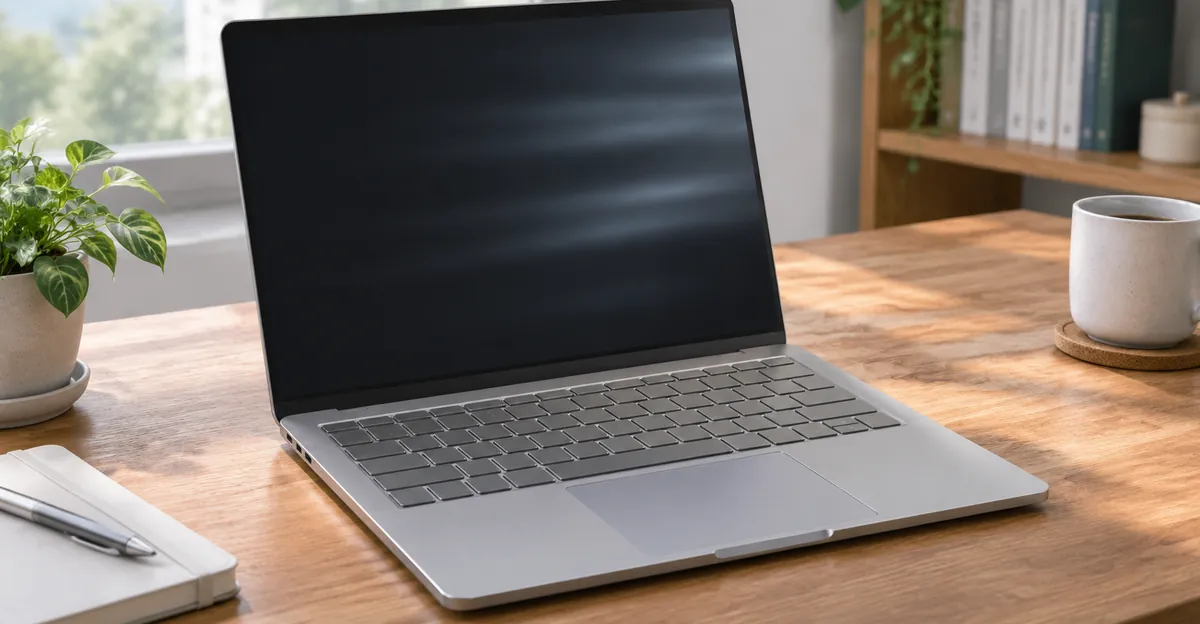
Acer Laptop Screen Not Working, Black, or Blank
Not working covers four machines. One never lights a keyboard and never spins a fan. One is clearly running while the panel stays black. One shows the Acer logo and goes black after sign-in. One is fine on battery and goes black when the charger is connected. A single panel order treats those as the same fault.
The free reset comes first because a stuck power state produces a black panel on a laptop that is otherwise alive. Dave's Computers, writing up Acer jobs at their Somerville, New Jersey shop, describes it as unplug the charger and any USB-C dock, press the battery-reset pinhole for about four seconds if the model has one, hold the power button for 30 to 40 seconds, then connect only the charger and press power once. If the logo returns, the screen was not dead. Asurion's black-screen steps use a shorter hold, about 10 to 15 seconds, and tell you to remove USB devices before the next boot. Either version clears power state. It does not identify a bad panel. If the logo never appears, two tests decide whether a panel is even a candidate.
Black but the laptop is still running
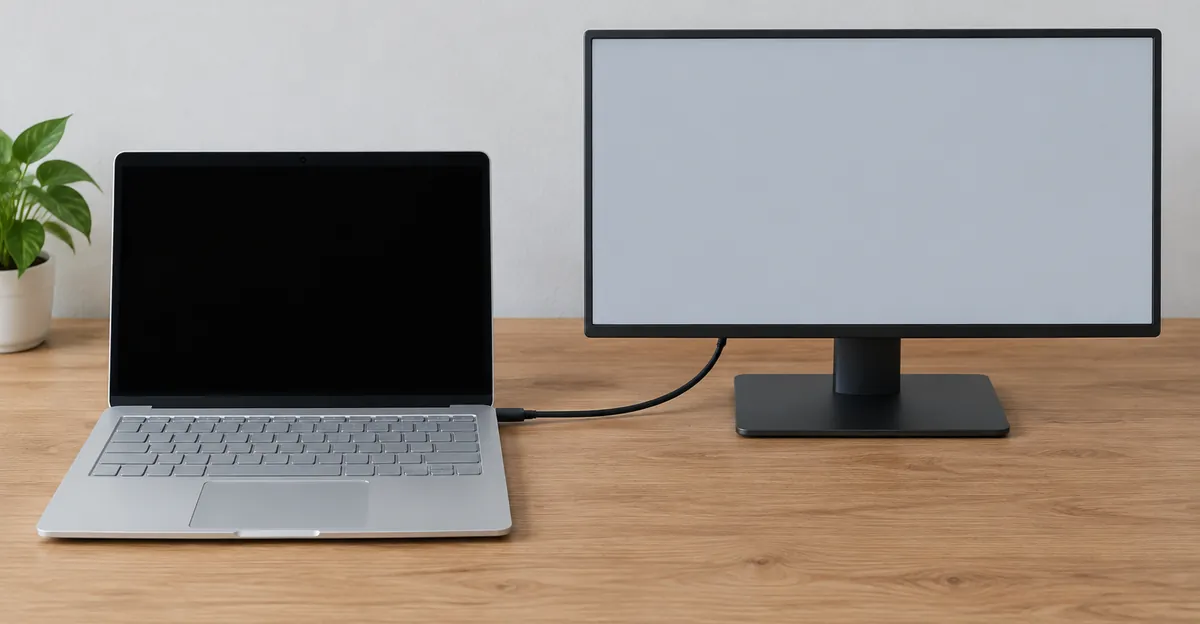
Fans, a power LED, or a keyboard backlight mean the machine left the will-not-turn-on branch. Shine a flashlight at the glass at an angle in a dim room. Dave's guide treats a faint ghost of the desktop or the logo as a backlight or backlight-cable fault, often cheaper than a full panel. With no ghost, connect a TV or monitor. A clean external picture means the computer is producing an image and the fault is in the internal assembly, panel or hinge cable. Black on the laptop and black on the TV means the panel is the wrong part. That branch is memory, the board, or the graphics chip, the same split used in a general black screen diagnosis.
Asurion's black-screen article says a working external display may be a driver problem keeping the image off the laptop glass. A driver can blank Windows. It does not explain a flashlight ghost, and it does not explain lines through the Acer logo. Use the external test to see where the image dies.
Acer documents one software black screen that looks like a dead panel. On Aspire models A111-31, A311-31, A114-32, A314-32, and A315-32, a BIOS update installed before the latest VGA driver can leave a black screen after reboot into Windows. Acer's fix is to hold power for 10 seconds, hold Alt and F10 while powering on, release the keys when the logo appears, open Troubleshoot, Startup Settings, Safe Mode, uninstall the video driver in Device Manager, then install Intel graphics driver 25.20.100.6615 or newer from Acer's drivers page. If your model is on that list and the black screen started on the reboot after a BIOS flash, that sequence is the repair. A new panel will not install a driver.
Black after login, or only on the charger
A logo you can read, then a black desktop, is a Windows session problem until a hardware test says otherwise. Asurion reaches Safe Mode by forcing shutdown three times so Windows Recovery appears, then Startup Settings. A normal Safe Mode desktop points at a recent driver or app. Device Manager can update or remove the display adapter. Safe Mode that is just as black, with a logo that was already black, is back on the hardware side.
The charger-only case is the branch the long lists skip. Dave's dim-screen section tells you to check power-saver dimming and the brightness keys before calling the backlight dead, because Acer screens get reported as failed when the slider is near the bottom. Extend that check to a panel that goes fully black only while the adapter is connected and returns when you unplug it. The glass, the cable, and the backlight just proved they can work. What changed is the power source. Compare the plugged-in power plan with the battery plan, including display brightness. Asurion also turns off PCI Express link-state power management when chasing flicker, under the advanced power settings. If the picture is healthy on battery at full brightness and dies only on AC, a screen order is not supported by that evidence.
A screen that keeps going black and coming back splits again by timing. Dropouts that follow lid angle belong with the hinge cable below. Dropouts that follow sleep, a dock, or the moment Windows finishes signing in stay on the power-state and driver side for one clean pass. Then stop. Repeating random driver packs is how a cable fault gets weeks of software theater.
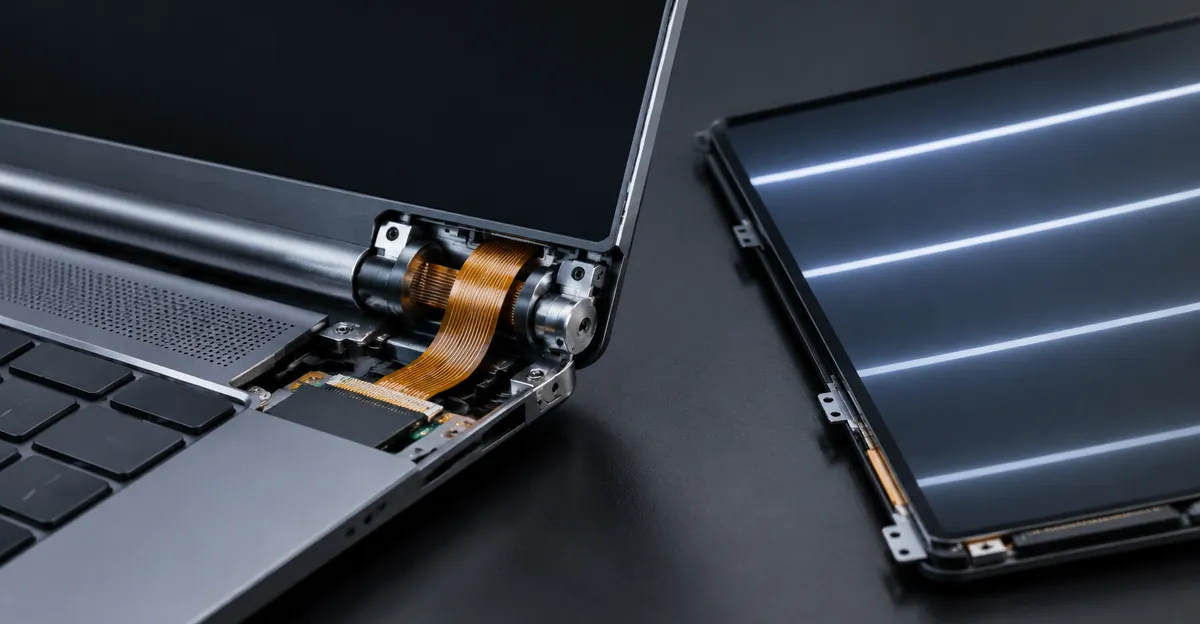
Acer Laptop Screen Glitch, Flicker, Lines, and Color
Flicker, horizontal lines, vertical lines, and a pink or green cast get dumped into the word glitch. They are different repairs. Two comparisons separate them.
Whizz-Tech's Acer checks ask whether the artifact is on the Acer logo before Windows loads, whether an external screen shows the same thing, and whether a screenshot contains the lines. Press Windows+Shift+S while the lines are visible and open that image on the TV. Lines in the file mean the graphics pipeline drew them. A clean file while the laptop glass still shows lines means the GPU painted a normal frame and the panel path damaged it afterward. Dave's adds the lid test and a driver reset. Windows+Ctrl+Shift+B restarts the graphics driver. If the flicker ends and stays ended, update or roll back that driver and stop. If Task Manager stays steady while the rest of the desktop flickers, Dave's treats the cause as an app. Asurion's flicker guide adds Chrome hardware acceleration, the refresh-rate list under Settings, System, Display, Advanced display, and a High performance plan with PCI Express link-state power management off.
Asurion also says that if both screens flicker, the problem is software. Dave's says flicker on every screen at every angle, including during startup before Windows loads, is the panel's own electronics. Both can be true in different minutes of the boot. Both screens wrong during the Acer logo, before a Windows driver is loaded, fits a graphics-output hardware fault, and Asurion's software reading does not apply yet. Both screens wrong only after login, with the artifact inside a screenshot, fits a driver. The laptop glass wrong, the TV clean, and the screenshot clean fits the panel or the cable.
Lines and flicker that change when the lid moves
Move the lid slowly. Dave's calls angle-dependent flicker or lines the Aspire pattern. The display cable in the hinge loses contact as it flexes, and a cable repair costs less than a panel if you catch it before the connector is torn. Lines that stay identical at every angle, already present on the logo, point at the panel's row or column electronics.
Whizz-Tech's Swift 3 case is the one those rules do not finish. Horizontal lines, external TV clean, screenshot clean, lines that do not change with lid angle, mostly absent on the logo, worse at low brightness, and noticed after a Windows update. Dave's table would call stable lines a failing panel. Whizz-Tech stops at evidence and refuses to open the machine. The decision that follows is one official driver action, tied to the update date, from Acer's support download for that serial number or from the GPU vendor. Reboot once. If the lines are unchanged and the screenshot stays clean, further driver swaps will not redraw a panel-path fault. While the machine is in warranty, leave the bezel on. Acer's Singapore terms void coverage when a product is altered or repaired by someone Acer did not authorize. Other countries differ. Read the warranty terms for the country of purchase before you open anything.
A single thin vertical line that never moves is, in Dave's breakdown, a failed column driver inside the panel. A band of horizontal lines is row-driver failure or cable wear. Lines that showed up after a drop, or after the lid was closed on a pen, are impact damage even when you cannot see a crack. Those patterns sit in the same family as other laptop screen lines. A row that ignores the lid on any brand is the horizontal lines on a laptop map; the tablet version of that row is horizontal lines on an iPad. General screen flickering covers refresh and driver flicker that is not specific to Acer. On Nitro and Predator models, Dave's flags refresh rate because those panels are often high-refresh, and a mode the panel cannot hold will shimmer until you select a rate the panel lists.
Pink, green, and white screens
A full pink, green, or white field is a different complaint from a dim image. A white screen with the backlight obviously on, and no picture, means the panel is lit and is not receiving a usable image. A tint across the whole picture, pink or green or a washed cast, while shapes remain visible, often tracks a color channel in the cable or a driver color setting. Run the same screenshot and external tests you used for lines. A tint inside the screenshot and on the TV is the graphics path or a Windows color setting, including night light. A normal screenshot with the tint only on the Acer glass means the channel is failing in the panel or the cable. A cast that appears only inside one app is a reason to close that app. Persistent pink on the panel itself belongs with other pink screen faults.
Pixel-sized dots are a third case. Acer's India LCD policy separates a bright sub-pixel, a light dot on a black pattern, from a dark sub-pixel, a black dot on white. The published allowance before a warranty replacement, for FHD 1920x1080 and for the other resolutions in that table from HD through UHD, is up to 2 bright sub-pixels, up to 5 dark sub-pixels, and up to 5 total. A sub-pixel at half size or smaller is excluded from the count. Acer says warranty length and the spec can differ by region, so the India table is the question to ask, not a promise from every office.
Singapore's terms use another cut. They allow no more than 4 defective pixels per million, and only one defective pixel in the center rectangle if the panel is divided into nine equal areas. Their extended-warranty note says an LCD exchange for non-conforming pixels must involve more than 4 dots. Two dots on a 1920x1080 panel can be annoying and still sit inside a written spec. Paying for a panel because of an in-spec dot is a parts purchase.
| Native resolution | Bright sub-pixels allowed | Dark sub-pixels allowed | Total sub-pixels allowed |
|---|---|---|---|
| HD 1366x768 | 2 | 5 | 5 |
| FHD 1920x1080 | 2 | 5 | 5 |
| QHD 2560x1440 | 2 | 5 | 5 |
| UHD 3840x2160 | 2 | 5 | 5 |
Figures are Acer India's published caps. Singapore's per-million rule is a different document. Confirm which policy your serial number uses.
A Dim Acer Screen and a Backlight That Will Not Stay Lit
Dim, keeps dimming, and no backlight share a flashlight and then split.
If you can read the screen only by holding a lamp against the glass, Dave's classifies it as backlight. The panel is drawing the image and nothing is lighting it. On Aspire and Swift machines they describe that as the backlight circuit or the cable that feeds it through the hinge, frequently cheaper than a panel. Check the controls first. The sun icons on the function row, a power-saver plan that drops brightness on battery, and Windows adaptive brightness produce a large share of dying-backlight reports when the hardware is fine. Max the brightness on battery and on AC separately. If both are maxed and the picture is still a shadow, the flashlight ghost confirms backlight work.
Keeps dimming is the software-shaped version until it fails one test. A drop a minute after login, only on battery, or a recovery when the room light changes, still points at adaptive brightness or the power plan. A backlight that is aging does not snap back because Settings was opened. If you raise the slider to maximum and the picture dims again while the slider stays there, either another control is overriding it or the LED driver is collapsing. Watch an external monitor at the same time. A TV that stays bright while the laptop glass fades is the internal backlight path. Both screens dimming together is the power plan or the graphics driver.
A backlight that is fully out, with a flashlight ghost and a normal external display, is a different quote from a cracked panel. Say image present, no light, to the shop. Screen not turning on gets priced as a panel. Dave's published range for a standard Acer panel, installed, is 180 to 250 US dollars at that shop, with cable and backlight work typically under a panel price. The same page lists a 75 dollar diagnostic credited toward the repair, a 90-day shop warranty, and a usual 24 to 48 hour turnaround once the part is in hand. That is one New Jersey workshop's 2026 price, not an Acer worldwide rate.
Older service guides mention an inverter because those machines used a CCFL tube. Current Aspire, Swift, and Nitro lines are LED-backlit. An inverter quote on a machine that never had a CCFL tube is the wrong part name. Ask which board or cable is actually being replaced.
Cracked, Broken, and Hinge-Broken Acer Screens
A spiderweb crack, a black blotch spreading from a corner, or color bleeding around an impact ends at the panel or the bonded assembly. Dave's states that cracks do not reliably stabilize, and pressing the damaged area keeps breaking layers under the glass. The computer underneath is usually fine. The decision is the quote versus the value of that specific machine. Their bench rule is that a recent Nitro, Predator, Swift, or Aspire is often worth the panel because a replacement laptop costs more than the repair. A cheap Aspire at the end of its useful life may fail that test, and the practical outcome is to move the data and skip the part. High-refresh, OLED, and touch assemblies are quoted after diagnosis. A 60 Hz bargain panel in a Nitro or Predator is a different display from the one you bought.
A broken hinge is a different part from a cracked panel. A lid that flops, a cracked plastic cap around the hinge, or a picture that cuts out only when the lid sags means the joint is damaging the cable that runs through it. A new glass panel leaves the next cable in the same broken bracket. A new hinge with a torn cable still in place leaves the lines. Intact image at every angle, with broken plastic, is hinge hardware. Image that drops out as the lid moves, with solid plastic, is the cable first. When both are damaged, stop opening and closing the lid to see if it settles. Each cycle bends a damaged conductor again.
Pressure marks from closing the lid on a pen or earbud are the preventable cousin of a crack. Soft-edged dark stains are crushed liquid crystal. Dave's says they spread if you massage them. Bright stains can be backlight layers letting go. That family is covered under pressure damage and under black spots on laptop glass. Singapore's Acer warranty text excludes a cracked screen, damage from external pressure on the LCD, and physical damage to the bezel, cover, and cables from drops or spills. A hinge broken in a bag sits in that exclusion in that market. A line that appeared with no impact, inside the warranty window, is the claim to file before anyone opens the machine.
Touch, Frozen, Upside Down, and a Dead External Monitor
Several of the most searched Acer laptop screen problems leave the panel out of the cart.
Touch dead with a perfect picture can be the digitizer or its cable, especially on Spin and other convertibles where touch is part of a bonded stack. Dave's notes that touch models get the bonded assembly replaced as a unit. A non-touch LCD will not bring touch back. If a USB mouse works, look in Device Manager for a touch digitizer before you assume the glass is gone. A missing device after a Windows update is a driver or firmware event. A device that is present and still will not track a finger is hardware.
Frozen is a different symptom from black. A frozen image, or a desktop that will not redraw while the pointer still moves, can be the shell or the GPU driver. Asurion's Safe Mode path and Windows+Ctrl+Shift+B belong on that branch. A freeze that is already wrong on the Acer logo, and that survives a hard power-off, is the panel or the board. The external monitor is the divider again.
Upside down or sideways is orientation when the boot logo is upright. Microsoft's Windows 10 and Windows 11 display article says to open Start, Settings, System, Display, and choose a screen orientation from the list next to Display orientation. Windows also recommends an orientation. Landscape is the setting a laptop lid expects. If a hotkey rotated the desktop, that same list is the undo. A logo that is itself rotated, torn, or covered in lines is outside that setting. Replacing the panel because the desktop is sideways, while the logo is upright, spends the panel budget on a menu item.
An external monitor that fails too changes the purchase. Dave's says black on both screens means the screen was the wrong suspect. Whizz-Tech says GPU-style faults show up on the external display or inside screenshots. Order a panel after the TV has shown a clean image. If the TV is also lines, flicker, or black, the next conversation is with Acer support or with a board-level diagnosis, not with a listing titled Acer laptop screen.
| What you see | Where the image dies | Sensible next buy |
|---|---|---|
| Logo upright, desktop sideways | Windows orientation | No parts. Set Display orientation |
| Picture normal, touch dead, digitizer missing after an update | Driver or firmware | No panel until Device Manager is checked |
| Laptop black, TV normal, no flashlight ghost | Panel or hinge cable | Cable if the image changes with angle, otherwise a matched panel |
| Laptop black, flashlight shows a ghost | Backlight path | Backlight circuit or its cable |
| Laptop and TV both wrong | Board, memory, or GPU path | No screen until a clean external image exists |
| Black only while the charger is plugged in | Plugged-in power plan or graphics driver | No screen until battery-versus-AC is compared |
How to Replace an Acer Laptop Screen
Replacement is a matching job before it is a screwdriver job. Dave's lists the variants Acer ships across Aspire, Swift, Nitro, Predator, and Chromebook lines: resolution, brightness grade, touch versus non-touch, OLED on some Swifts, and high-refresh panels on gaming models. The same model name often hides more than one panel.
Reading the panel label before you order
If the machine is already open, the label on the back of the panel carries the identity that matters: resolution, refresh, and a manufacturer part number. Match that number. A listing that says only Acer Aspire screen can be a 1366x768 sheet for a 1920x1080 machine, or a non-touch panel for a touch stack. Touch and non-touch do not interchange. A 60 Hz panel does not replace a high-refresh Nitro or Predator panel if you still want that refresh rate.
Older Acer service guides, such as the Aspire One 521 manual, split the job into separate steps for the bezel, the panel, the cover hinges, and the FPC cable, and they show the cable routed back through the hinge channel. Those steps are for that chassis. A Swift or a current Nitro uses a different stack. The manual and the panel label for your serial number are the parts list. A hinge bracket sold for one Aspire generation will not fit the next.
Do this only if the tests above already placed the fault in the panel or the cable. Dave's names the expensive mistake directly: buying a panel for a machine whose panel was fine.
What a warranty claim actually needs
Acer Canada lists a one-year limited warranty on consumer Aspire, Swift, Switch, and Spin laptops, and a one-year limited warranty on consumer and commercial Chromebooks, with two named older ultra-thin models at two years. Acer Singapore's chart lists notebook labour and parts at 12 months, and it says the battery warranty is 12 months. Those are regional charts. They are not one global clock.
Singapore's terms decide many screen claims in that market. Coverage is void if the product was damaged by a fall or mishandling, if you cannot show the sales receipt, or if someone Acer did not authorize altered or repaired it. The warranty does not cover a cracked screen, damage from external pressure on the LCD, physical damage to bezels, covers, and cables, normal image aging, burn-in, or pixel counts inside the spec. Translated into a claim you can file:
- Photograph the fault on the Acer logo, so a driver theory has to survive the boot screen.
- Photograph the flashlight result and the external monitor in the same session.
- Photograph the bottom serial label and keep the invoice.
- Leave the chassis closed, and skip any massage of spots, if you still want that warranty.
If the dot count is under the India caps or under Singapore's per-million cut, ask which pixel spec applies to your serial number before you pay for a panel. Acer's India page states that pixel defects are not repaired in place. They are either inside the allowance or they qualify for replacement during the warranty window.
When the Usual Checks Still Leave a Decision
Every Acer troubleshooting page shares a floor: reset power, try an external display, restart the graphics driver, check refresh rate, and do not order parts in the dark. The floor does not say when to stop.
Stop the software loop when four observations are true together. The artifact is absent from screenshots. The external display is clean. One official driver rollback or update, matched to the date the fault started, changed nothing. The logo shows the fault, or the fault is a stable line that ignores the lid. That is a panel-path repair. More driver utilities will not redraw it.
Stop daily use, and stop flexing the lid, when lines are spreading, the hinge is cracked, or the picture cuts out at a normal typing angle. You can still finish a backup on an external monitor if the TV image is clean. A spreading crack, or a blotch you keep pressing, gets larger. Dave's practical warning on spots is to leave them alone.
Keep using the machine, with a backup, when the only issue is an in-spec stuck pixel, a setting you already corrected, or flicker that ended after the driver reset and did not return. Orientation, the brightness slider, and night light are settings. Book the repair when the fault makes the machine unfit for the work you do, not when a forum checklist is unfinished.
The money decision is local. Get a written quote for the exact panel type and compare it with replacing the whole laptop. Dave's says out loud when a budget Aspire is a poor candidate for a panel. Ask the same question before you approve the part. If the serial number is still in warranty and there is no impact story, Acer's own service quote comes before a third-party panel.
Related Guides
- Laptop Screen Lines: Hinge cable vs panel vs GPU
- Horizontal Lines on a Laptop: Row-driver and cable split
- Horizontal Lines on an iPad: The same row fault on a tablet
- Laptop Screen Black Spots: Pressure bruises, not lines
- White Spot on a Lenovo Laptop: Brand-specific spots, not Acer lines
- Computer Screen Goes Black: No image on the laptop or the TV
Conclusion
Acer laptop screen problems sort by where the image dies. A flashlight ghost is the backlight. Angle-dependent lines are the hinge cable. Lines on the logo, with a clean external screen and a clean screenshot, are the panel path. A sideways desktop under an upright logo is Windows Display orientation. Black on the TV as well as the laptop is a board-level problem, and the panel order waits.
Run the reset, the external test, and the screenshot once. Photograph them if a warranty claim is still open. Then choose a cable, a backlight repair, a matched panel, or no parts. Use the free screen test to put solid colors on the glass and record what the panel is doing before you approve a replacement.