What Causes Black Lines on a Laptop Screen
A black line on a laptop screen is a stripe of pixels that are getting no picture, and the stripe does not name the failed part. The pages that already rank for this search tell you to plug in a second display and to move the lid. This guide starts at the decision those two checks leave open.

What a Black Line on a Laptop Screen Actually Is
A black line is a stripe with an edge and an axis. A single dead pixel is a dot. A line runs along a column or a row, and two stable lines are two of those columns or rows. Dark lines on a laptop screen are the same search. People type dark when the stripe is not pure black against every wallpaper. The word still does not name a part. The laptop screen lines hub maps every line color and direction; this page only names the part.
ScreenDefect says a black line means those pixels receive nothing at all, a dead row or a dead column, while a white line means the pixels are stuck fully on. That sentence is about a stripe that is dark on a white page and still a missing row on a black page. It is the wrong sentence for a mark that vanishes when you change the background color. ScreenExam asks you to open a white field, then a black one, then red, green, and blue. A mark that shows on only one of those colors points at that sub-pixel channel. A stripe that is dark on white, still there on black, and still there on red, green, and blue is not a tint in one channel.
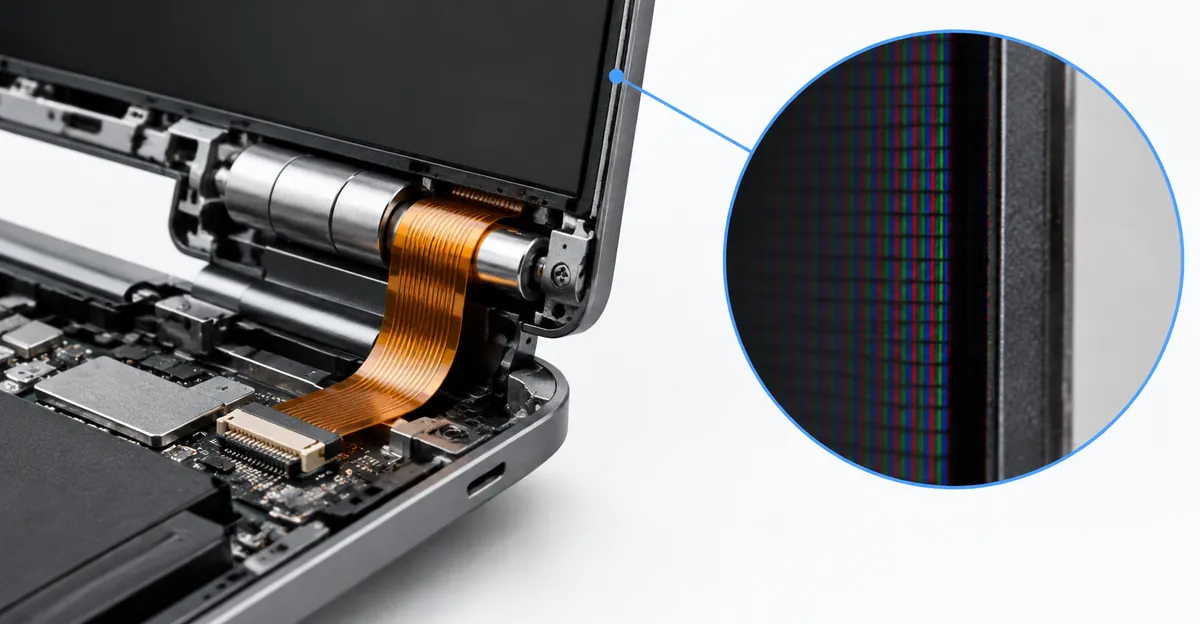
ScreenDefect splits every line into three places, and Hardvance, updated 22 September 2026, uses the same three. The panel has row and column drivers along its edges. When one fails, you get a line that is one pixel or a few pixels wide, perfectly straight, and fixed from the moment the backlight comes on. The cable between the board and the panel, on a laptop the ribbon that runs through the hinge, produces lines that come and go, change when the lid moves, or arrive as bands. The graphics chip, or the driver software that paints the frame, can draw lines before the picture ever reaches the glass. Those three outcomes do not share a price. The rest of this page is how you tell which photograph you have.
Thin black lines on a laptop screen are the one-pixel case ScreenExam describes for a failed driver chip. Perfectly straight, a fixed width, and unwilling to change when the lid moves. A wider black bar can still be a block of those columns. It can also be no fault at all, which is the next distinction.
A thin line is not a black bar
Hardvance separates black lines from black bars because the two get searched as if they were the same word. A line is thin, sits inside the picture, and is a hardware or signal problem. A bar is thick, sits at the edge of the picture, and the panel is drawing a normal frame inside the wrong shape. A 16:9 image on a wider panel, a game locked to 4:3, or a resolution that is not the panel's native one produces that frame. The fix is the native resolution, and the monitor or television scaling set to fill rather than 1:1. None of that is a dead column.
If the dark region is a clean rectangle at the edge and the rest of the desktop is sharp, stop reading this page and set the resolution. If the dark region is a hairline through the middle of icons, text, and video, you are in the three-place split above. A hairline that is only visible on a photograph and gone on a plain white field is often the photo. A hairline that is obvious on white and invisible in a busy wallpaper is still a real column. ScreenExam says a plain white field is where faint single-pixel lines show up that a normal desktop hides.
Vertical and Horizontal Lines Name a Part Only After the Lid Test
Black horizontal lines on a laptop screen and a black vertical line on a laptop screen get typed as twins. The repair pages do not treat the direction as the first fact.
ScreenExam's own answers disagree, and both answers are on the same page. One answer says vertical lines usually point to a column driver and horizontal bands to the timing controller. Both chips are bonded to the panel, so the distinction matters more to a technician than to your bill. The other answer, written about Dell, HP, and Lenovo laptops, says black or colored vertical lines are most often the display cable at the hinge, not the panel. The test they name is to open and close the lid slowly and watch whether the lines react. If they do, it is the cable, and the cable is far cheaper than the display a shop may quote.
ScreenDefect draws the direction split a third way. A vertical line usually means a column driver has failed, or the connection to one column has broken. On many panels those column drivers sit along the top or bottom edge, bonded to the glass, which is why a vertical line that never moves is so often permanent. A horizontal line usually points at a row driver or, more often on a laptop, at the ribbon, because that cable carries row data and it is the part that flexes. Horizontal lines that change with lid angle are the signature they call classic for a worn hinge cable.
Hardvance will not let direction finish the job. The driver chips for rows and columns sit on different edges, so the axis narrows which edge failed. It does not change the test, and it does not change the repair options. Their sentence for the stripe itself is the one to keep. A thin stripe that does not move is normally a failed row or column driver, and it cannot be repaired without replacing the panel. A stripe that appears, thickens, or disappears as you move the lid is the ribbon cable.
Read those pages in that order and the contradiction disappears. Direction names a part only for the line that ignores the hinge. Apply ScreenExam's bonded-driver sentence, or ScreenDefect's column-driver sentence, to a line that thickens when you tilt the lid, and you have used the panel paragraph on a cable photograph. Apply the "vertical lines are usually the cable" sentence to a hairline that is identical at every angle, and you have bought the cheap part for a chip that those same pages say is bonded to the glass.
Vertical lines that ignore the hinge sit with the column driver, so the quote is a panel. Horizontal lines that ignore the hinge sit with the row driver or the timing controller, and the quote is a panel again. A horizontal band that only flickers inside Windows, and that is missing from the logo, is not that panel sentence. It is the next section.
One pass is the whole cable test
Pro-LCDs uses the same split without the brand paragraph. If the picture changes when you slightly move the screen or open and close the lid, check the video cable first. If the lines stay exactly the same at every position, the LCD panel is the more likely part. One gentle pass through the hinge is that test. Watch whether the line changes width, position, or whether it is there at all.
A temporary clear angle is evidence, not a repair. It shows the panel can still draw at some openings, which is why a cable repair is even a conversation. It is also another bend in a cable Hardvance says can fracture a conductor after a few thousand open-and-close cycles. After you have seen the change, or seen that there is no change, leave the lid where the picture is usable. Do not hunt a sweet spot for the rest of the evening.
Do not press the glass while you do this. ScreenDefect says videos that tell you to press near the line are describing a loose ribbon inside an older panel, and on a modern bonded display the likely result is a cracked layer and a worse screen. Hardvance allows one very gentle press at the bezel edge, near where the line starts, and only to see whether something loose reacts. They forbid pressing the glass, and they forbid pressing hard. They also say heat and massage belong to stuck pixels, which are a different fault, and neither has a mechanism that would repair a driver chip. Skip the bezel press if you are not sure where the bezel ends and the glass begins. The lid movement is the test that every one of these pages actually shares.
A Line That Appears and Disappears Is Not One Fault
Laptop screen lines that appear and disappear get filed under one cause, usually a dying panel. The fetched pages describe three different photographs, and only one of them is the hinge cable.
The first photograph moves with the lid. ScreenExam calls the change, the appearance, or the vanishing when you open, close, or gently flex the lid the single biggest clue that the ribbon is loose or fraying. Pro-LCDs lists the same behavior as a reason to check the cable inside the hinges, along with an image that disappears at one opening angle. ScreenDefect adds the version where the line vanishes when you press near the hinge, and flicker as the screen opens. That is a connection. It is the comparatively good news in their solid-versus-flicker section, because a worn cable is the cheap part. It is not a reason to keep flexing the lid after you have seen it once.
The second photograph never needs the hinge. The lid stays parked. The maker's logo is clean. The line is there once Windows has drawn the desktop. Hardvance treats that split as the one-minute test. Lines already on the logo mean hardware, and nothing you install will change them. A screen that is clean until Windows appears is software, almost always the graphics driver. ScreenExam calls a bad driver the rarest cause of a true line, and the way you know is the opposite of the logo test. No lines on the boot screen, the lines often vanish in safe mode, and they frequently start right after an update. Updating or rolling back the display driver is the whole software repair. If the stripe is painted before Windows starts, no driver package will lift it.
Hardvance names the key that restarts the graphics driver on Windows. Windows, Ctrl, Shift, and B together. The screen blinks. If the lines clear, and they were never on the logo, you have found the driver. If the lines were on the logo, that keystroke is a blink and nothing else. A line that began the hour a feature update finished belongs in this paragraph only when the logo is clean. Sudden onset after the machine was moved, Hardvance says, points at a cable instead.
The third photograph is inside one window. Hardvance says horizontal lines that appear only in one application, or only in a game, are not a screen fault. The panel is reporting a frame that the app or the driver already drew wrong. ScreenDefect's screenshot test is the matching check. A line that is inside the screenshot file is the graphics card or the driver. Open that file on a phone. If the stripe is missing from the file and obvious on the laptop glass, the machine composed a clean frame and the panel path added the mark afterward. If the stripe is in the file, replacing the panel will not remove it.
Flicker of the whole picture, rather than one line that comes and goes, is a different fault. Hardvance sets it aside on purpose. Do not diagnose a blinking desktop with the single-stripe rules above.
A line that is black on a white page and gone on a green page is not "appearing and disappearing" in the cable sense either. ScreenExam's color step says a single color points at that sub-pixel channel. That pattern belongs with colored lines, even when the word you typed was black. ScreenDefect is explicit that the color narrows the electrical cause and does not, by itself, decide whether the repair is a cable or a panel. A green line and a black line in the same position have the same outlook once the behavior tests are done.
When a Black Line Gets Bigger, or Shows Up After a Drop
"Getting bigger" is two measurements, and the pages use them for different parts.
In one sitting, a line that thickens, moves, or disappears as the lid travels is Hardvance's cable. The width change is the hinge acting on a cracked conductor. It is not the panel "spreading" during that one motion. Leave the lid parked after you have seen it. Another hundred open-and-close cycles are how Hardvance says a conductor finishes fracturing.
Across days or weeks, with the lid left alone, growth means something else. ScreenExam says lines from physical damage usually spread over days or weeks, and that spreading is the giveaway, next to lines that radiate from a point of impact or that arrive with a dark blot or a spider crack. ScreenDefect says a solid, unchanging line usually does not spread, and that a line which grows, or gains company over weeks, is a failing panel edge or a failing timing controller. Both get worse. Hardvance, writing about a single straight vertical line on a monitor, says a failed column driver will not heal and often slowly grows more neighbours over months. One line becomes two, then a band. They call that progression the clearest signal that the panel is on its way out, which is why a photo today is worth more than a memory of the line next month.
Put the laptop sentences together. A hairline that ignores the hinge, stays the same width in one lid pass, and then grows a parallel neighbour over the following weeks is the panel-edge pattern, not a cable that you failed to reseat. A hairline that only gets wider while you are moving the lid is the cable, even if it looks dramatic in that moment. A field of lines that arrive together, or lines plus a distorted image, is the case ScreenDefect says is usually not one dead column at all. On a television or a desktop monitor that pattern often sits on the timing-controller board. On a laptop, the same crowded picture, especially if the second screen matches, points at the graphics chip.
A straight line after a drop is not automatically cracked glass
A drop, or a lid closed on a pen, is a different event from a cable that hates one angle. ScreenExam's physical-damage picture is lines that radiate from the impact, or a dark blot, or a spider crack. Pro-LCDs lists cracks, black areas, colored stains, an ink-leak appearance, and lines starting from an impact point as the signs of a broken LCD. They add the fact people miss. The outer glass may look intact while the internal LCD layer is broken. A software reset will not repair that panel. ScreenDefect says the same about warranty. A line that appeared immediately after an impact is accidental damage, even when the case is unmarked, because a knock can crack the bonded driver edge without leaving a mark you can see. A line that appeared with no drop, no knock, and no liquid is a hardware failure, and dead-pixel counts do not apply to it. A line is a driver or a connection failure, not a pixel tally.
The case those pages leave open is the straight line after a drop that does not fan out. Pro-LCDs says a cable can be pinched, not only worn by years of flexing, and they tell you to replace the cable when it is cut, pinched, oxidized, burnt, or when the picture changes with the opening angle. They do not tell you to add a cable onto every panel job automatically. So a drop does not skip the lid test. One gentle pass still matters. If that straight line changes with the angle, the drop may have pinched the ribbon, and a panel price is still the part ScreenDefect says not to accept until the cable has been ruled out. If the line is there at every angle, fans from one point, or sits inside a dark blot, you are in ScreenExam's cracked-layer picture. The warranty argument is accidental damage, not "how many dead pixels does the policy allow." Standard warranties, ScreenExam says, nearly always exclude that physical damage, though an accidental-damage plan may apply. Photograph the glass, including the fact that the front film is smooth if it is, before anyone tells you the outside looks fine so the panel must be innocent.
Windows 10 and Windows 11 Do Not Name the Cause
Vertical lines on a laptop screen in Windows 11, and the same search with Windows 10 in the sentence, treat the operating system as the cause. The pages that actually separate software from hardware do not use the version number.
Hardvance's first test is to restart and look at the maker's logo, before Windows loads. At that moment the graphics driver has not loaded. Lines already there are hardware on Windows 10 and on Windows 11. A logo that is clean, with the line arriving only on the desktop, is the driver path on both versions. ScreenExam's safe-mode step is the same gate. If the lines vanish in safe mode, and they were absent from the boot screen, the driver is the cause they allow. The version you are running does not move that gate.
The keystroke Hardvance gives you, Windows with Ctrl, Shift, and B, restarts the graphics driver. It is a Windows shortcut, not a Windows 11 feature update. Use it only after you have seen a clean logo. If the line survives it, and the logo was dirty, you have spent a second confirming hardware. If the line started the day a feature update finished and the logo is clean, roll the driver back or install the package the laptop maker publishes for that model. ScreenExam says that update-or-rollback is the whole software repair. Do not open the hinge because a Windows update notes page mentioned display improvements.
Hardvance has a second software-shaped test that is easy to misread on a laptop. Drop the refresh rate one step. Lines that vanish at the lower rate point at the cable or at the bandwidth it can carry, and they say this is common with a cheap or long HDMI cable on a high-refresh screen. That sentence is about the cable between a computer and an external display. If your built-in panel shows the line on the logo, lowering the Windows refresh rate will not rename it as a Windows 11 bug. If the built-in panel is clean and the line exists only on an external monitor, then the HDMI or DisplayPort cable is the first swap, which is ScreenExam's desktop-monitor step and not a laptop-panel step.
A Dell laptop can show you the panel with Windows out of the way without guessing at the logo. Hardvance describes Dell's LCD built-in self-test, the hold-D color sequence, as that shortcut. The steps, and what a pass means on a Dell, are on the Dell black-line page. A line that is still there in those colors has left the Windows conversation, whichever version installed the last update. HP and Lenovo machines follow the same logo test when they do not ship an equivalent color sequence. The brand does not create a separate cause. It only changes whether you have a key to hold.
How to Name the Cause in One Sitting
The shared advice is the floor, and it is short. ScreenExam's order is an external monitor, then the boot screen, then one slow lid pass, then white, black, and the primary colors, then safe mode if the logo was clean. Pro-LCDs starts from the same external-monitor idea and then refuses to stop at "the panel is fine or it is not." Their table is the part people skip.
| What the second screen does | What you see on the laptop | What those pages name |
|---|---|---|
| Clean picture | Lines that change with one lid pass | Hinge cable. ScreenExam, Pro-LCDs, and Hardvance |
| Clean picture | Lines identical at every angle, already on the logo | Panel or its bonded driver. ScreenExam and Pro-LCDs |
| Same lines | Same stripe before Windows | Graphics chip. Do not buy a panel |
| Picture only after Windows loads | Anything | Settings, driver, BIOS, or the video output. Pro-LCDs |
| Clean picture | Lines only in one app, missing from a screenshot file | That app's renderer, not the glass |
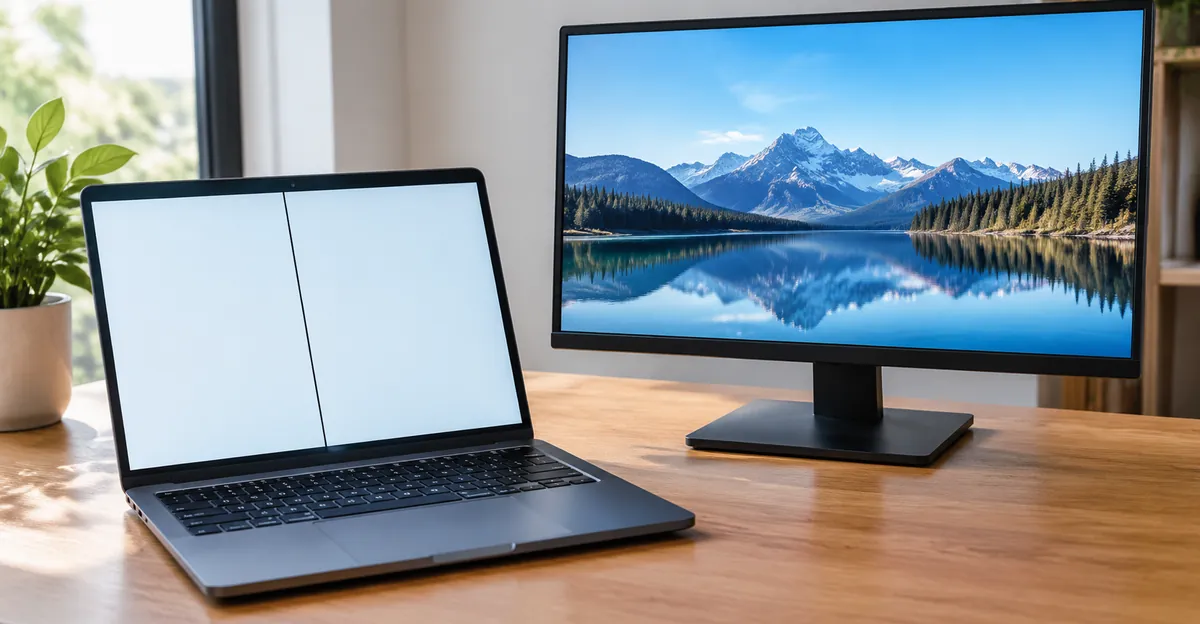
A clean second screen is why a panel quote and a cable quote are both still open. ScreenExam's "new machine" outcome is the both-screens case. Even there, they say a soldered graphics chip on a laptop is often uneconomic, and they tell you to get a quote before you commit. Pro-LCDs says replacing the panel when the external display is also dead can be a wasted part. Do not buy a panel because a forum said the graphics chip is rare. Buy it when the second screen is clean and the line also refuses to move.
Take four facts to whoever is pricing the machine. A photo of the line on white and on black. One sentence on the lid, including the words no change if nothing moved. Whether a second screen matches. Whether there was a drop, a lid closed on an object, or no event at all. ScreenDefect says that package is what settles a warranty argument. A no-impact line while the machine is in warranty is a hardware failure. An impact line is accidental damage even when the outside looks perfect. Dead-pixel thresholds are the wrong policy either way.
What the price is actually buying
ScreenDefect is the only fetched page that prints cable and panel ranges side by side. In the United States they list a display cable at about 20 to 40 dollars plus labour, and a laptop panel at about 100 to 300 dollars. They date those ranges to shop and manufacturer price lists on 6 September 2026, and they say to get two quotes because the number moves with the model and the city. They also say touch, high-refresh, and OLED panels cost several times more than a standard 1080p panel, and that on some thin machines the panel is bonded to the whole lid, which changes the price entirely. Ask which of those the quote covers. A cable, a panel, and a display assembly are three different parts.
Hardvance's economics match that split without the dollar figures. If the fault is the hinge cable, it is a comparatively cheap part and a job many shops do routinely, so repairing a laptop that is otherwise healthy usually makes sense. If the fault is the panel, the cost climbs, and on an older machine it can exceed what the laptop is worth. The hinge test is what tells you which situation you are in before you pay anyone to look. ScreenDefect's rule is the one to repeat at the counter. Never accept a panel quote for a laptop until someone has ruled out the cable.
This page stops when the part has a name. Reseating a connector, ordering a ribbon, and swapping a panel are repair steps, and they live on the black lines on a laptop screen page. If the machine is opened, Pro-LCDs adds one warning that belongs to the cause, not to a tutorial. Never connect or disconnect the screen cable while the battery is connected. A short can damage the backlight circuit or a fuse on the board, and then a new panel will not be enough. They also say a replacement panel is not chosen by size alone. A 15.6-inch panel can differ in resolution, pin count, connector position, and touch. That is why a quote that says "a 15-inch screen" has not yet named the part.
What a Black Line Is Not
A colored line is not a separate mystery with a separate machine. ScreenDefect says the color tells you which channel failed and does not tell you whether you can fix it. Pink, green, and white lines run through the same lid test and the same second screen. Hardvance's own shop reading, which they flag as analysis rather than a specification, is that a colored fault covering an area leans toward the cable, and a colored fault that is exactly one line wide leans toward the panel. Use that as a prior, then do the tests. The colored-line page is where a mark that exists on only one primary color should go next.
A Mac is not this cable. ScreenExam's note on 2016 and 2017 MacBook Pro models describes a short backlight flex, a band or black lines along the bottom that worsen as the lid opens further, sometimes cutting out past roughly 40 degrees. That is a named design fault on those lids, and Apple's repair program for the affected 13-inch models has closed. A modern Windows laptop with a thin black line through the middle of the desktop is not that story. The black line on a Mac screen is the page for a MacBook or an iMac. Do not price a Windows ribbon from a Flexgate thread.
A brand name is not a cause either. ScreenExam groups Dell, HP, and Lenovo for one sentence. Vertical lines on those machines are most often the hinge cable, and only after the lid reacts. ScreenDefect names a thin eDP cable through the left hinge on HP Pavilion, 15s, and Victus models, and a similar pattern on Lenovo IdeaPad models, again for lines that change with lid angle. Those are examples of the cable photograph, not a reason to skip the test because the palm rest says HP. A Dell that can run colors with Windows shut out should use that test. The other brands use the logo. Asus, a gaming lid, and a thin office lid all still fail in the same three places.
Many lines falling across the glass at once are not "a black line" in the one-column sense. ScreenDefect says many lines together, or lines plus distortion, usually mean the timing controller on a monitor or the graphics chip, not a single failed column. If that field is also on the external display, you are in the graphics row of the table above. If it is only on the laptop and it fans from a corner you dropped, you are in the cracked-panel picture. Neither one is fixed by the driver keystroke.
Related Guides
- Laptop Screen Lines Hub: All laptop line types and colors
- Black Lines on Laptop Screen: Repair path once the part has a name
- Black Line on a Dell Laptop: Hold-D self-test and Accidental Damage
- Vertical Lines on Laptop Screen: Column-driver and hinge-cable split
- Black Line on a Mac Screen: Flexgate, not a Windows ribbon
- Dead Pixel: A dot, not a stripe
Conclusion
What causes black lines on a laptop screen is one of three breaks, and the pages that rank for the search already agree on the tests. A line that changes in one lid pass is the hinge ribbon. A thin line that ignores the lid and is already on the logo is a row or a column in the panel. The same line on a second screen is the graphics output, and a new panel will not hide it. A line that exists only after Windows loads is the rare driver case. A line that grows over weeks while the lid stays still, or that fans out after a drop, is damaged glass, not a Windows 11 setting.
Photograph the line on white and on black in the Screen Test, write down whether one tilt changed it, and write down whether a second screen matched. Then ask which part the price replaces. A cable at the range ScreenDefect printed is not a panel, and a panel quote before the cable has been ruled out is the mistake every one of those repair pages tells you to refuse.