Black Line on a Dell Laptop Screen: What It Means
A black line on a Dell laptop screen is a stripe you can point at. It may run from top to bottom, from side to side, or only while the lid sits at one angle. Inspiron, XPS, Latitude, G Series machines people search as a G15, and Alienware all appear in the same Dell support articles, and the first tests do not change with the badge on the palm rest.
Pages that already rank for lines tell you to plug in a second display and to watch the lid. Dell's own screen article tells you to hold the D key. Those steps are the floor. They do not finish the decision. A failed color test still does not say whether the quote is a cable or a panel. A clean second screen still leaves that same split. Two Dell pages do not even agree on when you can buy Accidental Damage.

What a Black Line on a Dell Laptop Screen Is
A black line on a Dell laptop screen is a stripe with an edge and an axis. A single dead pixel is a dot. A line runs along a column or a row, and two stable lines are two of those columns or rows. The word black is the color people type. It is not a part number.
ScreenExam's line guide separates the pictures that look alike and end in different repairs. A line that is perfectly straight, about one pixel or a fixed block wide, and that never changes when you move the lid, is a failed driver on the panel itself. Column drivers feed the vertical lines. The timing controller and the row drivers feed the horizontal bands. Those chips are bonded to the glass, and ScreenExam says they are not separately serviceable in practice, so the panel is what gets replaced. That reading applies only to the line that ignores the hinge. It is the wrong reading for a line that moves, which is the next section.
The same page asks you to open a white field, then a black one, then red, green, and blue. A mark that shows on only one of those colors points at that sub-pixel channel. A stripe that is dark on white, still there on black as a missing row, and still there on red, green, and blue is not a tint in one channel. A plain white field is also where a hairline shows up that a photo on your desktop will hide. The general map of black lines on a laptop screen is the brand-neutral version of that split. What the stripe is actually buying — cable, column, or GPU — is named on what causes black lines. On a Dell, the extra fact is the built-in color test below, because it takes Windows out of the picture before anyone names a panel. The rest of the laptop screen lines cluster uses the same lid test without the D key.
A line that is already on the boot screen, before the operating system loads, is hardware in ScreenExam's order of checks. A driver is the rarest cause they allow for a true line, and the way you know is the opposite picture. The line is absent from the BIOS or boot screen, it often vanishes in safe mode, and it frequently starts right after an update. Updating or rolling back the display driver is the whole software repair. If the stripe is painted before Windows starts, no driver package will lift it.
A white or blinking line on a black screen
A white line on a black screen, or a line that blinks, gets typed into the same search as a stable black stripe. They are not the same photograph.
Dell's laptop screen test lists flickering, flashing, and unstable areas among the things to watch for while the colors are up. The same article is explicit that the test checks screen hardware only. It does not check Windows settings, the graphics driver, or other software. If every color is clean and the power LED is not flashing a fault code, Dell says the screen hardware is working and points you at the driver, the display settings, and Windows Update.
That is the blinking case. A white line that flashes on a black Windows desktop, and that is missing while Dell's colors are running, belongs on the driver path. A stripe that is still there on black, white, red, green, and blue during that test has left the driver conversation, even if it also blinks. Flicker that never hardens into a mark you can photograph on a cold white page is not yet a dead row. If the blink lives in one application and a screenshot file opened on your phone does not contain it, that application drew it.
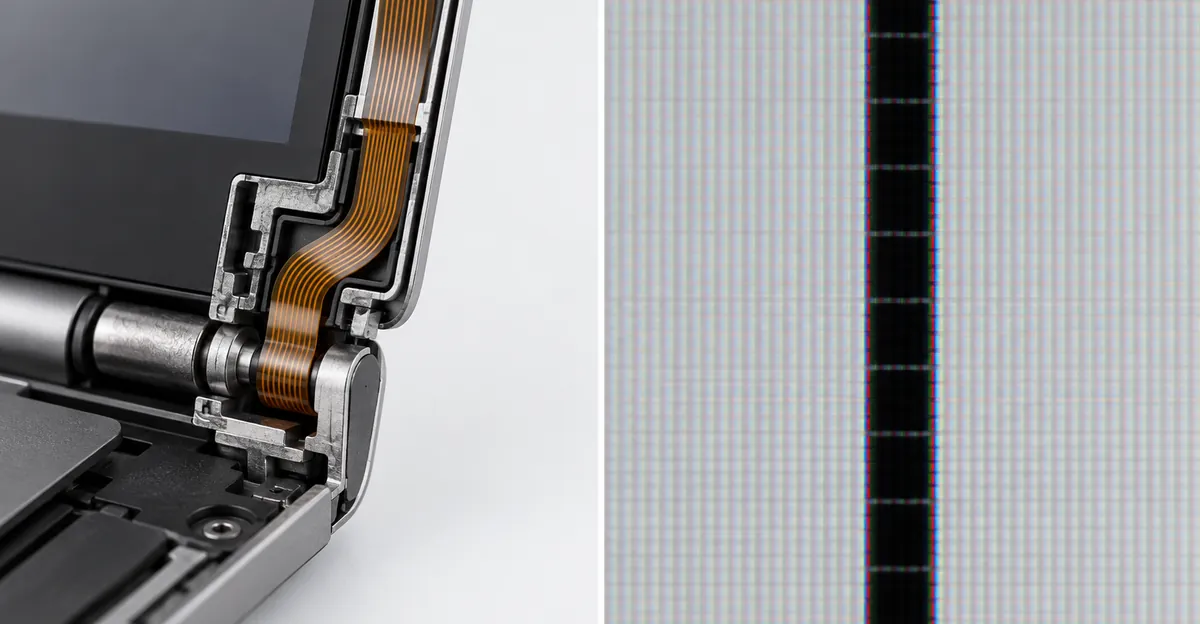
ScreenExam's short note on Dell, HP, and Lenovo laptops says black or colored vertical lines are most often the display cable at the hinge, not the panel. That sentence is a prior, not a diagnosis. It becomes a cable only after the lid test. Until you have moved the lid once, a black vertical line on a Dell laptop screen is still just a stripe.
Vertical, Horizontal, and a Line That Moves With the Lid
Direction matters only after you know whether the line is willing to move.
ScreenExam tells you to open and close the lid slowly. Lines that appear, vanish, or change are the ribbon that carries video through the hinge, and they call that the cheapest fix. Their Dell paragraph repeats it. Test the vertical line by watching whether it reacts. If it does, insist a shop look at the cable before quoting a display, because the cable is far cheaper than the panel. Pro-LCDs draws the same line. If the picture changes when you slightly move the screen or open and close the lid, check the video cable first. If the lines stay exactly the same at every position, the LCD panel is the more likely part.
Then ScreenExam answers its own question about vertical versus horizontal, and the answer sounds like the opposite. Vertical lines usually point to a column driver, horizontal bands to the timing controller, both are bonded to the panel, and the distinction matters more to a technician than to your bill. Both of those answers are on the same page. They describe two photographs. The bill-does-not-change answer assumes the line never moves. The Dell-is-usually-the-cable answer assumes it does. Pay a panel price for a line that shifts with angle, and you bought the part their cable section calls the expensive one. Pay a cable price for a line that is perfectly straight and ignores the hinge, and you bought a part their driver section says is not serviceable on its own.
Horizontal lines that ignore the hinge sit with the row-driver and timing-controller reading, so the quote is a panel. Vertical lines that ignore the hinge sit with the column driver, and the quote is a panel again. A horizontal band that flickers only inside Windows, and that is gone during the color self-test, goes back to the driver path. Dell's test page lists horizontal and vertical lines as a reason to run the colors. It never uses the direction to name a cable.
One tilt is the whole cable test
One gentle pass through the hinge is the test. Watch whether the line changes width, position, or whether it is there at all. ScreenExam does not describe hunting a sweet spot as a repair. A temporary clear angle is evidence the panel can still draw at some openings, which is why a cable repair is even a conversation. It is also another bend in a cable that is already fraying. After you have seen the change, or seen that there is no change, leave the lid where the picture is usable.
Closing the lid on an object is a different event from a cable that hates one angle. Dave's Computers, a repair shop in Somerville, New Jersey, describes an internal crack on their Dell screen page. The film on the front stays smooth. The thin glass inside the LCD cracks. You see black or purple blots, lines fanning out from one point, or a dead area. The causes they name are closing the lid on a pen, earbuds, or a mouse left on the keyboard, opening the lid from one corner, or a bag pressing on the lid. That fan does not come and go at a sweet spot. Pro-LCDs makes the matching observation. The outer glass can look intact while the internal LCD layer is broken, and a software reset will not repair a panel that cracked in an impact.
A black horizontal line that only shows while you are in the middle of closing the lid, and that is gone when the lid is parked, still belongs to the cable test. A fan of lines that is there at every angle, on a lid you closed onto a charger, belongs to the glass. Write down which of those two you actually have before you let a shop use the word cable.
A Clean External Screen, and Black Lines on a Dell Monitor
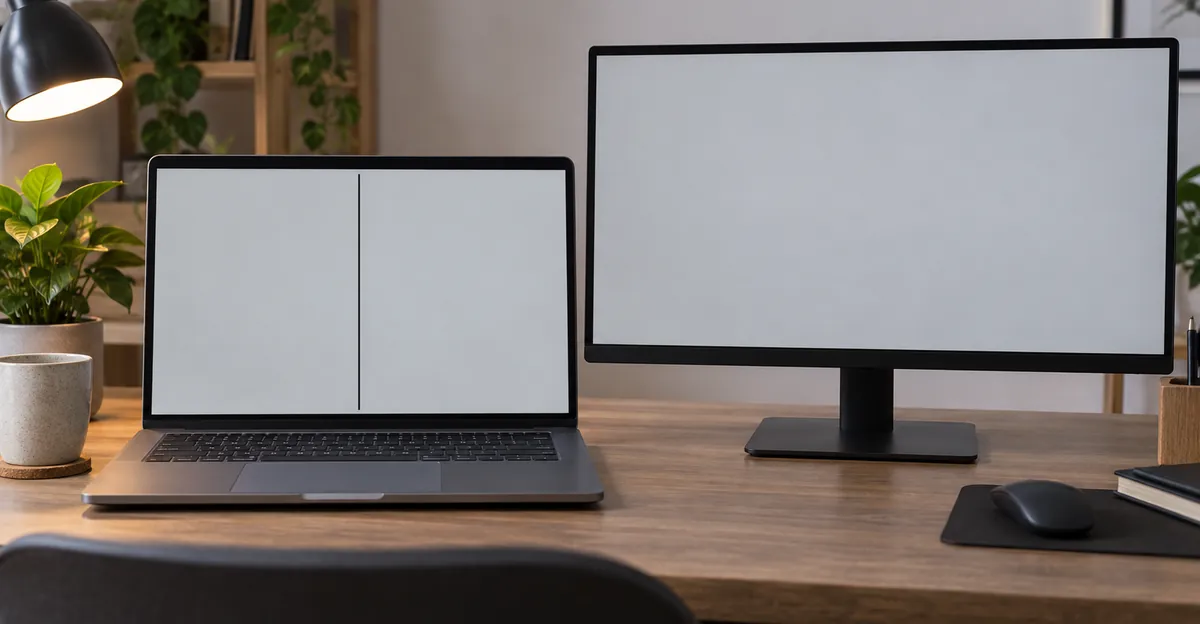
ScreenExam opens with one test. Plug in an external monitor. Lines on both screens mean the graphics chip painted the mark, and the panel is innocent. Lines only on the built-in screen mean the panel or its cable. They say that single step decides whether you are looking at a cheap cable or a new machine.
Pro-LCDs will not let the sentence end there. Connect a monitor or a TV by HDMI, USB-C with DisplayPort, DisplayPort, or VGA, whichever output the laptop actually has. Their table has four rows, and the row people skip is the important one. An external screen that works, with lines on the laptop glass, means the panel or the video cable. An external screen that is also dead means the motherboard, RAM, BIOS, GPU, or a startup problem, and replacing the panel can be a wasted part. An external screen that works only after Windows has loaded means display settings, a driver, BIOS, or the video output, not a cracked LCD. A Dell that boots to a clean TV and then draws the stripe only on its own glass has not proved the GPU healthy for every port. It has proved that this port can paint a normal frame, so the stripe is in the built-in path.
A clean second screen is why a panel quote and a cable quote are both still open. ScreenExam's "new machine" outcome is the both-screens case. Even there, they say a soldered GPU on a laptop is often uneconomic, and they tell you to get a quote before you commit. Do not buy a Dell panel because a forum said the GPU is rare. Buy it when the second screen is clean and the line also refuses to move with the lid. If the second screen shows the same stripe, stop pricing the glass.
The monitor's test is not the laptop's D key
A black line on a Dell monitor, with a clean laptop panel beside it, is the monitor's fault or the cable between them. It is not a reason to run the laptop test.
Dell's laptop article answers this in the FAQ. The D-key test is for Dell laptop screens. A Dell desktop monitor has its own diagnostic, reached through the monitor's controls. The monitor diagnostic page is the one they point at. You identify the monitor by model or Service Tag, open its user guide, and follow the built-in diagnostics, which Dell also calls the integrated self-test. Horizontal or vertical lines are one of the symptoms that page lists. If the line is present while that self-test is running, contact Dell about the monitor. If the self-test is clean, the monitor hardware passed, and the next Dell article is video troubleshooting rather than a new panel.
ScreenExam puts a cheaper step in front of that panel. On a desktop monitor, swap the video cable and try another input before you call the panel dead. A failing HDMI or DisplayPort cable makes lines, sparkles, and dropouts that look like a dying LCD. Dell's monitor page does not cancel that swap. The user-guide self-test is how you learn whether the line survives when the monitor is running its own diagnostic. Button numbers differ by model, and Dell sends you to that model's guide instead of printing one sequence for every UltraSharp and every G-series display. Do not borrow the laptop's D key for this job. Holding D on the computer tells you nothing about a monitor that already has the line with the laptop showing a normal picture.
If the line is on both the laptop and the Dell monitor, you are back in the both-screens case. A passing monitor self-test plus a lined laptop is the built-in path. A failing monitor self-test plus a clean laptop is the monitor. A line that is on both, before either self-test, is the machine's video output until one of those tests removes it.
What the LCD Self-Test Decides, and What a Pass Leaves Open
Dell laptops can paint their own test colors without Windows. The current LCD built-in self-test article says to use it for a blank screen, unusual lines or dots, faded color, missing regions, a panel you think is cracked, flicker, blur, bright or dead pixels, light leaks, or bubbles. The test is safe, it needs no install, and it runs even when Windows will not start.
Do it in this order.
- Save your work, shut the computer down, and wait until every light is off.
- Unplug external monitors, USB devices, docking stations, and headphones. Leave the charger connected. Dell says the adapter matters for an accurate result.
- Wipe dust off the glass with a soft cloth so a speck is not a pixel.
- Hold the D key, then press power. Keep holding D until colors fill the screen, then let go. If nothing happens, you pressed power first. Use two hands.
- On the basic test the colors are black, white, red, green, and blue. Each one stays up for a few seconds, and the sequence repeats until you stop it.
- Look for a horizontal or vertical line, a spot, flicker, a region that stays dark, a washed-out color, or a fuzzy patch. Dell says a real fault usually shows on more than one color. Note where it sits.
- Press Esc, or hold power for about ten seconds, to leave the test.
Newer laptops, once the BIOS is current, add an enhanced pass. Dell describes that sequence as white, black, red, green, and blue, twice. The page itself lists the basic order with black first and the enhanced order with white first. Do not fail the test because the first color was not the one a forum remembered. During the enhanced pass, also look for cracks, a spider-web, pressure marks, dead pixels, uneven brightness, and, on a touch model, touch that does not answer. Watch the battery or power LED. The enhanced codes Dell prints are four amber flashes followed by three, four, five, or six white flashes. An older BIOS can still show the retired codes, two amber and seven white, or two amber and eight white. A machine that only shows the basic colors is behaving normally for its age or its BIOS. Dell recommends the BIOS update so the enhanced codes exist. If the built-in glass is too far gone to see the updater, they say to use an external monitor for that update. A BIOS update does not erase a line that is already sitting in the colors.
A perfect set of colors and a quiet LED means the screen hardware passed. Dell then tells you to update the graphics driver, check Windows display settings, and run Windows updates. That matches ScreenExam. Lines that are missing before the operating system loads can be the driver. Lines that are present on the boot screen cannot.
Write down the colors and the LED count
A line during those colors proves the mark is not a Windows drawing. It does not prove the glass is the part you should buy.
Dell's result line for lines, dots, dark areas, distortion, or a flashing LED is that the screen may need professional service. Write down what you saw, count the flashes, take a phone photo, and contact Dell. The article never says to pop the bezel off or reseat the flex. The safety block says to use only the procedures in that article and in the user manual. Other methods can mean electrical or mechanical damage. This guide stops where Dell stops. Dave's Computers says the repair they most often see after a home screen swap is a wrong panel or a torn ribbon, and that the second bill is higher than the job would have been. Pro-LCDs adds one handling fact that does not require a tutorial. Connecting or disconnecting the screen cable while the battery is still connected can damage the backlight circuit or a fuse on the board. Leave the connector alone.
The lid result is the fact Dell's page does not ask for, and it is the fact that changes the quote. A line in the colors, plus a change when the lid moves, is still the cable picture from ScreenExam and Pro-LCDs. A line in the colors, plus no change at any angle, is their bonded-driver picture, and the panel is the part. Bring both observations. A shop that quotes a panel from the photo alone has not used the test those pages treat as the cheap branch.
Cracks, pressure marks, or a spider-web on the enhanced pass are a separate result on the same Dell page. The glass needs replacement, and physical damage typically is not covered by the standard warranty. Support can read your entitlement. A hairline with no crack and no pressure mark is not that paragraph. Do not let a technician file a plain stripe as broken glass because both showed up during a color test.
A self-test that stays black is also not a black line. Dell's steps for a blank test are to confirm the machine was fully off, hold D firmly before power, confirm the adapter, look for a power light, and then call support. Pro-LCDs treats a picture you can see only with a flashlight as a backlight problem. The video signal may be present while the lighting is not, and the cause can be the panel, the cable, or a power part on the board. That faint image is not a stripe, and a stripe article should not send you to a backlight fuse.
After a Drop, and What the Dell Series Changes
The three checks do not grow a new branch because the lid says Inspiron or Alienware. Dell's self-test article and the base-support exclusions article both list Inspiron, Latitude, XPS, G Series, and Alienware among the products they cover. The D key, the second screen, and the one tilt stay the same.
A drop, or a lid closed on something, changes the damage story. It does not change the tests. Pro-LCDs says a panel cracked in an impact shows cracks, black areas, colored stains, an ink-leak look, or lines that start at the impact, and that the outer glass is sometimes still intact. A reset will not fix it. ScreenExam says lines that radiate from the impact, or that arrive with a dark blot or a spider crack, usually spread over days or weeks, and that the spreading is the giveaway. The repair is replacement. They say physical damage is nearly always outside a standard warranty, with accidental-damage cover as the maybe. Dave's describes the version where you cannot feel a crack at all. Pressure on the lid breaks the inner glass, the front film stays smooth, and the lines fan from one point. They tell you to stop pressing the area, because pushing it spreads the crack. Their home test for that picture is the external display. A perfect TV picture means the computer is running and the panel is the part.
A black line that appeared with no drop, no pressure, and no fan from a point is not that photograph. Do not invent an accident so the story matches a warranty exclusion. Write "no event" if there was no event.
Inspiron, XPS, Latitude, G15, and Alienware
What the series changes is the part a shop has to match, once the tests have already said the panel is the part.
Pro-LCDs is blunt about ordering. A panel is not chosen by diagonal size. A 15.6-inch screen can be HD or Full HD, 30-pin or 40-pin, eDP or LVDS, matte or glossy, touch or not, with brackets or without. The reference is printed on the back of the original panel. Photograph the label, the connector, and the mounts. You cannot see that label without opening the machine, so it is a bench step. The sticker you can read at the kitchen table is the service tag on the bottom. Dave's uses that tag to identify the panel before they order, and Dell's out-of-warranty article asks for the Service Tag, the Express Service Code, or the model before any paid path starts.
Dave's series notes are one shop's description of the hardware, not a failure ranking.
- Inspiron is the common consumer line, Full HD, touch and non-touch. A 2-in-1 usually takes a complete display assembly, and that assembly costs more than a bare panel.
- Latitude is the business line. Some panels include Dell SafeScreen privacy, and a privacy model needs a matching privacy panel.
- XPS is the thin-bezel line, with high-resolution and OLED options. Many of those screens are replaced as a full assembly, and Dave's puts them at the top of the price range or above it.
- Alienware and G Series, which is the family a G15 belongs to, use gaming panels at 144 Hz and higher. The replacement has to match that refresh rate, or the new glass will not do what the old glass did.
- They also service Precision and Vostro. Precision includes 4K and color-critical panels. Vostro usually sits in their ordinary range.
None of those notes is a reason to skip the self-test. A G15 whose stripe is also on a television is still the video-output case, and an OLED assembly will show the same stripe. An XPS whose line shifts when the lid moves is still a cable conversation, and the fact that the assembly is expensive is why you want that conversation before the part is ordered. The series changes the invoice. It does not change which of the three tests you run first.
Warranty, Accidental Damage, and the Price on the Quote
Dell does not publish a single screen price, and the warranty answer depends on which picture you hand them.
The base-support exclusions page says damage from accident, abuse, and misuse is outside the Dell Limited Hardware Warranty and outside the base support terms that include it. The LCD examples, which the page says are illustrations and not a complete list, are cracked glass, internal cracked glass, black spots from a broken substrate, abrasion from external pressure, liquid spilled into the machine, vertical lines from LCD damage, and pressure marks. Enhanced plans cost extra. The names Dell prints include Accidental Damage Coverage, Premium Support, ProSupport, Dell Cares, Alienware Care, and Alienware Elite Care. The same page says Accidental Damage coverage can be purchased on any Dell system that is still under active warranty, to cover accidental damage like those examples. Intentional damage is outside every Dell service plan.
Read the label on the vertical-line example. It says vertical lines from LCD damage. It sits beside photographs of cracked glass. It is Dell showing a line that came from damage to the LCD. It is not a rule that every vertical line is an accident. A stable line with no impact, no pressure mark, and no crack is a defect question, and defects are what the base warranty is for. Check the Service Tag before you assume you will pay. A fan of lines after a drop, or after the lid shut on a pen, is the picture in that exclusions list. The self-test page says the same thing in plainer words for the enhanced result. Cracks, pressure marks, and spider-web patterns mean the glass needs replacement, and physical damage typically is not covered by the standard warranty. Dave's, speaking as a shop and not as Dell, says a cracked or pressure-damaged screen generally needs accidental-damage coverage, and that you should ask Dell what your plan includes.
Two Dell pages disagree on when you can buy the cover
The out-of-warranty repair article describes Accidental Damage, which it also calls Complete Care, as optional cover for damage the base warranty does not include. Then it adds a note. This coverage is only available at the time of purchase of the computer. The exclusions page says the opposite about timing. Coverage can be purchased on any system under active warranty. Both pages are Dell's. This guide will not flatten them into one slogan. Open Dell Support Home, enter the Service Tag, and read the offers that tag actually shows. Renewal or extension of a warranty is sometimes for sale, and availability depends on the product, the country, the age of the machine, the warranty type, and the channel you bought it through. A sentence on a forum about adding the plan later is how a repair gets paid twice, once for a plan the tag page never offered and once for the panel.
If the warranty is already over, the hardware path on that article is Hardware Diagnostics. You book it online with the Service Tag. Dell sends a box and a label, generally within one to two business days. A technician diagnoses the machine and recommends a repair. You receive the cost by email or text. If you approve and pay, they repair it and send it back. If you decline, they send it back unrepaired, with no extra repair charge. The diagnostic fee itself is not refunded either way. Bring a short description of what the colors showed, photos of any crack you can see, and a way to pay. Software Support is the other paid offer, for the operating system and applications, and it refunds the fee when Dell cannot fix the issue or recommend a fix. A line that is sitting in the color self-test is not that ticket.
The only dollar figures in the sources fetched for this guide come from one shop. Dave's Computers says most Dell laptop screen replacements there run $180 to $275, part and labor included, with a 90-day warranty on parts and labor. Touch screens, QHD or 4K, OLED panels they say are common on XPS, and high-refresh Alienware or G Series panels can run higher. They refuse to quote over the phone, because panel type, resolution, touch, and the condition of the hinge all move the number. The in-person estimate is free. One job they publish, a Latitude 5540 whose owner closed the lid on an object, was about $220 and went home the next day. They also say lines and flicker are sometimes a loose or damaged cable or a driver, and that those repairs cost less than a panel, which is why they look first. Treat $180 to $275 as that shop's panel job in New Jersey. It is not a Dell depot quote, and it is not what a cable repair costs.
| What you photographed | What the fetched pages do next | What the money is buying |
|---|---|---|
| Stripe on every self-test color, lid angle changes nothing | ScreenExam's bonded column or row driver. Pro-LCDs leans to the panel | A panel or a display assembly. A cable price is the wrong part |
| Same stripe, and one tilt changes it | ScreenExam and Pro-LCDs call it the hinge cable. Dell's color test still only says the screen needs service | A cable check before any panel. Dell does not tell you to open the lid yourself |
| Line only in Windows, colors were clean | Dell says driver and display settings. ScreenExam calls this the rare software case | No glass. Update or roll back the driver |
| Same line on the laptop and on a second screen | ScreenExam says the graphics chip. Pro-LCDs says do not order a panel yet | A board-level quote. A new LCD will show the line too |
| Laptop glass clean, the line is on a Dell monitor | Monitor self-test in that model's guide, not the D key. ScreenExam says swap the video cable first | The monitor, or the cable between the two |
| Lines fan from one point after pressure or a drop, front film still smooth | Dave's internal crack. Dell's exclusion examples include vertical lines from LCD damage and internal cracked glass | A panel, and likely not the base warranty |
Take six facts to whoever is pricing it.
- The Service Tag from the bottom sticker.
- A photo of the line on white and on black, plus whether the D-key colors showed the same line.
- One sentence on the lid, including the words no change if nothing moved.
- Whether a second screen matches the laptop.
- The LED count, if the enhanced test flashed amber and white.
- Drop, lid closed on an object, or no event at all.
Ask which part the price replaces before you approve it. A cable, a panel, and a display assembly are three different outcomes. Pro-LCDs says to replace the video cable when it is cut, pinched, oxidized, burnt, or when the picture changes with the opening angle, and not as an automatic extra on every panel. Dave's says the home swap gone wrong is a repair they keep seeing. The question to ask is the one both of those pages leave you holding after the shared advice. Is this price a cable, or have you already decided the glass is gone?
Related Guides
- Laptop Screen Lines Hub: Overview of laptop line types
- What Causes Black Lines on a Laptop: Name the part before the quote
- Black Lines on Laptop Screen: Brand-neutral repair path
- Vertical Lines on Laptop Screen: Column vs hinge
- Black Line on Screen: External monitor, not a laptop lid
- Dead Pixel: A single dark dot, not a stripe
Conclusion
A black line on a Dell laptop screen splits on three facts. Whether one tilt of the lid changes it, whether a second screen shows it, and whether Dell's own colors still show it with Windows shut out. A line that moves with the lid is the hinge cable those repair pages describe. A line that ignores the lid and survives the colors is a row or a column in the glass. A line that is also on the television is the video output, and a new panel will not hide it. A blinking white line that disappears during the colors is a driver. A fan of lines after a drop is damaged glass, and Dell's own examples put that kind of LCD damage outside base support.
Run a full-screen white and a full-screen black in the Screen Test, photograph both, and add the self-test result before anyone names a price. Then read the Service Tag page. The two Dell articles do not agree on when Accidental Damage can be bought, and a shop's $180 to $275 panel range is not a substitute for that page.