PC Screen Red Lines: GPU, Cable, or Panel
PC screen red lines are a stripe of pixels stuck on red, or a signal that is painting that stripe, while the rest of the desktop still has other colors. Red lines on pc screen stay parked while you drag a window. They are not Night Light, and they are not a salmon wash across every icon. This guide isolates whether red lines on computer screen are arriving from Windows, a cable, a graphics output, or the panel, then names the part you would actually pay to replace.
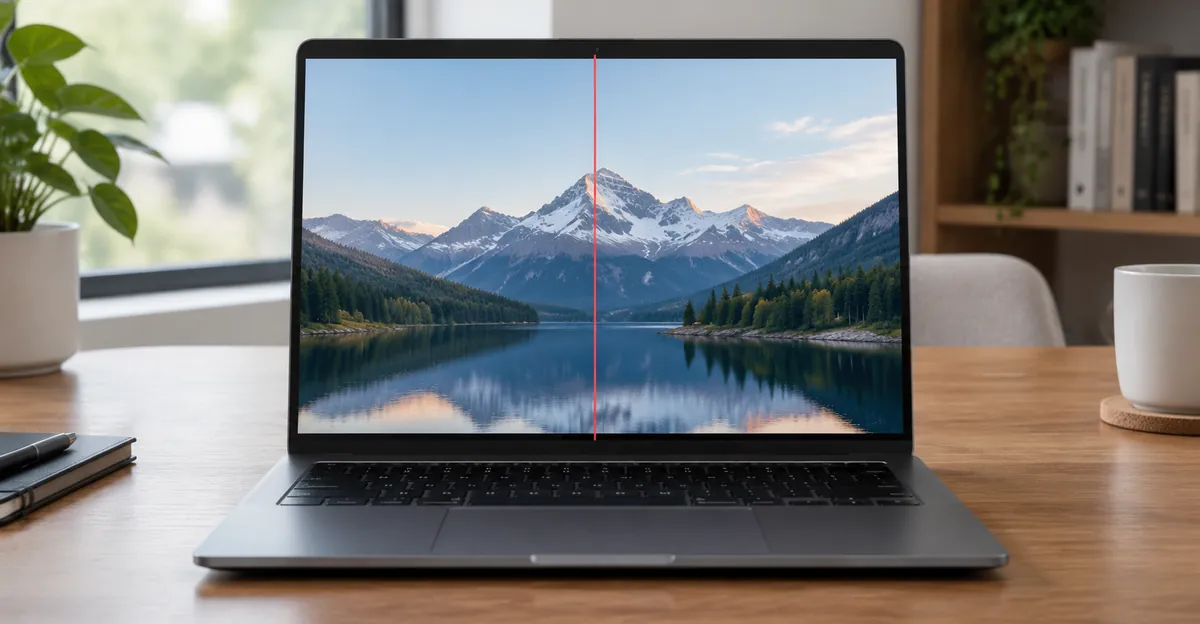
What PC Screen Red Lines Actually Are
A red line is a stripe with an edge and an axis. Each pixel on an LCD or OLED desktop is three sub-pixels. Red, green, and blue mix into the color you meant to see. When one column or one row loses green and blue drive, or receives a corrupted packet that only the red channel still honors, that stripe reads as red against whatever wallpaper sits behind it. The rest of the desktop can still be correct. That is the photograph this page is for.
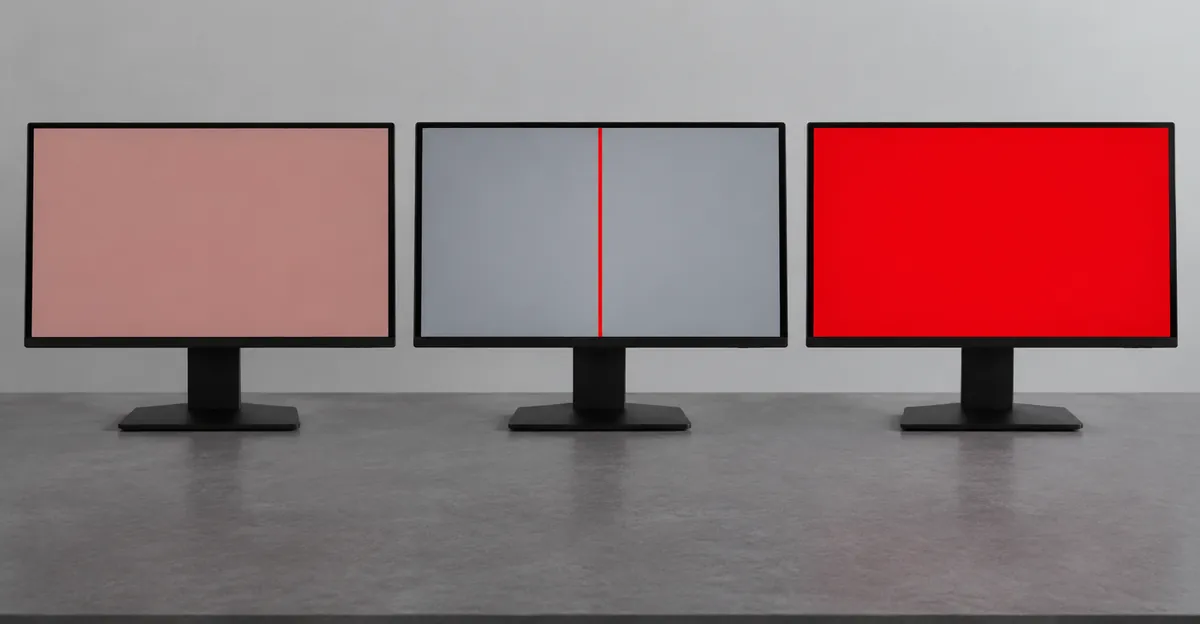
That photograph is not a tint. A tint warms every window, the taskbar, the mouse pointer, and a full-screen video by the same bias. A line does not move when you drag a window under it. The sibling guide for the uniform wash is computer screen red tint. A field that is saturated red with no remaining whites is a red screen, which is channel collapse across the panel, not one column. People type the same three words into all three searches. The tests below refuse to treat them as the same fault.
A red line is also not a green line on a laptop. Green in a column usually means the red and blue sub-pixels in that column have dropped, leaving green. The repair outlook can rhyme. The isolation tests are the same. The color still matters, because a red stripe on a white field is a different channel failure than a green stripe on the same field, and a warranty photo should show both.
Ranking pages collapse every colored stripe into "lines on the monitor" and then recite cable, driver, replace. That list is the floor, not the diagnosis. The diagnosis is which photograph you have.
| What you see | What it usually is | First test | Wrong first move |
|---|---|---|---|
| One or more red streaks that stay put while windows move | Column or row, cable, T-con, or GPU | OSD overlay, screenshot, second display | Toggling Night Light |
| Whole desktop warmer, whites pink | Overlay or global channel bias | Screenshot on a phone | Ordering a panel |
| Entire field saturated red, no usable whites | Lost green and blue across the panel | External display, BIOS | Recalibrating an ICC profile |
| Stripe only inside one game or one browser | App or driver renderer | Safe Mode, another app | Replacing the glass |
| Stripe already on the logo or the no-signal box | Panel path | Unplug the video cable | Rolling back a driver |
A hairline through icons, text, and video is a real column or row. A thick bar at the edge of a desktop that is otherwise sharp is often a resolution or scaling mistake, and the native mode plus fill scaling will clear it. A mark that exists only on a photograph of the screen, and is gone on a plain white field, is often the photo. Open a full-screen white field on the screen test tool. If the stripe is obvious on white, still there on black, and still there on red, green, and blue, you are looking at a dead or stuck column, not a tint in one channel. If the stripe shows on white and vanishes on a solid red field, you are looking at a channel that is stuck on red along that axis.
The word "red" does not name a part. It names which sub-pixels are still talking. A GPU can paint a red artifact into the framebuffer. A frayed HDMI conductor can drop the other channels on an analog-era path, or scramble a packet on a digital path until a row looks red. A timing controller can stop driving one bus. A column driver bonded to the glass can die and leave a permanent hairline. Those four outcomes do not share a price. The rest of this page is how you tell which photograph you have before you pay for the expensive one.
Isolate a Red Line in Monitor, Including Windows 10
A red line in monitor glass is either the signal or the panel. The fastest split on a desktop is the menu the monitor draws by itself. ViewSonic's isolation rule is to press the buttons on the bezel and open the OSD. If the line draws over the menu, the panel path has failed. If the menu is clean, the monitor is healthy and the fault is the cable, the GPU, or the PC. Acer's version of the same test is blunter. Unplug every video cable and leave the power cord. If the line is still on the "no signal" box, the display is the hardware. If the line vanishes, the PC side is next.
Dell's reminder after that self-test is the one people skip. If lines appeared during the monitor self-test with all video cables unplugged, the panel is the defect, and the next conversation is warranty, not Device Manager. The inverse is also true. A clean self-test with a dirty Windows desktop is almost never a dead column.
A red line on monitor glass that you have not yet classified is not a reason to buy a cable and a GPU on the same afternoon. Run the three cheap tests in order.
| Test | If the red line is present | If the red line is absent |
|---|---|---|
| OSD or no-signal box, video cable unplugged | Panel, T-con, or bonded driver | Cable, GPU, or Windows |
| Screenshot opened on a phone | GPU or driver painted it | Hardware after the compositor |
| Second PC on this monitor, or this PC on a second monitor | Follows the monitor, or follows the PC | The other box is the cause |
| Windows, Ctrl, Shift, B | Driver did not own it | Driver owned it for one frame |
| Safe Mode | Hardware more likely | Software more likely |
| BIOS or UEFI | Not a Windows setting | Windows still in play |
The screenshot is a clue, not a verdict. NZXT's graphics troubleshooting notes that GPU artifacting is created at the processing level, so it will more than likely appear in a screenshot, and then immediately qualifies that it is not guaranteed. A compositor can capture a clean frame and still send a dirty one down the cable. Treat a dirty screenshot as evidence for the GPU or the driver. Treat a clean screenshot as evidence that the glass or the cable added the stripe later. Do not treat either result as a part number.
People type red lines on screen windows 10 because the stripe showed up after an update, after a game, or after they plugged a second display into a dock. Microsoft's own external-monitor article, which applies to Windows 10 and Windows 11, puts the cheap moves in a short list. Secure the cable. Change the cable. Try the monitor on a different system. Try a different output port. Then press Windows logo key, Ctrl, Shift, and B to reset the graphics driver. If the fault started after an update, roll back the display adapter in Device Manager. If roll back is grey, uninstall the adapter and let Windows reinstall it, or install the package from NVIDIA, AMD, or Intel rather than from a third-party pack.
Acer adds Safe Mode to that list, and it belongs there. Safe Mode loads a basic display driver. Lines that vanish in Safe Mode are a software path: a bad package, a refresh rate the cable cannot carry, or an app that is drawing the stripe. Lines that survive Safe Mode and survive BIOS are not a Windows 10 color filter. Night Light can make a desktop look warm. It cannot draw a one-pixel column that stays put while you drag a window.
Refresh rate is the other Windows-only trap. Acer's monitor article tells you to set the native rate, 60 Hz or 144 Hz, rather than an overclocked value the OSD still offers. A cheap or long HDMI cable that looks fine at 60 Hz can paint lines at 144 Hz. Drop one step. If the red stripe disappears, you have a bandwidth problem, not a column driver. That is still a hardware path, but the part is the cable, not the glass.
Docks, dongles, and adapters belong in the same paragraph. Microsoft's first hardware step for a misbehaving external display is to disconnect accessories. A USB-C hub that was "working yesterday" is a common way to scramble one color on one monitor while the laptop panel stays clean. Pull the dock. Drive the monitor from a direct HDMI or DisplayPort plug. If the line dies, stop diagnosing the panel.
The screenshot is a clue, not a verdict
Print Screen, or Windows Shift S, then open the file on a phone. If the stripe is in the file, the machine composed it. Replacing the panel will not remove a stripe the GPU already drew. If the stripe is missing from the file and obvious on the glass, the machine composed a clean frame and the panel path added the mark afterward. GPU hardware faults can sit on either side of that line, which is why the second display still has to be done. A dirty screenshot plus a dirty second monitor is the GPU. A clean screenshot plus a dirty OSD is the panel. A clean screenshot, a clean OSD, and a dirty desktop that follows a cable wiggle is the cable. Those three sentences are the whole isolation section. Everything after them is how you spend money.
Red Vertical Line Versus Horizontal Red Lines on a Monitor
A red vertical line on monitor glass and horizontal red lines on monitor glass get typed as twins. The repair pages do not treat the direction as the first fact. Column drivers and row drivers sit on different edges of the panel, so the axis can name an edge after the line has already refused to move. It does not name a part while the line still jumps.
Read the ranking advice in that order and the contradiction disappears. Several how-to pages say a vertical line is a column and a horizontal line is a row or a timing controller. Several laptop repair benches say vertical lines on a lid are usually the hinge cable. Both sentences can be true. Apply the bonded-driver sentence to a line that thickens when you tilt the lid, and you have used the panel paragraph on a cable photograph. Apply the "vertical lines are usually the cable" sentence to a hairline that is identical at every angle, and you have bought the cheap part for a chip that is bonded to the glass.
Direction is evidence only for the line that ignores the hinge and ignores the OSD. A vertical hairline that is already on the no-signal screen, one pixel wide, perfectly straight, unwilling to change when you reseat HDMI, is a column the panel is no longer driving. Vertical lines that ignore the hinge sit with that column driver, so the quote is a panel. Horizontal lines that ignore the hinge sit with a row driver or the timing controller, and the quote is a panel again. A horizontal band that only flickers inside Windows, and that is missing from the logo, is not that panel sentence. It is the driver paragraph in the isolation section.
ViewSonic's extra tip is a damage flag, not a repair. If the lines flicker or change when you gently apply pressure to the bezel, the panel has physical damage. That is useful if you are documenting a drop for an accidental-damage claim. It is not a reason to press the glass. Pressing the glass turns a one-line fault into a bruised patch, and it is a good way to lose a warranty conversation. If you are not sure where the bezel ends and the glass begins, skip the press. The OSD and the second display already named the part.
A group of horizontal red bands that arrive together, rather than a single hairline, usually means one driver chip along that edge has failed, not a dozen independent rows. That version is the least likely to respond to a cable swap. Run the self-test, photograph it, and treat it as a warranty conversation rather than a troubleshooting one. A shower of moving red sparkles that also appear in a screenshot, and that get worse in a game, is GPU artifacting. NZXT's split is the one to keep for that photograph. Horizontal artifacting drawn across the frame often tracks the GPU. Vertical artifacting that is a damaged-monitor pattern stays on the glass when you change PCs.
Intermittent lines that appear only at a high refresh rate, only at a 4K resolution the cable cannot carry, or only through a dock, are still the signal path. They are not a column driver. Drop the rate, drop the resolution, or pull the dock before you price glass.
Red Line in a Laptop Screen Versus a Desktop Monitor
A red line in laptop screen glass has one extra test the desktop does not. The cable that feeds the panel runs through the hinge and flexes every time the lid moves. Pro-LCDs' diagnosis page puts the rule in one sentence. If the display changes when you slightly move the screen or open and close the lid, check the video cable first. If the lines remain exactly the same regardless of screen position, the LCD panel is more likely to be faulty. That is the whole lid test. One slow pass through the hinge is enough. Watch whether the stripe changes width, position, or whether it is there at all.
A temporary clear angle is evidence, not a repair. It shows the panel can still draw at some openings, which is why a cable repair is even a conversation. It is also another bend in a cable that already failed. After you have seen the change, or seen that there is no change, leave the lid where the picture is usable. Do not hunt a sweet spot for the rest of the evening.
The external monitor test is the matching check. Connect HDMI or USB-C to a second display. If the external picture is clean and the built-in panel is lined, the motherboard and the GPU are probably starting, and the fault is in the lid: panel, cable, or connector. If the external picture is lined as well, the graphics path is in play, and a new laptop panel will not hide it. Microsoft's external-monitor article is the same split written for Windows. Try the monitor on a different system. Try a different output. The laptop version of "a different system" is the second panel you already own.
Dell laptops add a test that shuts Windows out. The LCD built-in self-test is explicit. These tests only check screen hardware. They do not check Windows settings, graphics drivers, or software. Shut the machine down, disconnect peripherals, connect the charger, hold D, then press power and keep holding D until solid colors fill the panel. Black, white, red, green, and blue cycle. Inspect each field for horizontal or vertical lines. A red stripe that is already on those colors is the panel. A red stripe that is missing from BIST and present only after Windows loads is the driver path. Other brands use the logo. If the maker's mark is clean and the desktop is lined, you are still in software until the lid test says otherwise.
Do not open the lid assembly while the battery is connected. Pro-LCDs' warning is the one that prevents a second bill. Never connect or disconnect the screen cable with the battery in circuit. A short can take the backlight fuse with it, and then you have a dim panel on top of a line. In warranty, do not open it at all. The lid test, the external display, and the self-test are enough to name the part for a claim.
A desktop monitor has the inverse luxury. You can swap the cable, the port, and the PC. Lifewire's vertical-line article walks that path in the order that wastes the least money. Reseat HDMI or DisplayPort. Try a different port. Replace the cable. Try the monitor on another PC. Try another monitor on this PC. Reset BIOS if an overclock is in play. Only then consider the GPU. MSI's boot-stage split is the desktop version of Dell's BIST. If the stripe is already in BIOS, the graphics card is not eliminated. If the stripe appears only after the operating system loads, update the driver before you reseat the card.
The laptop screen lines hub maps every color and direction. This page only names the part for a red stripe. A laptop with a red line and a clean HDMI panel is a lid problem. A desktop with a red line over its own OSD is a monitor problem. A desktop with a clean OSD and a red line on every display you attach is a PC problem. Those three sentences decide whether you are shopping a ribbon, a panel, or a graphics card.
Cable, GPU, T-Con, and Panel: Which Photograph You Are Paying For
Ranking pages stop at "replace the monitor" once the OSD is dirty. That is the floor. The bill still has four photographs on it, and they do not cost the same.
The cable is the cheap photograph. On a desktop it is HDMI, DisplayPort, or a tired VGA tail. On a laptop it is the eDP ribbon through the hinge. Microsoft, ViewSonic, Acer, and ASUS all put reseating and replacement at the front of the list because it is the test that most often ends the ticket. A cable that changes the picture when you wiggle it, a DisplayPort plug that was not clicked in, or a 144 Hz line that dies at 60 Hz is this photograph. The part is a cable. It is not a panel.
The GPU is the photograph that follows the PC. The same red stripe on two monitors, a dirty screenshot, a stripe that is already in BIOS, or a stripe that gets worse in a game, belongs here. Dell's next software steps after a clean monitor self-test are the driver restart and a roll back. MSI's assembly check is the hardware version: confirm the 6-pin or 8-pin power plugs, reseat the card in the primary PCIe slot, and cross-test with another GPU or with integrated output if the CPU has it. AMD's no-display article adds the same seating and power-connector checks. A GPU that artifacted after a driver update may still be fine after a clean install. A GPU that artifacted in BIOS after you reseated it is a card, and a new monitor will not save it.
The T-con is the photograph people order from a parts listing after they have seen the letters on a forum. A timing controller coordinates the data sent to the panel. On some monitors it is a separate board. On others it is fused into the panel assembly. A dirty OSD proves the fault is inside the monitor. It does not prove that a $30 board from a marketplace listing will clear a red line. A bonded column driver, sometimes called a COF or TAB bond, lives on the glass. If that bond has lifted, replacing a separate T-con generally will not fix it. Panel replacement, or a new monitor, is the practical path. Do not order a board from the outside model name alone. Match the panel label and the service document, or do not open the chassis.
The panel is the photograph that is already on every self-test color, already on the no-signal box, identical at every lid angle, and unwilling to move when you reseat anything. That is a column or a row the glass is no longer driving. Software will not lift it. A cable will not lift it. A T-con swap is a gamble unless the service manual names that board for this exact assembly. For a budget office panel, a new monitor is often cheaper than a shop quote. For a calibrated wide gamut display that still has a known-good stand, a panel or T-con job can be rational. The next section is how you decide without guessing.
| Photograph | What you already saw | Part you are paying for | DIY in warranty? |
|---|---|---|---|
| Cable | Line jumps with a wiggle, a lid pass, a dock, or a refresh drop | HDMI, DisplayPort, or eDP ribbon | Reseat yes. Open a laptop lid only out of warranty |
| GPU or driver | Line on two displays, in a screenshot, in BIOS, or gone in Safe Mode | Driver package or graphics card | Driver yes. Reseat a desktop card out of warranty |
| T-con | Dirty OSD, sometimes a band rather than a hairline, service manual names the board | Timing board | No, if the serial is still in cover |
| Panel | Dirty OSD or BIST, hairline identical at every angle | Glass or a new display | No |
ASUS's monitor FAQ still belongs in this table as a reminder that analog VGA has an auto-adjust that digital HDMI does not. If you are still on VGA and the "line" is jitter, run the auto-adjust and a factory reset from the OSD before you price a panel. HDMI and DisplayPort do not get that analog gift. A factory reset is still worth one minute, because an overclocked refresh in the OSD can paint lines that look like a column until you turn the overclock off.
Warranty Evidence and When to Stop Using the Panel
In warranty, the job is not to repair the panel. The job is to prove which side of the OSD split you are on, then stop. ViewSonic asks for the serial number once the line is on the menu. Dell routes a failed self-test to technical support with warranty status in mind. Acer wants the serial or SNID after the unplugged no-signal box still shows the stripe. Those three vendors are naming the same packet of evidence.
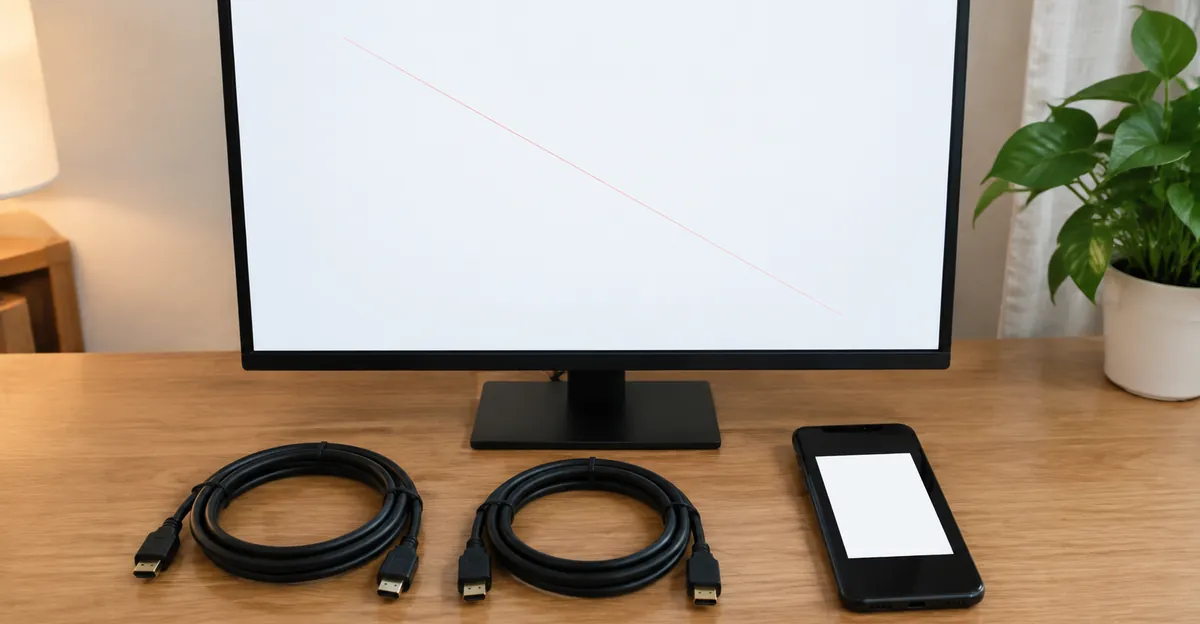
Photograph, in this order, on the screen test white, black, red, green, and blue fields:
- The OSD or the no-signal box with the red line visible over it, or a BIST color field with the line visible. This is the panel-side still.
- The same stripe on a full-screen white field and a full-screen black field, so a reviewer can see it is a column, not a compression artifact in a desktop screenshot.
- A screenshot of the desktop opened on a phone, so the ticket already contains the compositor result.
- The serial number sticker.
- One sentence of timeline. When it started, whether a Windows Update, a GPU driver, a new cable, a dock, or a drop happened the same day, and which of the isolation tests already ran.
Do not press the glass. Do not run a heat gun along the bezel. Do not flash unofficial panel firmware. Do not let a shop "refurbish" the unit before the vendor has seen the BIST photos. Those steps turn a covered panel defect into physical damage or an unauthorized repair. Out of warranty, a gentle bezel press at the edge, the ViewSonic damage flag, is optional documentation. It is still not a repair.
Cost bands for out-of-warranty hardware, 2026, USD, budgeting only:
| Path | Typical out-of-pocket | When it is rational |
|---|---|---|
| Driver restart, roll back, Safe Mode | $0 | OSD clean, stripe missing from BIOS |
| Cable or adapter | $10–40 | Line tracks a wiggle, a dock, or a refresh drop |
| GPU driver clean-install time | $0 | Stripe in the screenshot, gone after a package swap |
| Desktop GPU replacement | $80–400 depending on the card | Stripe on every display, already in BIOS after a reseat |
| External monitor instead of a lined laptop panel | $100–250 | Built-in lined, HDMI clean, machine older than four years |
| T-con or board-level monitor repair | $95–200 labor plus parts | Dirty OSD, monitor worth more than twice the quote, service manual names the board |
| Laptop panel replacement | $150–400 | BIST dirty, in-warranty or a high-value chassis |
| New monitor | $120–400 | Repair quote over half of a comparable new panel |
The repair-versus-replace line is the same as on the tint page. If the quote is more than half the price of a comparable new display, replace it. A $180 T-con job on a $150 office panel is a donation to the shop. A $180 T-con job on a 27-inch that still has a usable stand and a known-good OSD is a reasonable save. In warranty, stop. Out of warranty, a $100–200 HDMI monitor next to a lined laptop is often the faster return to work than a $300 panel that waits two weeks for a part.
Keep using a single stable hairline for email if it does not grow, does not flicker into a band, and does not arrive with heat or a smell. Stop using that panel for color work, photo edits, or anything that has to be true. Stop using it if the stripe thickens, multiplies, or started after a drop and is now fanning from a corner. A failing bond or a crushed eDP cable can spread from one line into several. That is the only urgency on this page, and it only applies after the OSD and the screenshot have already named hardware.
A red line you can still read this article through is usually one column. Photograph it, isolate it, and then decide whether the next purchase is a cable, a driver package, or glass. Guessing the expensive one first is how this search wastes a weekend.
Conclusion
PC screen red lines are a stripe, not a warmth overlay. Open the OSD. A line over the menu is the panel path. A clean menu is the cable, the GPU, or Windows. A screenshot on a phone tells you whether the machine composed the stripe. A second display tells you whether the stripe follows the PC or the glass. On a laptop, one lid pass tells you whether the hinge cable is still in the conversation. Dell's hold-D self-test shuts Windows out so you stop arguing with Device Manager about a column that is already on the glass.
Direction is a later fact. A red vertical hairline that ignores the hinge is a column. Horizontal red bands that ignore the hinge sit with a row or a timing controller. A stripe that jumps when the lid moves is the cable, and the axis does not change that bill. Windows 10 and Windows 11 share the same driver keystroke and the same roll back. Neither of them will lift a line that is already on the no-signal box.
Run the screen test tool on white, red, green, and blue, save the photos, and you have both the diagnosis and the warranty evidence. The panel does not need to be guessed. It needs to be isolated.