A computer screen is red tinted when every pixel is warmer than it should be — whites go pink or salmon, UI chrome looks sunburned, and a blank document never quite reaches paper white. The split that matters is overlay versus hardware: Windows can paint that warmth on top of a healthy panel, or the blue channel in the signal can drop out and leave red in charge.
Computer Screen Is Red Tinted: Night Light or Hardware
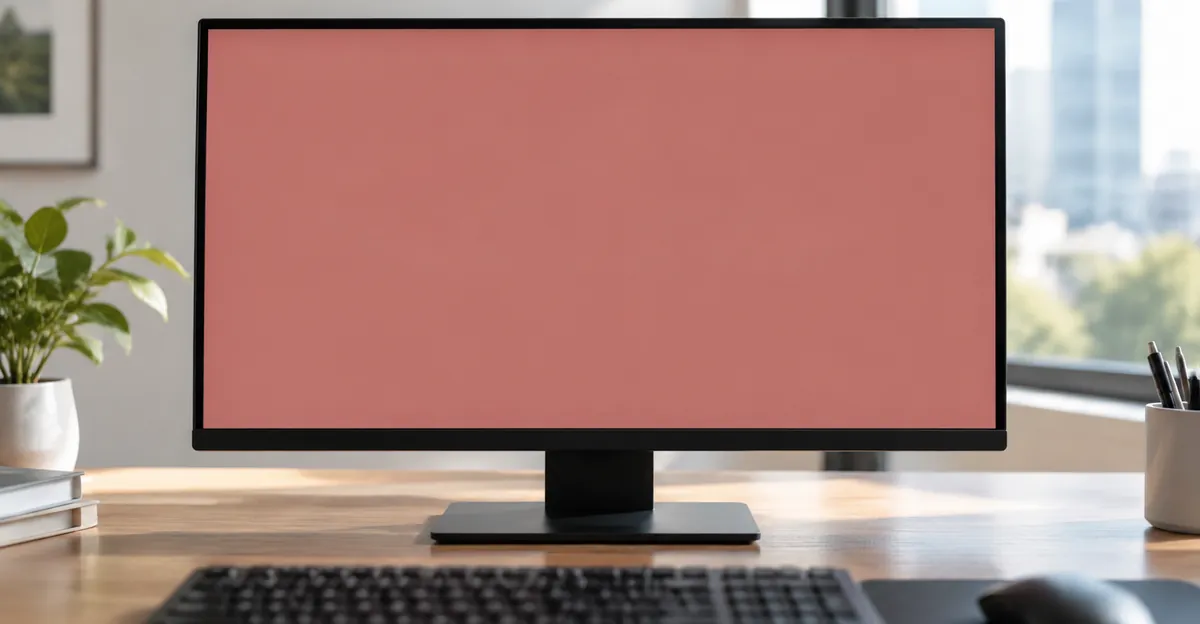
Why Is My Computer Screen Red
The search why is my computer screen red usually describes one of two mechanisms, and they look similar until you test them.
The first mechanism is a warm overlay. Night Light, a color filter, Screen tint, Adaptive Color, an OEM reader mode, or a third-party blue-light app reduces blue on purpose. The panel is still outputting a full RGB signal. Your eyes see the filtered result. A screenshot of that desktop, opened on a phone, stays red because the filter was applied before the pixels were captured.
The second mechanism is a missing or weak blue channel. In an RGB panel, blue is the component that keeps red and green from reading as warm. When a cable pin, GPU lane, T-con channel, or sub-pixel driver drops blue, red fills the gap. The cast can be pink, orange, brick, or a dusty rose depending on how much green remains. A screenshot of that desktop, opened on a phone, looks normal — the GPU composited a correct frame, and the tint was added later in the cable or the glass.
That screenshot test is the cheapest diagnostic in this article. It costs nothing, it does not require a second monitor, and it tells you whether you are hunting a Windows setting or a hardware path.
A uniform wash across the whole desktop, including the taskbar and a full-screen video, is a tint. A single vertical or horizontal streak that stays put while windows move underneath it is a line. A field that is saturated red with no remaining whites is a red screen, not a tint. Those three presentations share search language and almost never share a fix.
On a laptop, Night Light and Color filters apply to the built-in panel and to an attached HDMI display at the same time. If the laptop looks red and a TV on the same GPU looks normal, you are not looking at a Windows overlay. You are looking at the internal eDP path. If both look red, start with overlays, then drivers, then the GPU.
On a desktop with one monitor, the same logic runs in reverse. Unplug the monitor, open its OSD with no cable attached, and read the menu color. A red OSD with no input is the panel. A neutral OSD with a red Windows desktop is the PC, the cable, or a setting.
Microsoft's Night Light documentation is explicit about what the feature does: the display shows warmer colors at night so blue light is reduced. The strength slider is a warmth slider. Drag it right and the desktop gets redder. That is not a defect. It is the product. The defect is leaving it on at midday, stacking it with HDR, or stacking it with an OEM reader mode that also cuts blue.
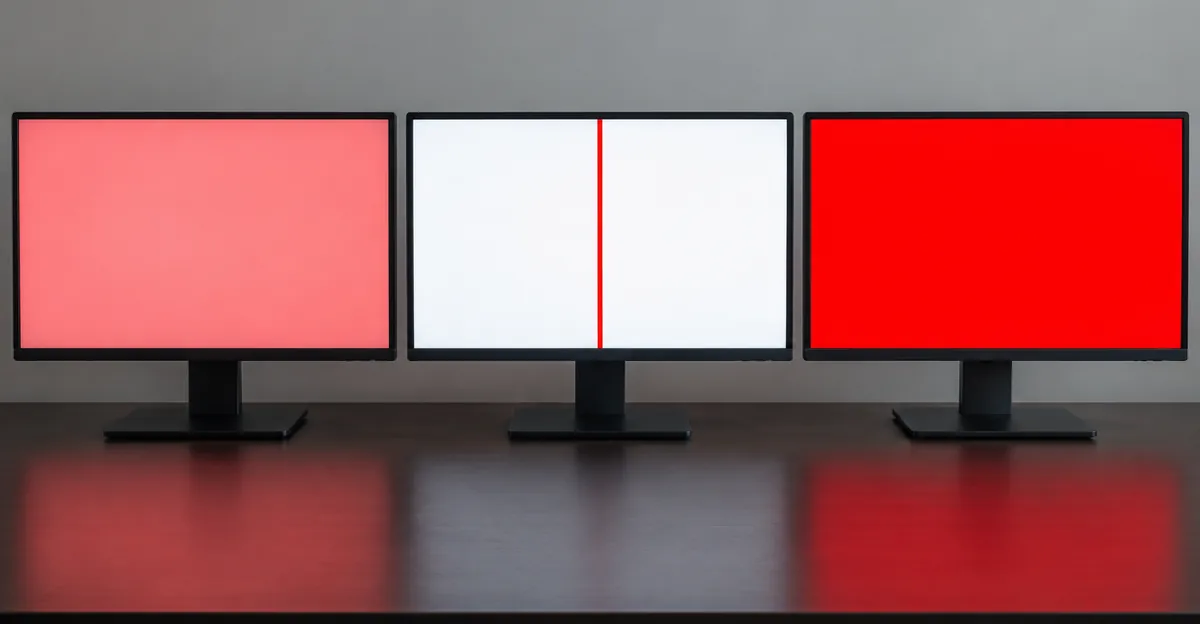
Tint Versus PC Screen Red Lines Versus a Solid Red Field
People type pc screen red lines into the same session that started with a tint query because the words "red" and "screen" feel interchangeable. They are not. Treating a line as a Night Light problem wastes an evening. Treating a tint as a panel replacement wastes a monitor.
| What you see | What it usually is | First test | Wrong first move |
|---|---|---|---|
| Whole desktop warmer, whites pink | Overlay or global channel bias | Screenshot on a phone | Ordering a new panel |
| One or more red streaks that do not move with windows | Column or row driver, cable, T-con | OSD overlay, lid flex, external display | Toggling Night Light |
| Entire field saturated red, no usable whites | Lost green and blue across the panel | External display, BIOS | Recalibrating ICC |
| Tint only after sunset | Night Light schedule | Quick Settings Night Light tile | Driver rollback |
| Tint only in Edge or Chrome | Browser color profile | edge://flags Force color profile |
Replacing the GPU |
Tint. Every window, every icon, the mouse pointer, and a full-screen YouTube frame share the same warm bias. The edges of the panel are not a different color from the center. This is the subject of this page, and the sibling guide for monitor OSD color temperature is red tint on a monitor.
Lines. A red streak from bezel to bezel, vertical more often than horizontal, that stays parked while you drag a window. That is pc screen red lines in the hardware sense. ViewSonic's isolation rule is the fastest split on an external monitor: open the OSD. If the line draws over the menu, the panel path has failed. If the menu is clean, the line is arriving in the signal. On a laptop, slowly change the lid angle. A line that jumps or fades at a particular hinge angle is the eDP cable, which is why the dedicated repair path lives on PC screen red lines rather than here.
Solid red field. No remaining white, no remaining UI, just red. That is channel collapse, not a warmth overlay, and it belongs on the red-screen page. A Night Light at maximum strength can look close to this on HDR laptops. The screenshot test still separates them: Night Light is in the screenshot, a dead blue channel often is not.
A pink screen is the other neighbor. Pink is red plus green with blue missing. A warm red tint still has some blue; it is biased, not amputated. If a solid blue test field on the screen test tool renders as magenta or black, you have left tint territory.
The practical rule: if you can still read this article on the same computer, you almost certainly have a tint or a line, not a full red field. If you can still read it and the warmth covers every pixel equally, stay on this page.
Four Windows Overlays That Look Like Hardware Failure
Ranking pages all say "turn off Night Light." They stop there. Windows currently ships four independent overlays that can stack, fight, or survive a Night Light toggle, and OEM utilities add a fifth. A computer that still looks red after Night Light is off is not proof of a dead panel. It is often proof that you turned off the wrong overlay.
| Overlay | Where it lives | What it does | Accidental trigger | Survives a screenshot? |
|---|---|---|---|---|
| Night Light | Settings, System, Display | Cuts blue on a schedule or at full strength | Sunset-to-sunrise schedule | Yes |
| Color filters | Settings, Accessibility | Remaps the whole palette | Win+Ctrl+C |
Yes, but not in captured screenshots of some GPU paths |
| Screen tint | Settings, Accessibility, Vision | Paints a single-color wash | Choosing a red or amber preset | Yes |
| Adaptive Color | ACS-equipped devices, Display | Shifts white point to match room light | Combined with Night Light on Windows 10 | Yes |
| OEM reader mode (LG and others) | Vendor app | Extra warm reading profile | Left on with Night Light | Yes |
Night Light. Microsoft's own Display settings page puts the toggle in Quick Settings and under System, Display. Strength is the warmth control. Schedule is the trap. "Sunset to sunrise" turns the desktop red every evening without a user click, which is why people search this problem at 7 p.m. and not at noon. Night Light is unavailable on DisplayLink and Basic Display drivers; a greyed-out toggle is a driver problem, not a missing feature.
Color filters. Microsoft documents Color filters as an accessibility remap, not a night mode. Inverted and some red-green filters make a healthy panel look pink or brick. The shortcut Win+Ctrl+C toggles the last-used filter. That shortcut is how a "sudden red screen" appears during a game or a remote-desktop session. Turn the feature off, then disable the shortcut on the same page so it cannot return. DirectX notes that Color filters leave some screenshots and screen-sharing feeds unfiltered, which is why a Teams participant may see your real colors while you still see red.
Screen tint. This is a separate Accessibility control. Microsoft's Screen tint page describes a single-color overlay for light sensitivity, with presets and a custom picker. A red or amber preset on high strength is indistinguishable from a "hardware red tint" until you open that page. Microsoft is also explicit that Screen tint and Color filters disable each other. If Color filters will not turn on, Screen tint is already occupying the slot.
Adaptive Color. On devices with an ambient color sensor, Adaptive Color moves the white point to match the room. Microsoft's hardware documentation records the Windows 10 failure mode: Night Light and Adaptive Color multiplied, and a 9300 K panel plus a strong Night Light became extremely red. Windows 11 21H2 changed the math so the stronger of the two blue-light reductions wins, instead of both applying. If a Windows 10 PC looks far redder than a Windows 11 PC with the same Night Light strength, that interaction is why.
OEM reader modes. LG's support article for yellowish or reddish laptop screens names the stack by name: Reader Mode on, Night Light on, color temperature set too warm. LG's own warning is that color distortion may occur if both Reader Mode and Night Light are turned on, and the advice is to use only one. 2025-and-later grams hide Reader Mode in the My gram app. 2022–2024 models use LG Smart Assistant. Older models use Control Center or a taskbar icon. The same pattern exists on other OEMs under names like Eye Care, Reading Mode, or Comfort View. Night Light off is not the end of the overlay list on a branded laptop.
The takeaway from this chapter is not "try more settings." It is "count the overlays." A PC with Night Light, Color filters, Screen tint, Adaptive Color, and an OEM reader mode has five independent warmth knobs. Ranking pages that stop at Night Light leave four of them on.
HDR, Color Profiles, and GPU Drivers
Once the overlays are off and the desktop is still warm, the next layer is the color pipeline: HDR tone-mapping, ICC profiles, and the GPU driver. This is the ranking-page floor — update the driver, reset the profile — compressed into one place, with the parts those pages leave hanging.
HDR plus Night Light. Microsoft's HDR settings article includes a named bug: "On HDR-capable devices, colors appear over-saturated when night light is turned on." The next sentence is the one that matches this query: the display "might have a red tint and content might not be readable," and the severity follows the Night Light strength slider. The documented workaround is Settings, System, Display, Night light — drag Strength left, or Turn off now. HDR is not the villain by itself. HDR with a high Night Light strength is. If you need HDR for a game or a movie, drop Night Light to zero first, then raise HDR. Do not run both at maximum and then assume the panel failed.
ICC and automatic color management. Windows 11 keeps profiles under Settings, System, Display, Color profile. The older Color Management applet (colorcpl) is still the fastest way to see every profile attached to a device. Check "Use my settings for this device," remove unknown profiles, and set sRGB IEC61966-2.1 as default if you do not have a calibrated custom profile. Automatic color management can improve gradients on supported displays and can also lock in a wrong profile after a monitor swap. If the tint appeared the week you added a second display, inspect which profile is assigned to which device. A profile built for a wide-gamut panel, applied to an sRGB laptop, regularly reads as oversaturated and warm.
Calibration apps. TheWindowsClub-style advice to hunt third-party calibrators is correct in direction and incomplete in practice. DisplayCAL, OEM "true color" utilities, f.lux, CareUEyes, and Iris all write a persistent load into the GPU LUT. They survive Night Light off. A clean boot that disables non-Microsoft services will tell you if one of them owns the white point. If the tint vanishes in a clean boot, you do not need a new cable. You need to uninstall or reset that app.
GPU driver. Intel's own color-distortion article (000059664) is a useful pattern even on NVIDIA and AMD machines: a yellow or wrong tint that returns after restart, settings that will not save, and a Control Panel that fights Windows. Intel's sequence is update the driver, confirm the Windows build, uninstall Intel Graphics Control Panel from Device Manager under Software components with "delete the software" checked, reboot, then clean-install the driver. The same shape applies elsewhere. Win+Ctrl+Shift+B restarts the display driver without a reboot and clears transient compositor tints. If the cast appeared the morning after a GeForce or Adrenalin push, roll back from Device Manager before you reinstall. Windows Update is a frequent source of those pushes; manufacturer installers are the rollback target worth recording.
Native mode. A non-native refresh rate or a scaled resolution can produce odd casts on some panels. Set the recommended resolution and the panel's native hertz under Settings, System, Display, Advanced display. This is a weak cause compared with Night Light, but it is a 20-second check, and it is the right check if the tint arrived the same afternoon you enabled a 120 Hz experimental mode on a 60 Hz cable.
A blue tint is the inverse pipeline: color temperature too cool, Night Light off when you expected it on, or HDR tone-mapping that crushes warm highlights. If you "fixed" a red tint by slamming the GPU color temperature to 9300 K, you did not fix the overlay. You stacked a cool bias on a warm filter and now have two problems.
Five-Minute Isolation: Screenshot, BIOS, External Display
Shared advice says "boot into BIOS." That is a real test and a slow first move. The order below answers the follow-up those pages skip: what to do with each outcome, including the case where BIOS is inconvenient (BitLocker, a desktop with a fast boot that skips the firmware screen, a user who cannot find the key).
Minute 1 — Screenshot. Press Win+Shift+S, capture a white window, open the PNG on a phone. Red on the phone means an overlay or a LUT still in the captured path. Neutral on the phone means the panel or cable is painting after composition. Stop here if the phone photo is red: go back to the four overlays, HDR, and ICC. Do not buy a cable yet.
Minute 2 — Solid fields. Open the screen test tool full screen.
- Pure white: a pink or salmon wash is a tint. A single red streak is a line. Jump off this page.
- Pure red: should be even. Structure (bands, blotches) is panel uniformity, not tint.
- Pure green: a red or magenta veil over green is an overdriven red channel or a warm overlay still on.
- Pure blue: if blue looks purple, black, or pink, the blue channel is the fault, and you are no longer in "Night Light" territory.
Photograph each field. Those five photos are the warranty pack in the last chapter.
Minute 3 — Second display. On a laptop, HDMI or USB-C into a TV. Win+P, Duplicate. Laptop red, TV clean: internal eDP or panel. Both red: GPU, driver, or overlay you missed (overlays hit every display Windows owns). On a desktop, move the same cable to a second monitor, then try a second cable on the original monitor. Change one variable at a time.
Minute 4 — Firmware or no-signal OSD. Restart and enter UEFI (Del, F2, F10, or Esc). A red firmware screen is hardware: skip Windows. A clean firmware screen is software: skip the hardware store. Cannot reach firmware? Unplug the monitor entirely and open OSD. ViewSonic's rule for lines applies to tint as well: a colored OSD with no input is the monitor. Dell laptops add a dedicated path: power off, hold D, press power, release D when colors flash. Dell's LCD BIST cycles white, black, red, green, and blue with Windows out of the way. Dell's own FAQ for a yellow tint is Night Light first, BIST second. Use that same sequence for red.
Minute 5 — Lid and cable motion. Do not wrench the hinge. Change the lid angle through its normal range. A tint or a line that tracks the angle is the eDP cable. On a desktop, a tint that tracks a wiggle at the HDMI plug is the cable. A tint that never moves is the panel, the T-con, or a still-active overlay.
| Outcome | Meaning | Next action |
|---|---|---|
| Phone screenshot still red | Overlay / LUT / driver | Overlays, HDR, ICC, clean boot |
| Phone screenshot neutral, desktop red | After the GPU | Cable, OSD, BIST, second display |
| BIOS/UEFI red | Hardware path | Second cable, second panel, service |
| BIOS/UEFI clean | Software path | Stay in Windows settings |
| BIST or no-signal OSD red | Panel or T-con | Warranty photos, do not keep pressing the glass |
| External clean, built-in red | Laptop panel path | eDP reseat or panel, not a GPU RMA |
| External red, built-in red | GPU / driver / overlay | Driver rollback, then GPU test on another PC |
The missed follow-up on ranking pages is the last row but one. Users finish Night Light, finish a driver update, still see red on the laptop, and conclude the GPU is dying. An HDMI TV that looks correct falsifies that conclusion in thirty seconds.
Cable, OSD, and Panel After Software Is Ruled Out
Only run this chapter after the screenshot is neutral on a second device, or after BIOS/BIST has already shown the tint. Software still on top of a hardware fault will confuse every test below.
Cable. VGA carries analog red, green, and blue on separate pins. A crushed pin or a tired cable commonly drops one channel and leaves a persistent cast. HDMI and DisplayPort are digital; they fail as sparkles, dropouts, or a missing picture more often than as a gentle tint, but a bad adapter (USB-C hub, DisplayPort-to-HDMI dongle, DisplayLink dock) can still mangle color. Night Light is unavailable on DisplayLink in Microsoft's own note, which is a hint that those docks already run a second color path. Reseat both ends. Replace adapters before you replace the GPU. A cable that changes the tint when you hold it a certain way is done. Do not tape it in the "good" position.
Monitor OSD. Factory reset (Memory Recall, All Reset, Color Reset) returns gain, gamma, and color temperature to the panel's default. If a Warm/4000 K preset is the whole story, this page's sibling on monitor red tint covers the Kelvin ladder. This page's job is the PC-side overlay. After a reset, do not immediately drag RGB gain to "fix" a remaining cast. You will bake a hardware fault into a custom preset and then forget you did it.
Laptop panel path. The eDP cable at the hinge is the part that fails from ordinary opening and closing. A reseat is a power-off repair: AC unplugged, internal battery disconnected if the service manual says so, then the connector fully seated in its latch. It is not a live wiggle test. If liquid reached the keyboard deck, stop. That is a spill, not a tint. Dell's BIST remaining dirty after a cable reseat is a panel. An external monitor remaining clean after a cable reseat is also a panel.
GPU. When every display attached to one card is red in BIOS, the card's output is the remaining suspect. Integrated graphics, if the CPU has them, is the cheap A/B test: remove the discrete card or switch the cable to the motherboard ports. A red iGPU and a red dGPU points at the monitors and cables. A red dGPU with a clean iGPU points at the card.
What not to do. Do not press the LCD to "massage" a tint. Do not heat the bezel. Do not run pixel-fix videos. Those rituals are for stuck pixels and they do nothing to a white-point overlay or a missing blue channel. Do not disassemble a laptop that is still under warranty. The five-minute isolation pack is what a manufacturer actually wants, not a photo of parts on a kitchen table.
Warranty Evidence and When Repair Beats Replacement
A tint that survives BIST, a no-signal OSD, and a second computer is a hardware claim. Manufacturers bounce claims that look like Night Light. The pack below is how you make the claim look like hardware.
Photograph now, before you change more settings.
- Pure white, pure red, pure green, and pure blue from the screen test tool, full screen, no overlapping windows.
- The BIOS or UEFI screen, or the Dell BIST color cycle, or the monitor OSD with the cable unplugged.
- A screenshot file opened on a phone, next to the live desktop, in the same frame. That single photo proves whether the tint is in the pixels Windows captured.
- Serial number: Settings, System, About on Windows; underside sticker on a monitor.
- A one-paragraph timeline: when it started, whether a Windows Update, GPU driver, or new cable happened the same day, and which overlays you already turned off.
Dell treats BIST failures as panel defects and routes them to technical support with warranty status in mind. LG treats yellowish or reddish built-in panels as Reader Mode, Night Light, or color temperature until those are excluded. Put those exclusions in the ticket so the first-line script cannot bounce you.
Cost bands for out-of-warranty hardware, 2026, USD, budgeting only:
| Path | Typical out-of-pocket | When it is rational |
|---|---|---|
| Overlay / profile / driver | $0 | Screenshot still red |
| Cable or adapter | $10–40 | Tint tracks a wiggle; second cable clears it |
| GPU driver clean-install time | $0 | Intel/NVIDIA/AMD LUT stuck after reboot |
| External monitor instead of laptop panel | $100–250 | Built-in red, HDMI clean, machine older than four years |
| T-con or board-level monitor repair | $95–200 labor plus parts | OSD tint with no input, monitor worth more than twice the quote |
| Laptop panel replacement | $150–400 | BIST dirty, in-warranty or high-value chassis |
| New monitor | $120–400 | Repair quote over half of a comparable new panel |
The repair-versus-replace line is the same as on other color-defect pages: if the quote is more than half the price of a comparable new display, replace it. A $180 T-con job on a $150 office panel is a donation to the shop. A $180 T-con job on a calibrated 27-inch that still has a usable stand and a known-good OSD is a reasonable save.
In warranty, stop. Do not reseat internal cables, do not run third-party panel firmware, do not accept a "refurbish fee" before the vendor has seen the BIST photos. Out of warranty, a $100–200 HDMI monitor next to a lined or tinted laptop is often the faster return to work than a $300 panel that waits two weeks for a part.
Keep using a red-tinted screen for email if the screenshot test showed an overlay you have now disabled and the desktop is already normal. Stop using a red-tinted screen for color work, photo edits, or medical images until the white field is neutral. A warm overlay does not damage the panel. A failing T-con or a crushed eDP cable can spread from a tint into lines. That is the only urgency on this page, and it only applies after software has been ruled out.
Conclusion
A computer screen that looks red is usually Windows painting warmth on a healthy panel. Count the overlays — Night Light, Color filters, Screen tint, Adaptive Color, OEM reader mode — before you count cables. HDR with a high Night Light strength is a documented Microsoft red-tint case, not a mysterious panel disease. When a screenshot on a phone is already neutral, step into BIOS, BIST, or a dark OSD and treat the rest as hardware.
A streak is not a tint. pc screen red lines, a red line on a laptop, and a red line on a monitor belong on the line guides, with OSD-over-the-menu and lid-flex as the split. A saturated full field belongs on the red-screen guide. This page is the uniform wash.
Run the screen test tool on white, red, green, and blue, save the photos, and you have both the diagnosis and the warranty evidence. The panel does not need to be guessed. It needs to be isolated.