Blue Lines on Mac Screen: What the Color and Direction Mean
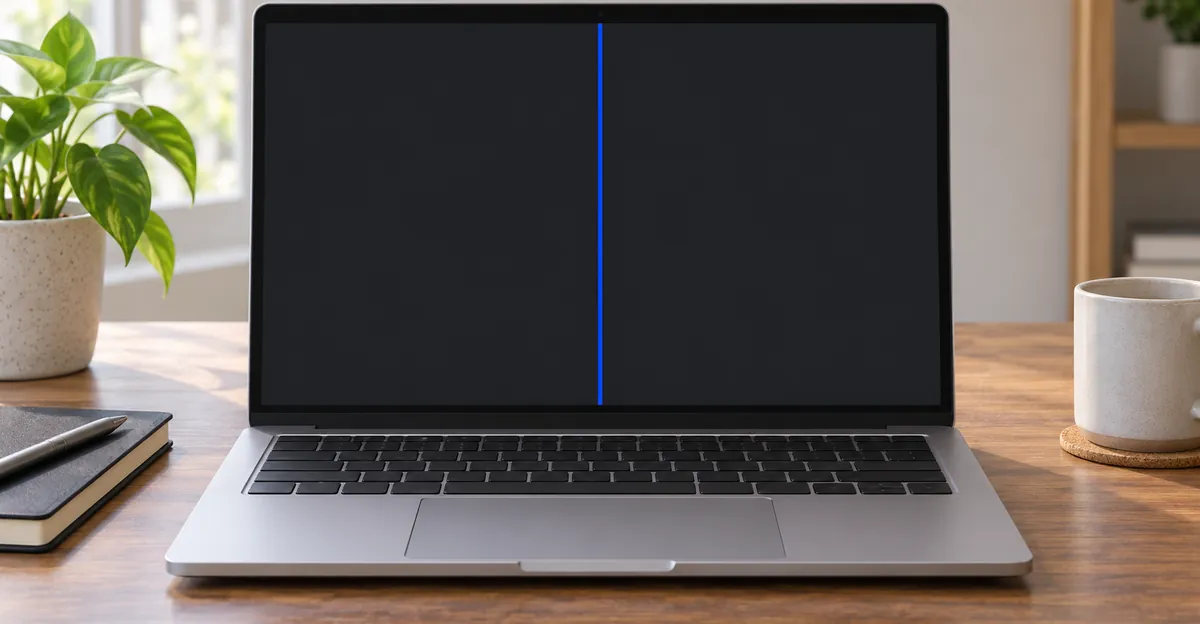
Blue lines on a Mac screen are a stripe, a pair of stripes, or a field of blue noise that the rest of the picture does not explain. The same search covers a MacBook Pro, a MacBook Air, an iMac, and a machine that only breaks inside Chrome after sleep. Those are not one repair, and the color blue does not name the failed part.
Shop pages already tell you to connect a second display and to notice whether the lid angle changes the picture. This guide starts where those checks stop. It separates a vertical bar that moves when you tilt the lid from a horizontal band that fades after the machine cools, and it separates both from blue noise that Safari never shows.
What a Blue Line on a Mac Screen Actually Is
Blue lines on a MacBook screen are not proof that the red and green sub-pixels died and left the blue ones lit. No repair write-up fetched for this guide describes the fault that way. Setapp's line guide, updated 13 January 2025, says lines can be green, purple, black, yellow, or multicolored, and that the specifics of color and pattern do not by themselves decide the cause. Magenta or violet bars that shift with one lid tilt are the purple lines on a Mac photograph, not a second disease. The page sorts the causes into physical damage, hardware, and software. Blue is the word people type. It is not a diagnosis.
A hairline that stays in the same place on a white page, a black page, and a photograph is a column or a row of pixels that no longer follows the image. A single dead pixel is a dot. A line runs along an axis. Two blue lines that stay put are two of those columns or rows. They are not a separate Mac mode, and they are not automatically the repeating bar pattern that cable damage draws.
The third picture is not a line in the glass at all. It is broken rendering. Pages shatter into blue streaks or noise while the menu bar, or Safari, still looks normal. That pattern shows up in search next to real panel faults because the words are the same. The test that splits them is whether any app outside the browser draws the mark.
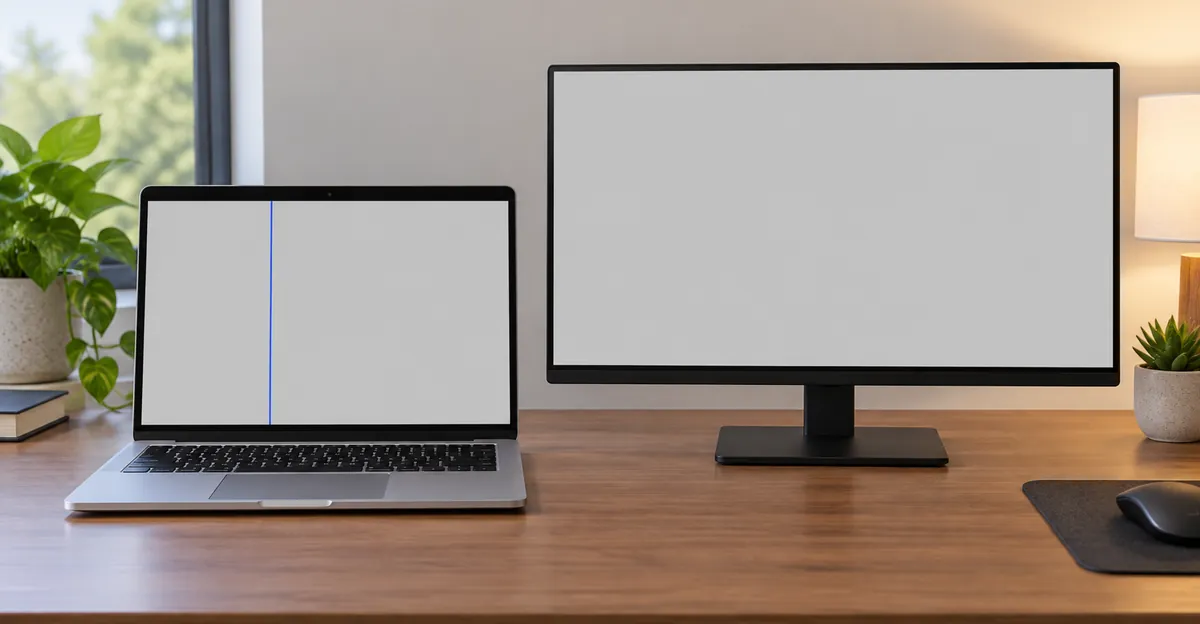
An iMac can show the same blue stripe, but it has no laptop hinge. Anything you read about a sweet spot at a certain opening angle does not apply to it. The second-display test still does. A desktop with lines on its own panel and a clean second screen is a panel problem. Lines on both screens are coming from the machine's video output.
One line, two lines, or a repeating bar
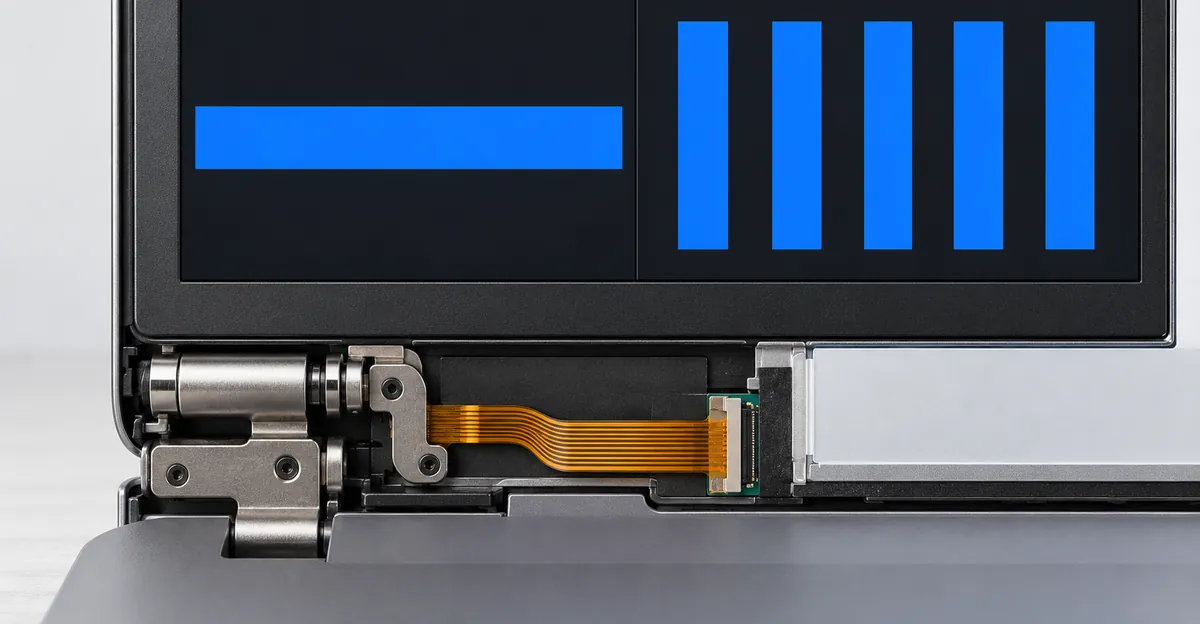
Count the marks before you name a part. Repair Wiki's Dustgate page describes dust pinching a hole through the flex data cable between the timing controller and the LCD. The usual result is about six even vertical bars, and each bar is one image block of the screen. They are often pink, and they may change or flicker as the lid angle changes. The page is explicit that horizontal lines come from a damaged LCD or from traces on the glass, not from that bar pattern.
Two stable blue lines that ignore the hinge are not that six-block signature. Treat them as columns or rows until a single, gentle lid movement proves they move. A wide field of blue speckles inside one app is not a column count at all. If you photograph the glass and the speckles are missing from a screenshot file opened on your phone, the Mac composed a clean frame and the panel path, or only that app's renderer, added the marks afterward.
Horizontal Lines and Vertical Lines Point to Different Parts
Blue horizontal lines on a MacBook screen and a blue vertical line on a MacBook screen get typed as twins. The repair pages that actually open these machines do not treat them as twins.
Fixxo's note on 2016-2017 MacBook Pro horizontal lines, updated 22 May 2026, calls the heat-related case a T-CON board failure. The picture is grey or black horizontal lines starting at the bottom edge, sometimes the top, typically 1 to 2 cm tall, often flickering. It shows up after long, heavy use and can disappear if you shut the machine down and let it cool for a few hours, provided the damage is still early. Late damage covers the screen. Fixxo tells you to leave this page if you instead see a stage-light band or a display that goes blank past a certain angle. That other picture is the backlight flex, and they point it at a different article.
The models they list for the heat issue are Intel MacBook Pros from 2016 onward: A1706, A1707, A1708, A1989, A1990, A2159, and A2141. They consider MacBooks with M-series chips safe from this particular fault. In their own shop the 13-inch non-Touch Bar model from 2016-2017, A1708, shows up most often, and they explain that with a single fan where most other Pros from that era have two. From 2016 the display's own logic board sits in the top case near the heatsink, with little airflow. They credit the explanation to independent repair notes, including Dan at iFixit, and they say Apple has not verified it. The board ships as part of the display assembly, so the sure fix they name is replacing that assembly. A replacement can fail the same way if the new board sits in the same hot pocket.
Vertical marks follow a different cable. iRepairs describes dust and grit pressed into the image-signal flex beside the hinge on the display design introduced from 2016-2017 onward. The list is vertical lines in different colors, pink, purple, green, or black bands, a region with no image, flicker when the screen moves, and a picture that is stable at only some opening angles. The MacBook often looks perfect on an external monitor. They separate this from Flexgate on purpose. Flexgate is the backlight cable: a light band at the bottom, or a panel that cuts out as you open the lid. Dustgate is the image traces: colored lines and missing image.
| What you see | What changes it | What the pages name | What a quote is buying |
|---|---|---|---|
| Horizontal band about 1-2 cm, often from the bottom, on an Intel Pro in the model list above | Worse after hours of load, softer or gone after a cool night | T-CON heat, board bonded to the display | An assembly, plus a cooler setup, or the new board can cook again |
| About six even vertical bars, often pink, or colored lines that shift with the lid | Lid angle, including a temporary sweet spot | Image-flex damage between the controller and the LCD | A flex rebuild if the cable is still local, otherwise an assembly |
| One or two lines that stay put on every solid color and ignore the hinge | Nothing you do in software or with the lid | LCD or traces on the glass | A panel or assembly. Cooling will not erase it |
| Blue streaks or noise in Chrome, Safari clean | Sleep, then a GPU compositing reset | Renderer, not the glass | No display part |
The sentence every shop page shares is that a bad built-in picture with a clean external monitor ends in a display repair. That sentence is only the starting point. It does not tell you whether you are paying for a heat-damaged controller, a glass row, or an image cable that some shops rebuild and keep the original panel for.
A hot band is not a glass row
Leave the Mac shut down overnight before you accept a horizontal-line quote on an Intel Pro from that list. If the band is gone in the morning and returns only after another long export or a lap on a pillow, you are in Fixxo's early T-CON pattern. Use the machine on a hard surface, and treat clogged fans as part of the cause. If the same horizontal lines are still there on a cold morning, on white and on black, Repair Wiki's glass-trace reading fits better than the heat story. Do not keep rebooting in the hope that a dead row will cool away.
Pink, Purple, Green, and Black Next to Blue
Pink and blue lines on a MacBook Pro are one of the most common ways this search gets described, and they are easy to file under the wrong famous name.
On 23 March 2022, an owner of a 2019 13-inch MacBook Pro with two Thunderbolt ports posted on iFixit about pink and blue flashing lines with no external damage. The lines appeared while tilting the screen. The only temporary relief was a sweet spot, and the lid had to stay open because that spot got harder to find. Tom Chai's answer is the shared starting point: if tilting changes the picture, the display flex is broken, and the usual fix is a whole display, which is expensive unless Apple covers it. He also told the owner that an in-place DIY repair was not realistic.
DanJ's comment on that same thread is the part most roundups skip. Classic Flexgate, in his account, is the short backlight cable on 2016 and 2017 13-inch and 15-inch models, worst on the 13-inch. The 2018 models and newer received a longer backlight cable, and that change resolved the backlight failure. A machine that still shows an image, with pink and blue flashing, looks to him more like the data cable or the solder joint where that cable meets the T-CON, tugged until a weak joint opens. He also separates misuse: a paperclip jammed between the top case and the display chin can crack the glass and cut the data cables. That is not the short-backlight design fault.
So a pink-and-blue flash that still contains a picture, and that hunts for a sweet spot, is an image-path failure. It is not the stage-light effect, and it is not a reason to quote the 2016 backlight story onto a 2019 machine without looking.
When the second color belongs in another guide
iRepairs puts pink, purple, green, and black bands on the same image-flex list as vertical lines. A second color beside blue does not mean two diseases when the marks move together as you tilt the lid once.
A black line on a Mac screen that stays dark on every solid color, and does not flash pink or blue, is a different fault. Those pixels are not being driven. Read it on white and on black before you mix the two guides.
A green line that is painted on the desktop, the menu bar, and a photograph belongs in the green-line guide. A green streak that exists only inside Chrome does not. On the macReports thread about blue horizontal lines in Chrome, Juan Treminio wrote in May 2021 that the same GPU-rasterization change fixed his case, except the lines were green, not blue, on Chrome 90. Safari was already the control that showed the lines were not in the panel.
Tests That Decide the Next Bill
The shared checks are short, and they are worth doing once. Then stop. Repeating them is how a tired cable gets worse.
Screen Defect says to step through full-screen colors first. A fault that stays put on every color is in the panel. A fault that changes or disappears is a signal, a setting, or a driver. Photograph the fault on white, with the date, before you book. That frame is the evidence they say changes a warranty conversation. Pressure marks, heat blotches, and impact are treated as accidental. Lines and flicker with no incident are treated as hardware failures while the machine is still in warranty.
Setapp's external-display split is the second check everyone already gives. Lines only on the built-in display point at that display. Lines on both displays point at the video card. iRepairs adds the caveat the split needs: a perfect external picture is typical when the image flex is damaged, and it means the logic board is not necessarily the cause. It does not by itself prove which part inside the lid failed. They still open the machine to see whether the cable can be rebuilt or the panel is gone too.
The lid check is one movement, not a session. Open or close until you see whether the line shifts, then leave the hinge alone. iRepairs says this fault often starts as a single line that appears when you move the screen and ends as a large loss of image. If the line appears or vanishes with angle, do not keep hunting a sweet spot and do not open and close the lid over and over.
When you have no second display
Setapp assumes you can connect a monitor or a TV. Many people cannot. The follow-up those pages leave open is the frame the Mac already composed.
Press Shift-Command-3 while the line is on screen. AirDrop or copy the file to a phone, or open it on another computer. You are not judging the photo of the glass. You are judging the file. If the blue line is inside the file, the Mac drew it before the image reached the panel. Chrome, the GPU path, or a failing video output belongs on the list, and a panel quote does not, until a second screen also shows the line. If the file is clean and the glass still shows the line, the panel path added the mark after the frame was done. That is the same split as a clean external monitor, using the screenshot as the second surface.
Two more gates sit in front of any parts order. If the line is already on the Apple logo or the login window, a browser setting cannot be the cause. If it is absent there and absent in Finder, and it exists only in Chrome, skip the hinge tests and use the next section. Apple Diagnostics, which Setapp describes as holding the power button and then pressing Command-D on Apple silicon, or holding D at power-on on Intel, is useful when you already suspect hardware. A display reference code is a reason to book, not a reason to keep resetting the SMC.
Blue Lines That Live Only in Chrome or After Sleep
Blue lines that show up after sleep are three different machines wearing the same sentence.
Flavio Copes woke a 16-inch MacBook Pro from 2019 and found blue lines and noise in Chrome. Reloading the page did nothing. Closing Chrome did nothing. The same garbage appeared in Workflowy, an Electron app, which embeds Chromium, and it did not appear on every Chrome tab. He turned off "Use hardware acceleration when available," relaunched, and the picture came back. His explanation is a GPU left in a bad state by wake from sleep. Chrome composites pages through that GPU, so the frames come out as garbage. Rendering on the CPU sidesteps the broken path. He turned acceleration back on afterward. Leaving it off makes video, animation, and WebGL heavier and costs battery. A reboot also clears the bad GPU state if you would rather not leave the setting off.
macReports recorded the same blue horizontal lines in Chrome on Macs, absent in Safari, and limited to some sites. The usual fix is the same toggle: Chrome settings, System, hardware acceleration off, then Relaunch. A commenter on a 2019 16-inch MacBook Pro running macOS 11.2.2 and Chrome 89 cleared it by disabling the GPU rasterization flag instead. Another cleared the stock steps on macOS 10.15.4. The useful control is Safari, or any non-Chromium app. If that control is clean, you do not have a MacBook display fault.
Turn acceleration back on after the check
Use the toggle as a test, not as a permanent setup, unless the glitch returns the moment you enable it again. Confirm the line is gone in Chrome and still absent on the desktop. Then turn acceleration back on and relaunch. If the lines return only inside Chrome, you have a repeatable software fault and a reason to update Chrome and macOS, which is the third step macReports lists, not a reason to buy a display. If the lines are still on the desktop with acceleration off, Chrome was never the cause. Go back to direction, heat, and lid angle.
Sleep can also draw lines that are not on the Mac's own panel. On Ask Different, an M1 MacBook Air owner saw horizontal lines on an MSI G241 after unlocking with Control-Command-Q. The Air's internal display stayed clean, the machine was not hot, and the same monitor was fine on a Windows PC. Closing the lid for a few seconds cleared the external picture. Linc Davis's suggestion was a direct USB-C to DisplayPort cable, around $20 or less, into a monitor that accepts DisplayPort, instead of a hub. That pattern is a cable or a handshake on the external path. It is not a blue line on a MacBook Air screen, and it is not a reason to replace the Air display.
Screen flickering that comes and goes with load, and never hardens into a line you can photograph on a cold white page, stays in the flicker guide. Once the mark is still there after a full cooldown, on the login screen, it has left that guide.
Which Mac the Pattern Actually Fits
MacBook Pro, MacBook Air, and iMac share the search and not the mechanism. Match the pattern to the generation before you inherit a repair story from a different year.
iFixit's January 2019 Flexgate write-up describes the Touch Bar generation wrapping thin flex cables over the display controller board. Each opening pulls the cables tighter. The backlight cable usually fails first. The picture is the stage-light band, then a backlight that gives out when the lid opens past about 40 degrees. The cables are part of the display, so a failed length of cable becomes a whole display unit. iFixit called that a $6 problem turned into a $600 disaster. At the time of that article the new MacBook Air used a different cable layout that still wrapped over the display board. iFixit had not yet seen the same failure there and said it would not be a surprise if it appeared.
MacRumors' guide, 21 May 2019, narrows the early reports to 13-inch and 15-inch MacBook Pros from 2016 and 2017, more often the Touch Bar models. Older Pros used a wire routed through the hinge and were not in this failure. iFixit had found the 2018 cable about 2 mm longer, which reduces the tug, and was not certain the extra length fully solved it. Apple's backlight repair program, as MacRumors reported it that month, covered 13-inch MacBook Pros from 2016 with four Thunderbolt 3 ports and with two Thunderbolt 3 ports, sold between October 2016 and February 2018. No other model was in that program, even with a similar picture. Out-of-warranty repairs were described as upwards of $600 because the cable is integrated into the display. People who still had AppleCare+ were covered. That program list is a 2019 fact. Check current coverage for your serial rather than assuming the same machines are still repaired for free.
DanJ's later note on the 2019 pink-and-blue thread is the correction to apply on top of those 2019 articles. The longer backlight cable on 2018 and newer addressed the stage-light failure. Image-colored lines on a machine that still shows a picture are the data side. Quoting Flexgate at a 2019 or later MacBook because the lid angle matters will buy the wrong explanation, even when the repair is still a display or a flex rebuild.
iMac and Apple silicon are not the 2016 hinge story
Fixxo's "M-series chips are considered safe" line applies to the Intel T-CON heat band, not to every colored line on every Apple silicon Mac. An M1 Air with a clean internal screen and lines on a hub-connected monitor is the Ask Different case above. The part to change first is the cable path, not the Air panel.
An iMac has no clutch and no lid-angle test. Setapp still groups iMac lines with MacBook lines under damage, hardware, and software, and its desktop power reset is the unplug-for-15-seconds procedure, not the laptop key combination. If the iMac and a second display both show the line, Setapp's video-card reading applies. If only the iMac panel shows it, you are buying that panel, not a hinge cable and not a Chrome setting. A blue line around the Mac screen that is actually the bezel, a window shadow, or the edge of an external display's menu is not a column fault. Confirm it remains when you hide every window on a solid color.
The MacBook screen problem map is the right next page when the mark is a stain, a heat blotch, or coating wear rather than a line. Those share a lid and a price range. They do not share this direction test.
Repair Cost and Whether to Keep the Panel
MacBook lines on screen repair cost follow the part, not the word blue. These are the figures the fetched pages actually print.
| Pattern after the tests | Cited price | Keep the original panel? | Keep working today? |
|---|---|---|---|
| Angle-shifting vertical color bars, external screen clean | iRepairs: indicative flex repair 220 euros before 2019, 290 euros from 2019, with 6 months on the compatible part, only if the damage is local | Sometimes. If the LCD is also damaged, they replace the display | Stop cycling the lid. The line tends to spread |
| Stage light, or blank past about 40 degrees, on a 2016-2017 Pro | iFixit: about $600 for the assembly. MacRumors: upwards of $600 out of warranty. The May 2019 program was free only for the listed 2016 13-inch configs | Not in Apple's design. The cable is part of the display. Some shops lengthen the backlight flex | Do not keep opening past the angle where the image dies |
| Horizontal heat band on a listed Intel Pro | Fixxo: display assembly. They do not publish a dollar figure, and they warn the new assembly can fail again if it overheats | The board is bonded to the assembly they replace | Cool it on a hard surface. Early cases can look normal the next morning |
| Stable line on every color, lid angle does nothing | Screen Defect, United States: about $450 to $800 at Apple out of warranty, Air lower and 14-inch or 16-inch Pro higher; about $300 to $500 independent. Setapp's repair tech, Mike, gives $300 to $800 for a display | Rarely. The row is in the glass | You can work around a thin stable line. It will not heal |
| Chrome or Electron only | No part | Yes | Yes, after the acceleration test |
| External monitor only, internal panel clean | A direct cable, cited around $20 | Yes | Yes |
Screen Defect's warranty split matters more than the dollar range. Lines, flicker, and panel faults with no incident are hardware failures and are covered while the machine is in warranty. Pressure, heat damage, and impact are accidental, so the standard warranty does not take them. AppleCare+ covers accidental damage with an excess. The page does not print that excess. Do not invent a service fee from a different product. Photograph the line on white, dated, before the appointment.
Repair Wiki adds a detail you should hear before you celebrate a flex repair. After the cables are replaced, a flickering screen for 10 to 20 hours of display use can be normal. They suspect a sync mismatch from a slightly different cable impedance, and they see the same flicker after a T-CON firmware reflash. It clears on its own. The repair is specialist soldering. Cables break if they are bent near the joint, and 15-inch and 16-inch cables have a longer grounding pin than the smaller sizes. That is not a Saturday screwdriver job. Tom Chai told the pink-and-blue owner the same thing in plainer words: an in-place fix, no. A fix that means buying a display, only if you are ready to spend the money and you know the cables.
What to put in front of the shop
Bring five facts, not a paragraph about blue.
- The model identifier and serial from About This Mac.
- A dated photo of the line on a white full-screen page, and one on black.
- The screenshot file, so the shop can see whether the line is in the frame the Mac composed.
- One sentence on lid angle, including "no change," and whether an external screen matches.
- Any Apple Diagnostics reference code.
That pack is what stops a default assembly quote when the cable is still rebuildable, and it is what stops a display quote when the file proves Chrome drew the lines. Ask the shop to write the failed part down before you approve the price. iRepairs' own split is the question to ask: can this flex be rebuilt, or is the LCD already damaged?
While you wait, do not close the lid on a charger, a cable, or a paperclip. Screen Defect notes how little clearance a MacBook lid has over the keyboard, and DanJ has already tied a paperclip at the chin to cut data cables. Do not flap the hinge to "see if it is better today." If the only lines are on an external display, change that cable or skip the hub before anyone prices a MacBook panel.
Related Guides
- Black Line on a Mac Screen: A dark row that never flashes blue
- Purple Lines on Mac Screen: Dustgate bars that move with the hinge
- Green Line on Screen: A painted green stripe on the desktop
- Laptop Screen Lines: Windows lids use the same tilt test
- Internally Cracked MacBook Screen: Flexgate-era hinge faults
- Dead Pixel: A single blue pin-prick, not a stripe
Conclusion
Blue lines on a Mac screen split by direction, by whether the lid or the heat changes them, and by whether Safari and a screenshot file contain them. A vertical color bar that shifts with one tilt is an image flex. A horizontal band that fades overnight on a listed Intel MacBook Pro is the hot display controller. A line that is identical on every solid color, and that ignores the hinge, is in the glass. Blue noise that never leaves Chrome is a GPU compositing state, not a panel. An iMac has no hinge test. An external monitor that misbehaves while the MacBook panel is clean is a cable or a hub.
Run a full-screen white and black pass in the Screen Test, save the screenshot file, and take that evidence to the quote. The color in the search box is not the part you are buying.