Spots on Phone Screen: What Each Color Means
Spots on a phone screen are marks that stay on the same glass coordinates while the picture underneath changes. The search phrase covers several faults that do not share a repair. A blue patch, a white glow, a pink blotch, and a black pinprick can each be pressure, a subpixel, moisture, a protector bubble, or a dot the phone is drawing. Color is a sorting clue. It is not a diagnosis by itself.
This guide is the sort. It shows which backgrounds reveal which mark, which home steps are worth ten minutes, and which steps enlarge the damage. A soft bright glow has its own deeper page. So do white, pink, and OLED black marks. Use those after you know which family you are in.
What Spots on a Phone Screen Actually Are
A spot is local. The rest of the screen still looks normal, and the mark does not slide when you scroll. That already separates it from a full-screen tint, a night-light shift, or a color filter. Guides that title themselves around spots and then only discuss black dots miss the blue, white, and pink searches that use the same words. The useful split is by edge, size, and which solid field makes the mark obvious.
A hard pinprick the size of one pixel behaves like a subpixel fault. A soft blotch the size of a fingertip behaves like crushed layers, a leaking backlight film on an LCD, or moisture. A mark with a tide line after a spill behaves like liquid between layers. Edge glow that fades into the bezel on an LCD is often backlight bleed, which is a different complaint from a spot in the middle of the picture. Dust on the outer glass moves or vanishes when you wipe it. Dust trapped inside a bonded stack does not.
Panel type changes the physics, and brand is not a shortcut. Recent flagship phones are usually OLED or AMOLED. Many older and budget phones are still IPS LCD. The same company sells both. Look up the exact model and read whether the spec says OLED, AMOLED, or IPS LCD before you interpret a glow. An LCD is lit from behind by a film stack. An OLED makes light in each pixel and has no diffuser to leak. Pressure on an LCD often makes a bright cloudy patch. Pressure on an OLED more often makes a dark, pink, blue, or green area. Neither outcome is guaranteed after a hard knock.
Use this field map before you pick a fix. It is a triage, not a lab certificate. Run it at high brightness in a dim room after the protector is off.
| What you see | Clearest field | Working label | Honest next step |
|---|---|---|---|
| Soft glow, no hard edge | Black | LCD pressure or backlight stack | Assembly quote, do not press |
| Hard colored pinprick | Black if it glows, white if it looks dark | Stuck or dead subpixel | Short color-cycle test only if it is one speck |
| Soft blue, purple, or pink patch | White | Layer damage, often after pressure or a drop | Photo today, repair if it grows |
| Black pinprick on every bright color | White | Dead pixel | Live with a stable speck, or replace the panel |
| Mark moves with taps or sits in the status bar | Any | Software overlay or icon overflow | Settings, not a new screen |
| Mark vanishes when wiped or when the film comes off | White or angled light | Surface or protector | Clean or refit the protector |
Ranking pages tend to stop after clean, restart, and replace the screen. That list is the floor. It does not tell you which row you are in, and the row decides whether a pixel page, a warranty visit, or doing nothing is rational.
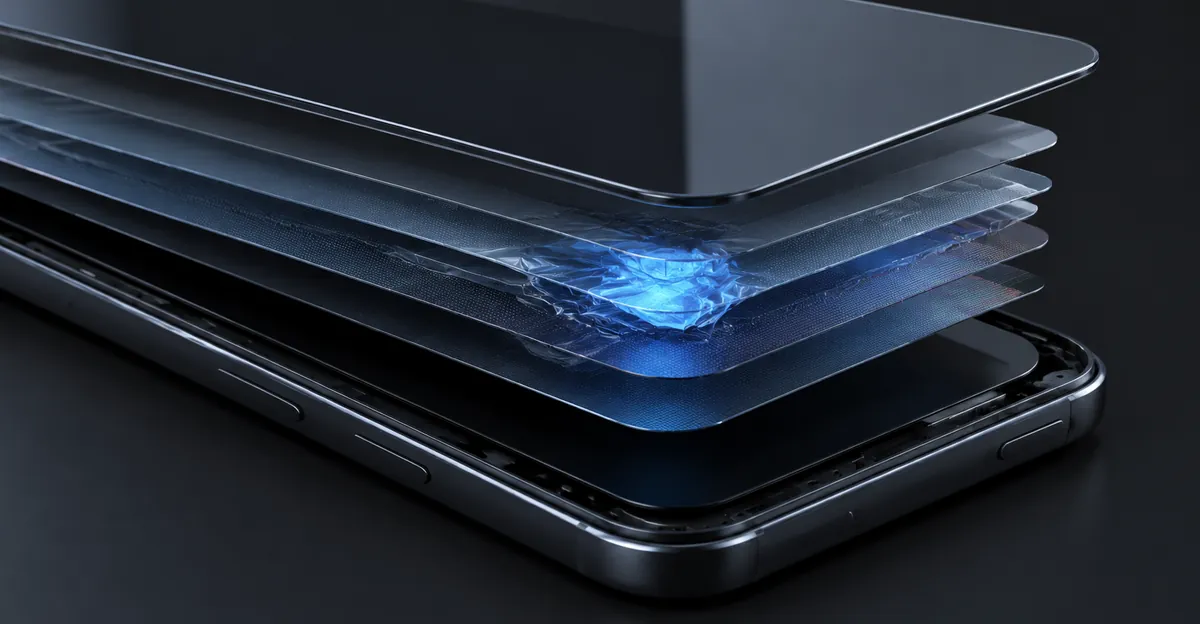
Blue Spot on Phone Screen
A blue spot on a phone screen is a defined area with normal color around it. A blue cast across the whole panel is a different fault. The whole-screen cast is usually Night Shift, a color profile, a filter, or a failing connection, and it is often free to undo. If a solid white field is blue only in one region, keep reading. If the entire white field is cool, change display settings before you price a panel.
On the local mark, published repair guides describe four physical causes and then say the same thing about software. Sitting on the phone, a tight pocket, or a squeeze in a bag deforms the liquid crystal or the OLED stack, and the patch is often soft and shaped like the pressure. A drop can crack inner layers while the outer glass stays intact. Blue or purple bloom from a corner is the classic impact signature. Moisture that reached the layers dries into blue or purple patches, sometimes with a visible edge. On an LCD, a separating polarizer or backlight film can shift color in one zone. None of those four is an app, a setting, or a factory reset.
Blue and purple are often one fault at two stages. A display mixes red, green, and blue. Damage that knocks out green leaves red plus blue, which reads purple. Damage that knocks out red and green leaves blue. A mark can start blue and turn purple as it grows, or the reverse. That shift is progression, not a second disease. Pressure marks often stay about the same size. Impact bloom commonly covers much more of the screen within weeks. Moisture spreads while any liquid remains, then may stop. Photograph the patch on white today and again in seven days. Growth is the signal to book a display quote instead of watching it.
A single hard blue dot is the exception inside this color. Display makers describe a bright subpixel as one color stuck on, easiest to see on a dark field. A fingertip-sized soft patch that is more obvious on white is not that fault. Color-cycling pages are aimed at the stuck speck. They do not rebuild a crushed layer. Pressing or massaging the blue area is widely suggested and widely warned against, because it spreads layer damage. Take the protector and case off first. A bubble, grit, or a dyed film can imitate a blue or purple patch and costs nothing to rule out.
The repair, when the mark is in the panel, is a display assembly. On current phones the panel and the touch layer are bonded, so there is no routine way to open the stack, clean one blue zone, and close it. Standard warranties treat pressure, impact, and liquid as accidental even when the outside looks unmarked. A blue patch that appeared with no drop, no squeeze, and no moisture, on a phone still in coverage, is the conversation that can still be a defect. Out of coverage, a stable blue spot is cosmetic. The phone can keep working. Replace the assembly when the mark bothers you more than the quote, unless it is growing.
How to Fix White Spots on Phone Screen
How to fix white spots on a phone screen starts by throwing out the fixes that cannot reach the fault you have. A white mark may be dried residue, a failing protector, a stuck pixel, pressure damage, moisture, or a battery pushing from behind. Cleaning clears dried residue on the glass. A failing protector is fixed by replacing the film, not by wiping. If you want the longer white-spot writeup after this sort, use the white spots on a mobile screen guide. A glow that is bright rather than a pale patch belongs with a bright spot on a phone screen.
Do the free exclusions in order. Power the phone off, unplug it, and remove the case. Look at the mark at an angle under a lamp. Wipe with a clean, dry microfiber cloth. If it remains, dampen one corner of the cloth with a little distilled water. Never spray the phone. Wipe once, then dry with a clean face of the cloth. If the mark disappears, it was on the glass. If it sits under a protector, replace the protector. Do not peel a factory film off a foldable as a casual test. Some makers publish their own wipe rules, including alcohol wipes on certain Pixel glass. Follow the page for your model. The shared rule is that liquid belongs on the cloth.
Two Android white dots are not panel damage at all. A white dot that follows your finger is the developer option Show taps, under Developer options, Input. Turn it off. A tiny white dot in the status bar can be an overflow indicator when notification or system icons do not fit. That dot is a UI behavior. A new screen will not remove it.
If the white area stays in the same physical place, glows when the panel is on, and is easiest on black or gray, cleaning is finished. On an LCD, pressure from a tight case, a pocket, or a drop compresses the films in front of the backlight and light leaks as a soft white patch. That patch is not a stuck pixel. Pixel-fixer apps and sites such as JScreenFix flash colors for about ten minutes over a speck. Repair writeups limit that trick to a stuck pixel, where the cell still responds. A cracked diffuser, backlight damage, or a soft pressure cloud has nothing for the app to toggle. On OLED, a stuck subpixel can still look like a bright dot, but there is no liquid crystal to realign, and published evidence that cycling repairs OLED emitters is thin. Burn-in is uneven wear and cycling does not undo it.
Guides still tell people to press the white spot with a cloth or an eraser. The stronger sources say the opposite. You cannot know whether you have debris or a pressure dent until the black, white, and gray fields are done, and pressure is the action that enlarges an LCD dent. Heat and freezing are unsupported, and a cold phone brought into a warm room can condense inside a sealed body. If none of the exclusions cleared the mark, the remaining path is a screen assembly at a shop that can fit the right part. That is the boundary of how to fix white spots on a phone screen at home.
Pink Spots, Black Spots, and a Mark That Changes Color
Pink and black are the other two high-volume colors, and they should not be forced into the blue or white story. A pink spot on a phone screen is common on OLED after pressure, heat, or moisture. Technicians sometimes call the crushed organic layer ink, because a pink or magenta stain spreads from the damage point as the seal fails. On an LCD the same color is more often a cracked backlight or polarizer and looks lighter and more diffuse, often near an edge. Heat from a car, a game while charging, or a pillow over a charging phone can shift color until the phone cools. That temporary shift is not the same as a stain that is still there the next morning. The longer pink writeup is pink spots on a phone screen.
A black spot splits into a pinprick and a blotch, and the words how to fix black spots on phone screen hide that split. A pinprick that stays black on white, red, green, and blue is dead. It emits nothing. A pinprick that holds red, green, or blue is stuck, and a 10 to 30 minute color cycle over that speck is the only home test worth the time. An irregular dark patch that grows is not a pixel app problem. On LCD phones, repair guides describe liquid crystal leaking like ink. On AMOLED, a single dead pixel does not recruit its neighbors the way an LCD leak does. A growing dark patch on OLED more often means impact, moisture, or a failing region of the panel. Deep OLED mechanics sit on the black spots on an OLED screen page. A Galaxy Note 8 or S8 blotch with a camera mix-up is the Samsung black spot decision. The shorter generic sort, white-first, is spots on a mobile screen. How to get rid of a black spot on a phone screen, for a stable speck at the edge of an older phone with normal touch, is often to stop spending money on it.
Color that changes is the follow-up most single-color articles leave hanging. A mark that moves from blue toward purple or pink is usually the same layer fault getting worse, not a new category. A pink or purple area that flickers, shifts when you gently flex the phone, or vanishes after a restart can be a loose display connector rather than ink. That pattern is uncommon, but it is the one case where a shop might reseat a cable instead of selling a full assembly on the first visit. If the stain only grows, assume the panel.
Software still deserves one pass on pink and on lines, because Samsung's own support page for pink lines and small dots tells you to update, then use Safe mode. Safe mode loads the original software and disables downloaded apps. If the mark is gone there, uninstall recent apps. If it remains on the lock screen in Safe mode, apps are not drawing it. A swollen battery is the cause that changes the safety rule. Pink, white, or uneven patches plus a screen or back that lifts off the frame mean stop charging and stop pressing the glass flat. Heat is optional. A swelling cell can do this alone.
Screenshot First, Then Solid Colors
Most spot articles open a white image and stare. White is the right field for dark debris, dead pixels, and colored patches. It hides anything that glows, because the surround is already at full output. Black shows stuck-on subpixels, LCD pressure clouds, and backlight bleed. Mid gray shows OLED wear that clips to invisible at pure black or pure white. You need all three, plus red, green, and blue if the mark might be one subpixel. Samsung phones can open solid colors with the dialer code *#0*#. A saved full-screen image works on every phone, including iPhones, which do not ship that diagnostic menu.
Before the colors, take a screenshot while the spot is visible and open that image on another phone or a computer. If the mark is in the picture, the phone drew it. Check filters, accessibility cursors, screen recorders, and Safe mode. If the mark is missing from the picture and still on the glass, the framebuffer is clean and the physical display path is not. People who skip this step replace panels for an overlay, or run pixel apps at a dent that no app can see.
Then clean and strip the phone. Protector off, case off, dry microfiber, restart, pending update installed. Check the glass for a crack or a damaged coating. Those are outside the panel and need their own repair. Only then fill the screen with flat white, flat black, and a flat mid gray at maximum brightness. Hide the browser chrome. Discard gradients. Rotate the phone. A hardware mark stays on the same glass point while the picture rotates. A mark that rotates with the image is content or an overlay.
Write down what the fields did. Soft glow only on black points to an LCD light leak or pressure stack. A colored patch that is obvious on white and fades on black points to layer or OLED damage. A black speck on every bright primary points to a dead pixel. A single colored speck on black points to a stuck-on subpixel. Angle changes can suggest liquid or a separating film. Stop if you are tempted to press beside the mark to see if it moves. A gentle observation is not a massage. If the phone was wet, power it down when you can and do not keep charging it while you collect more test photos.
Use a second camera for the record. The phone's own screenshot will miss a hardware glow, which is the point of the first test. Shoot black, white, and gray in a dim room, fill the frame, avoid reflections, and put a coin or card in one frame for scale. Note the model, the date, and whether there was a drop, a hot car, a spill, or a recent third-party screen. Repeat the same three frames in seven days. That packet is what a desk uses. It is also how you catch a bloom that a memory will underestimate.
- Protector and case off, glass wiped, phone restarted.
- Screenshot opened on another device.
- Flat black, white, mid gray, then red, green, and blue.
- Note size, edge, color, and whether the mark follows the glass.
- Check lift, heat, cracks, flicker, and dead touch near the mark.
- Save dated second-camera photos before any shop visit.
LCD or OLED Changes What the Same Spot Means
The same words hide two light engines. Once you know which engine you have, half the folklore drops out. LCD phones, including older iPhones such as the XR, the 11, and the SE line, light the image from a backlight and a stack of films. Disturb that stack and light pools. OLED iPhones include the X, XS, 11 Pro, and every model from the 12 onward. Most recent Galaxy and Pixel flagships are OLED too. None of these panels have a backlight. A bright pool cannot be a leaking diffuser that is not there. Android still requires a model lookup, because one brand ships both panel types in the same year.
Read the black field through that lens. On LCD, a soft bright patch away from the bezel is usually pressure or contamination in the film stack, and the fix is the assembly. Faint glow only at the edge, judged in a dark room, is often ordinary bleed and a cosmetic call. On OLED, a ghost of a keyboard or status bar on gray may be image persistence. Apple's OLED display notes treat persistence as temporary and say it disappears after a few minutes of normal use. If the ghost is gone after mixed content, it was not burn-in. A ghost that is still there hours later is the wear case, and color cycling will not restore those emitters.
Stuck versus dead still matters on both, with a narrower hope on OLED. A dead cell stays dark on bright colors. A stuck cell holds one color. Color cycling is a folk method based on liquid crystal reorienting under drive. That story does not transfer cleanly to OLED, where there is no liquid crystal. Even on LCD, cycling does nothing for debris, bleed, burn-in, or a dented diffuser. If you try it, limit it to a single speck, cap it around 10 to 30 minutes, and do not combine it with thumb pressure.
Companion signs finish the sort. OLED color spots often travel with a tint, a thin line, or a stain that grows after a knock with intact glass. LCD white spots often travel with a cloudy shape or edge bleed. A pink or blue stain plus a lifting frame is battery pressure until a technician proves otherwise, on either panel. Do not keep using that phone to finish the color tour.
Repair Quote, Warranty Evidence, or Keep Using It
After the tests, generic articles say replace the screen. The decision you still have is narrower than that, and one shop guide that offers light pressure for a black dot also says pressure enlarges internal cracks. Treat the second sentence as the one to follow. There is no pixel sitting on a board that a technician unsolders. The cell is part of a sheet. Trapped internal debris sometimes cannot be cleaned without replacing the unit anyway. Ask the quote whether the job is a full display assembly. On many phones that assembly includes the glass and the digitizer. A claim that a small spot can be fixed by opening one layer, without a new panel, needs a written explanation before you pay.
| Situation | Path | Why |
|---|---|---|
| Mark is inside the screenshot and gone in Safe mode | Remove the app or overlay | A new panel will not erase a drawing |
| Gone after protector or wipe | Refit or replace the film | The panel was never the fault |
| One stable speck at the edge, old phone, touch normal | Live with it | The quote can exceed what the phone is worth |
| Soft patch after pocket pressure, not growing | Quote when it annoys you | Often stable, still hardware |
| Blue, purple, or pink bloom after a drop | Repair before it spreads | Impact stains commonly grow within weeks |
| Present from new, no impact, coverage active | Manufacturer inspection | Defect path is the one that can be free |
| Frame lifting, heat, or a spill | Stop charging and get service | Battery or corrosion, not a cosmetic wait |
| Lines from the spot to the bezel, or touch dies | Assembly or a new phone | Driver, bond, or panel, not a pixel app |
Warranty language is blunt across the pages that publish it. Manufacturing issues inside the base term can be covered. Pressure, cracks, and liquid are treated as accidental. Apple's LCD anomaly page tells owners to bring the device in and allows a charge for evaluation, and it does not print the acceptable number of spots. The OLED support page discusses persistence and burn-in and does not hand you a pixel count either. You cannot settle coverage at the kitchen table. Check the serial number on the maker's coverage page before you book, and do not assume a spot qualifies because it is ugly.
Money is a band, not a price. A 2026 repair-cost roundup put many Android display swaps in the United States around $80 to $200, and out-of-warranty iPhone screens around $200 to $380, with AppleCare+ screen fees cited around $29 to $99. A separate Apple pricing read for an iPhone 17 Pro Max put screen damage near $379 without a plan and $29 with one. Those figures move by model, city, and tax. Flagship OLED at brand service costs more than a budget LCD. Get two written quotes. Back up the phone while the picture is still readable. If a third-party screen was fitted just before the spot appeared, take it back to that shop first.
What to carry is the part other guides skip. Bring the model, a coverage screenshot, dated second-camera photos of white, black, and gray, one frame with a scale object, and a one-line history. Say whether the glass is unmarked. Say if the phone was sat on, dropped, soaked, or left in a hot car. That packet is how a defect claim stays distinct from accidental damage. Without it, the desk only has your memory and a mark that may look like pressure.
Keep using the phone when the spot is small, stable, cool, dry, and away from a lifting seam, and when touch around it still works. Stop when the patch grows week to week, lines run to the edge, the chassis lifts, the phone runs hot, or it got wet. Do not run hour-long flashing videos at full brightness on an OLED soft stain. Do not open the phone. Do not freeze it. A case with a raised lip and a pocket that is not your back pocket prevent more spots than any setting does. They do not heal a mark that is already in the stack.
Related Guides
- Spots on a Mobile Screen: White-first sort of the same family
- Black Spots on an OLED Screen: Dead emitters vs burn-in
- Samsung Black Spot: Note 8 and S8 ink blotches
- Bright Spot on a Phone Screen: A glow, not a dark stain
- Pink Spots on a Phone Screen: Magenta pressure marks
- White Spots on a Mobile Screen: Pale LCD leaks
Conclusion
Spots on a phone screen are a family of faults sorted by a screenshot, three flat fields, and the panel type. A blue or pink patch after pressure or a drop is layer damage and can spread. A white glow on black, after the protector is off, is usually an LCD stack problem that cloth and apps cannot reach. A black pinprick that never lights is a dead pixel. A dot that shows up in a screenshot is software until Safe mode says otherwise. Pressing the glass is the step that makes several of these worse.
Document the mark, compare it in a week, and treat a lifting frame or a wet phone as a stop. When you need flat black, white, gray, and primary colors without hunting for images, open the free Screen Test tool and save the photos before you talk to a shop.
Sources
- Blue spot causes, spread, and repair bands: screendefect.com
- Field tests, OLED versus LCD, and what not to press: theleaker.com
- White-spot exclusions, Show taps, and stuck-pixel tools: Beebom Gadgets
- Cleaning limits for white marks: Gadgets Now
- Pink spots, heat, and a swollen battery: Beebom Gadgets
- Black spots, Safe-mode logic, and LCD ink versus AMOLED: Beebom Gadgets
- Screenshot split between a drawn dot and a panel mark: aitoolsprimer.com
- Pink lines, dead pixels, and Safe mode on Galaxy phones: Samsung