A bright spot on your phone screen is an area that glows brighter than the surrounding pixels and stays in the same physical place while apps change. People asking why is there a bright spot on my phone screen usually need a cause map, not a list of random home remedies. This guide shows how to separate surface debris from stuck pixels, LCD backlight damage, OLED panel faults, and battery pressure, then decide whether you can keep using the phone, claim warranty, or book a screen replacement.
Why Is There a Bright Spot on My Phone Screen: What It Means
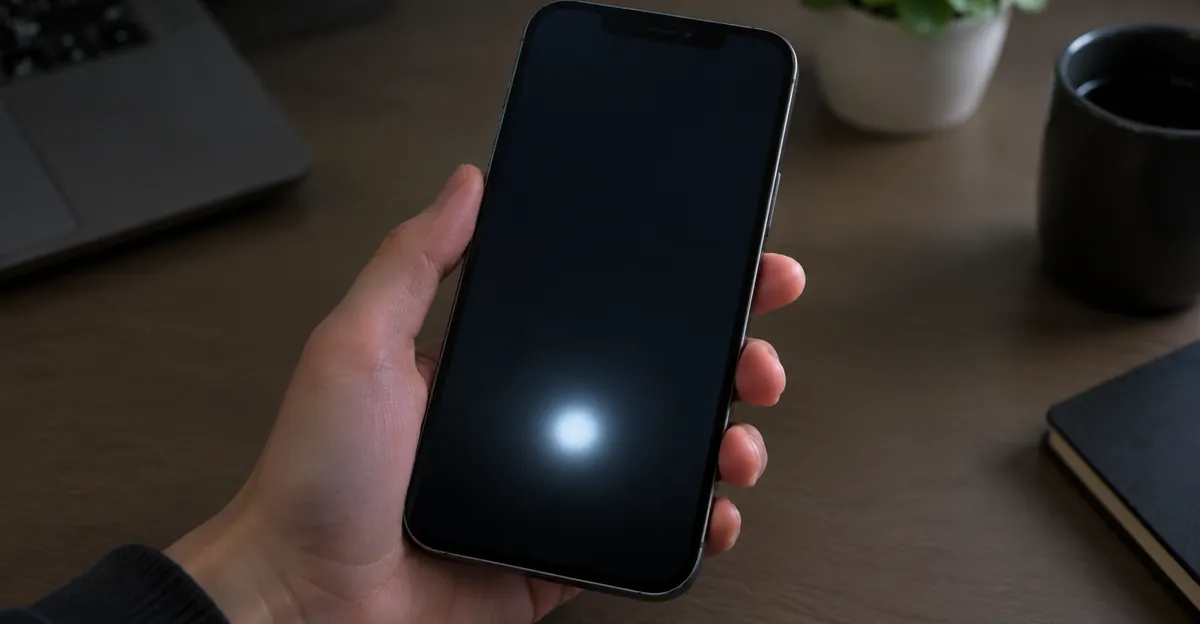
What a Bright Spot on a Phone Screen Actually Is
A dark stain on the same glass is the opposite family — start at spots on a phone screen if the mark is black, pink, or pale rather than glowing, or the shorter spots on a mobile screen sort. A bright spot on a phone screen is not one defect with one name. It is a symptom family: anything that makes one region emit or leak more light than its neighbors. That can be a single stuck subpixel, a soft pressure patch in an LCD film stack, edge backlight bleed, OLED emitter damage, trapped debris under glass, or even a bubble under a screen protector that only looks like a panel fault until you remove the film.
Visibility depends on background and brightness. Soft glowing patches are easiest to see on black or dark UI because neighboring pixels are supposed to be dark. Mid-gray fields reveal subtle uniformity problems and OLED burn-in that pure black or white can hide. Pure white can hide a stuck-on bright pixel because the whole field is already bright, while the same white field reveals darker debris and dead subpixels. Ranking guides that only tell you to “open a white screen” miss half the faults that match the bright-spot search.
Size and edge quality matter as much as color. A hard-edged pinprick that stays one color across apps behaves like a pixel or subpixel fault. A cloudy, soft-edged blob that does not change with content behaves like pressure or backlight-stack damage on LCD devices. Blotchy patches with tide-line edges after liquid exposure behave like moisture between layers. Edge or corner glow that fades into the bezel is often backlight bleed rather than a central pressure mark.
Also separate UI overlays from panel faults. An Android “show taps” highlight, a developer pointer, or a sticky accessibility cursor can look like a bright dot that moves with touch. A true display bright spot stays glued to one place on the glass even when you rotate the phone and change apps. If the mark rotates with the image content instead of staying on the same glass coordinates, treat it as rendered content or a software overlay until proven otherwise.
Finally, remember that LCD and OLED phones can show the same complaint for different physics. LCD phones light the image from behind through a diffuser stack, so many bright patches are light-guide or diffuser problems. OLED phones have no backlight, so a glowing region usually means damaged or degraded emissive pixels, not a leaking film. Identifying panel type early prevents you from applying LCD advice to an OLED phone or chasing pixel-fixer apps for a diffuser dent.
Why Phone Screen Bright Spots Happen
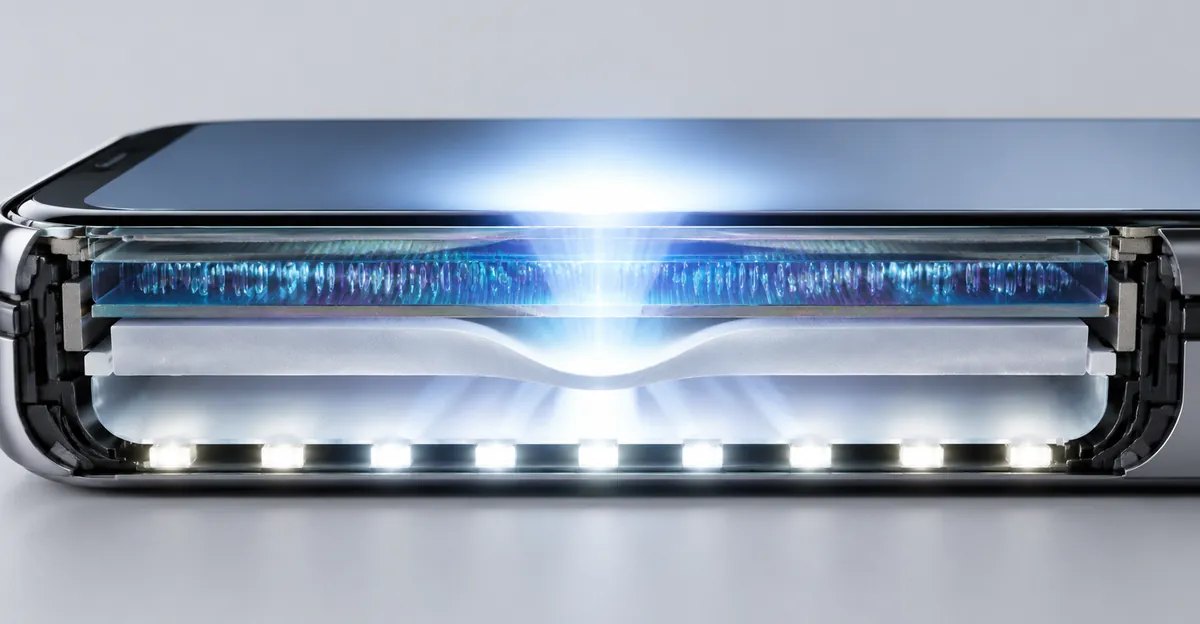
Pressure damage is the cause repair benches report most often for soft white patches on LCD phones. Sitting on a phone in a back pocket, stacking keys against the glass in a bag, or clamping the device in a car seat can dent the backlight diffuser or push LCD layers together. The outer glass can look perfect while an internal film creates a soft bright blob near the center or bottom. That patch does not travel with the wallpaper. It is a physical deformation of the light path.
Backlight and heat issues show up mainly on LCD assemblies. Edge-lit LEDs feed a light guide and film stack meant to spread light evenly. Aging seals, uneven adhesive, impact to the light guide, or sustained local heat can concentrate light in one region. Some older iPhone and iPad LCD devices show classic backlight bleed that is most obvious in a dark room on a black field. Heat from a stressed power path can also deform diffuser or polarizer layers so a warm area of the chassis coincides with a brighter patch on the image.
Pixel-level faults are a different population. A stuck-on subpixel can appear as a tiny white, red, green, or blue speck. Clusters of stuck subpixels can mimic a small bright dot, but they keep hard edges and stay one pixel wide. Dead pixels are the opposite problem: they stay dark on bright fields. People often search “bright spot” when they actually have a stuck subpixel, or search “dead pixel” when they have a pressure glow. The solid-color test is what separates those labels before you spend money.
OLED-specific paths matter on modern flagships. Without a diffuser, pressure or impact more often damages the emissive layer itself. OLED bright regions may arrive with green tint, vertical lines, or burn-in ghosts of keyboards and navigation bars. Temporary image persistence can look like burn-in for a few minutes of normal use and then fade. A ghost that remains after hours on a mid-gray field is the more serious wear case. Manufacturing defects also exist: some panels leave the factory with subpixel anomalies or foreign material trapped between layers.
Liquid, battery swelling, and surface impostors complete the list. Moisture between layers leaves blotchy white or gray areas that may shift while drying and later lock in as corrosion spreads. A swollen battery can push the display from inside, creating uneven brightness plus a lifted screen edge, gap, or unusual heat. Dust or bubbles under a protector, and tight cases that press the bezel, can create light reflections that vanish after removal. Those impostors are why every serious diagnosis starts with protector off, case off, and a clean wipe before you assume the panel failed.
Bright Spot vs Dead Pixel vs Backlight Bleed
Readers confuse three different failures that need three different next steps. Use appearance, best test field, and software hope as the split. Soft pressure glows are not “dead pixels,” and faint edge bleed is not the same as a central diffuser dent. Getting the label wrong is how people waste time on pixel-fixer videos that cannot touch a damaged film stack.
| Defect | What you see | Best test field | Software hope | Typical next step |
|---|---|---|---|---|
| Bright pressure patch | Soft glowing blob larger than one pixel | Solid black | None | Screen assembly replacement if distracting |
| Stuck / hot subpixel | Hard pinprick of white or a single color | Solid black | Low; color cycling sometimes helps on LCD only | Document; try gentle cycling once; claim if new |
| Dead pixel | Tiny black speck on bright colors | Solid white / RGB | Almost none | Warranty policy check; usually leave or replace panel |
| Backlight bleed | Glow along edges or corners | Solid black in a dark room | None | Often cosmetic; replace only if severe |
| OLED burn-in / persistence | Ghost of UI chrome | Mid gray after normal use | None for true burn-in | Persistence waits; burn-in needs panel swap |
| Surface debris / bubble | Speck or bright reflection that changes with angle | White; also with screen off | N/A | Clean glass; refit or replace protector |
A dead pixel stays dark when neighbors are bright. A bright spot does the opposite on black. Backlight bleed is LCD-only edge leakage and is often treated as cosmetic unless it is severe enough to wash out dark content. Pressure patches sit away from the bezel more often than bleed does, though position alone is only a hint. If you need deeper LCD-specific mechanics after this triage, see LCD bright spots and LCD spot damage. For the broader white-patch family on phones, white spots on mobile screens covers overlapping symptoms without replacing this why-focused diagnosis.
The practical rule: if the mark is soft, larger than a pinprick, and glows on black after the protector is removed, treat it as hardware layer damage, not a pixel app problem. If it is a hard single-color speck, treat it as a subpixel anomaly. If it is only edge glow on an LCD in a dark room, treat it as bleed and decide by annoyance, not panic. That triage decides whether your next hour is documentation for a claim or a repair quote.
How to Test a Bright Spot on Your Phone Screen
Start with the free filters that remove false alarms. Take off the case and screen protector. Wipe the glass with a dry microfiber cloth. Restart the phone and install any pending system update so a rendering glitch is not mistaken for panel damage. Check for cracked glass, deep scratches, or coating damage, because those surface faults need different repairs than a diffuser dent. Do not press or massage the bright area. Extra pressure can enlarge LCD pressure damage before you even know which fault you have.
Run the screenshot hardware-versus-software split next. While the spot is visible, take a screenshot and open that image on another phone or computer. If the mark is missing from the screenshot, the phone is not rendering a bright pixel into the framebuffer; the physical display path is producing the glow. If the mark appears inside the screenshot on another device, investigate overlays, accessibility pointers, stuck UI chrome, or the content itself before you book a screen replacement.
Then use solid fields at high brightness in a dim room. You need at least black, white, and mid gray. Black reveals stuck-on subpixels, LCD pressure patches, and backlight bleed. White reveals debris and dead or stuck-off subpixels. Mid gray reveals OLED burn-in and subtle uniformity issues that clip at either end of the brightness range. Add red, green, and blue to see whether a tiny speck holds one channel. Rotate the phone: a hardware mark stays on the same glass coordinates while content rotates under it.
Use the free Screen Test tool to cycle solid colors without hunting for saved images. Step back about an arm’s length, then inspect again at close range from multiple angles. Note whether the spot grows at maximum brightness, stays constant, or only appears above a threshold. Brightness-linked intensity often points toward backlight stack behavior on LCD devices. A mark that only appears after the phone gets hot may involve thermal expansion or a stressed internal component and should be checked for chassis heat and screen lift.
Document what you see before you change anything else. Photograph the black, gray, and white fields with a second camera, include a coin or card for scale, and write down the date, phone model, and when the spot first appeared. That packet is what warranty desks and repair shops actually use. If the spot appeared after liquid exposure, stop charging, power down when safe, and move to professional inspection instead of more DIY color tests.
Quick test checklist
- Case and protector off; glass wiped; phone restarted.
- Screenshot viewed on another device.
- Full-screen black, white, mid gray, then RGB.
- Note size, edge quality, color, and whether the mark follows the glass or the image.
- Check for heat, screen lift, cracks, flicker, and touch dead zones.
- Save dated photos before booking service.
LCD vs OLED: Why the Same Spot Means Different Things
This is the decision most “why bright spot” articles skip after listing causes. The same search phrase maps to different failure physics once you know the panel type, so your interpretation of black-field glow changes. LCD phones light the image from behind. OLED phones make light in each pixel. A soft bright patch on black is classic for LCD diffuser or light-guide damage. On OLED, pressure more often produces dark, pink, or green damage, and a bright region more often means stuck-on emitters, localized crush damage, or uneven wear rather than a leaking film that does not exist.
Identify the panel before you diagnose. Many recent flagship Android phones and iPhone models from the X and 12 lines onward use OLED or AMOLED. Several older and mid-range phones still ship IPS LCD. Brand alone is not enough because the same manufacturer sells both. Check the exact model number on GSMArena or the maker’s spec sheet and look for OLED, AMOLED, or IPS LCD. That one lookup prevents you from treating OLED burn-in like LCD bleed or chasing diffuser language on a phone with no diffuser.
Read the black-field result through that lens. On LCD, a soft patch away from the edges usually means pressure or contamination in the backlight stack and points toward assembly replacement. Edge or corner glow may be ordinary bleed. On OLED, confirm whether a ghost clears after several minutes of mixed content. Temporary image persistence is expected behavior on many OLED phones and is not the same as permanent burn-in. A hard colored speck can still be a stuck subpixel on either technology, but OLED color-cycling folklore has weaker physical basis because there is no liquid crystal to “unstick.”
Companion symptoms also diverge. OLED bright spots often travel with tint shifts, thin lines, or burn-in shaped like status bars. LCD bright spots more often travel with cloudy diffuser shapes, edge bleed, or pressure sensitivity when you very gently probe around—not on—the area with a cloth. If gentle nearby pressure changes a soft LCD patch, that supports layer compression rather than a single transistor fault. Stop the probe immediately; it is a diagnostic hint, not a fix, and hard pressing is how people enlarge damage.
Once panel type and black-field shape agree, your cause list collapses. Soft LCD blob after pocket pressure → diffuser or film-stack damage. OLED ghost of a keyboard on gray after hours → burn-in candidate. Hard one-pixel glow on either panel → subpixel anomaly. Edge LCD glow only in a dark room → bleed. That collapse is the point of forcing LCD versus OLED before you open the repair wallet.
Can Bright Spots Be Fixed — Repair, Warranty, or Live With It
Software can only help when the bright spot is not a physical light-path fault. Restart and updates clear rare rendering glitches. Removing a protector clears bubbles and grit. Color-cycling apps are debated even for stuck LCD subpixels and do nothing for diffuser dents, liquid stains, bleed, or OLED crush damage. Guides that recommend massaging the glass are unsafe for pressure patches. Freezing or heating the phone has no support in serious sources and risks condensation inside a sealed body.
When hardware is confirmed, the real fix is almost always a display assembly replacement. Modern phones ship fused stacks where the panel, digitizer, and often the frame are one service part. There is no practical way to unsolder a single bright pixel or iron a dented diffuser flat at home. Independent shops and manufacturer service both end at that assembly swap; the differences are parts quality, price, and biometric feature risk after third-party work.
Use a decision matrix instead of a single “replace now” slogan.
| Situation | Best path | Why |
|---|---|---|
| Tiny stable edge spot, old phone, touch normal | Live with it | Repair cost can exceed remaining device value |
| Soft central patch after pocket pressure | Repair quote soon | Pressure marks can spread with heat and flex |
| Spot from day one, coverage active | Warranty / manufacturer inspection | Manufacturing defect path is the only free path |
| Spot in screenshot on another device | Software / settings path first | Physical panel replacement will not help |
| Screen lifting, heat, or suspected swell | Stop use; professional service now | Battery pressure is a safety issue, not cosmetics |
| Growing patch, lines, flicker, or wet history | Repair or replace device | Progressive panel or corrosion risk |
Warranty reality is blunt. Pressure and liquid damage are usually excluded from base warranties. Manufacturing anomalies may be covered, but makers often refuse to publish a public pixel-count threshold and may charge for evaluation. Accidental-damage plans can cover display replacement with a fee. Check coverage by serial number before you authorize paid work, and do not assume a bright spot automatically qualifies.
Cost ranges vary widely by model and channel. Public repair guides in 2026 quote rough bands from low DIY LCD parts on older phones to several hundred dollars for flagship OLED manufacturer service. Those figures are planning anchors, not invoices. Get a written quote for your exact model, ask whether the job is full assembly replacement, and back up the phone before any workshop keeps it overnight.
After the Diagnosis: Evidence Pack and When to Stop Using the Phone
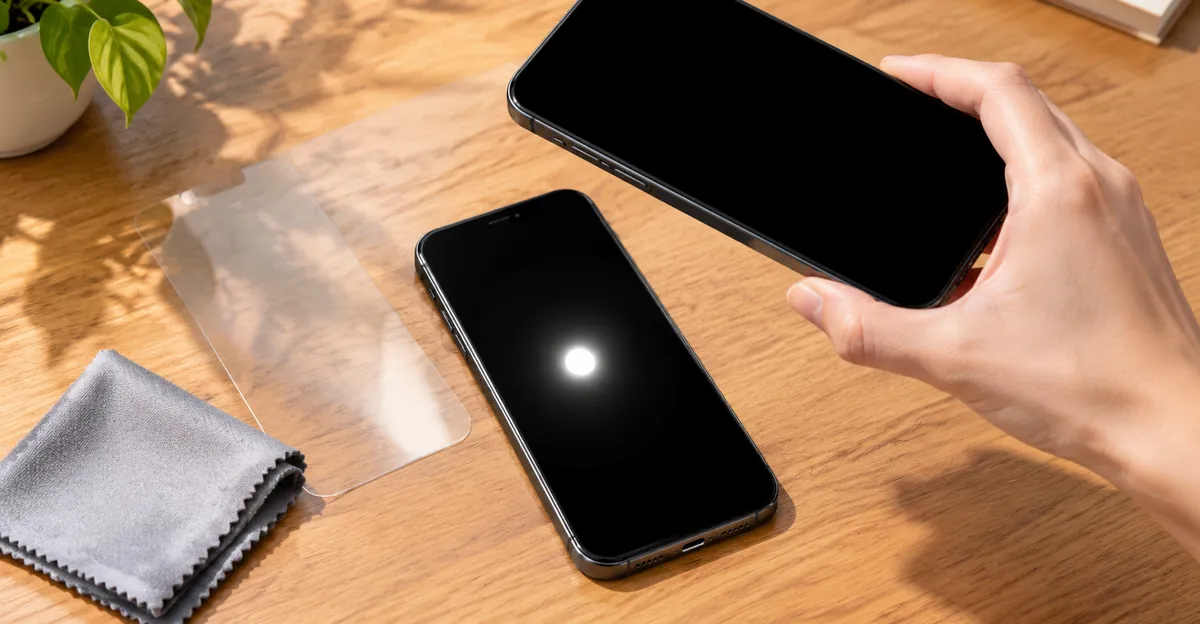
After the shared tests, most articles stop at “replace the screen.” The unanswered next problem is what to bring to a claim desk and when continued daily use is the wrong choice. Build a simple evidence pack: model and serial or IMEI, coverage screenshot from the maker’s checker, dated photos of black, white, and gray full-screen fields, one photo with a scale object beside the spot, a one-sentence timeline of when the mark appeared, and notes about drops, liquid, heat, or prior third-party screen work. That packet shortens arguments about whether the mark is real and whether it has grown.
Photograph correctly. Use a second camera rather than relying only on the phone’s own screenshots for hardware marks, because physical glow often will not encode into a screenshot. Shoot in a dim room, fill the frame with the solid field, and avoid reflections. Keep the original files with timestamps. If you revisit the spot two weeks later, shoot the same three fields again from a similar distance so size changes are obvious.
Know the stop-use triggers. Continue normal use is usually fine for a small stable cosmetic spot with normal touch, cool chassis, and no moisture history. Stop and seek service if the screen or back is lifting, the device runs unusually hot, the mark arrived with liquid exposure, lines grow from the spot to the edge, touch dies near the area, or the patch expands week to week. A swelling battery can create bright or uneven areas while also creating a fire and further panel-risk; do not press a lifting screen flat and do not keep charging a phone that is coming apart at the seams.
Also decide what not to do while you wait for an appointment. Do not run hour-long pixel-fixer videos at maximum brightness on an OLED hoping to erase a soft patch. Do not open the phone to poke the backlight. Do not peel factory films off foldables as a casual experiment. Do back up cloud and local data while the display is still readable. If a recent third-party screen replacement preceded the spot, return to that shop first; a fresh assembly fault is their problem until proven otherwise.
Prevention is pressure and heat management more than magic settings. Avoid back-pocket carry. Use a case with a raised lip. Keep hard objects from pressing the glass in bags. Do not leave the phone under stacks of gear in a hot car, because heat softens optical films and can accelerate spread of existing damage. On OLED devices, auto-brightness and reduced static high-contrast UI time slow uneven wear, but they will not reverse a crushed bright region that is already present.
Related Guides
- Spots on a Phone Screen: Dark, pink, and pale marks
- Spots on a Mobile Screen: White-first generic sort
- White Spots on a Mobile Screen: Pale LCD leaks
- Black Spots on an OLED Screen: Dead emitters, not a glow
- Samsung Black Spot: Galaxy ink blotches
- LCD Bright Spots: Monitor and TV backlight bruises
Conclusion
A bright spot on a phone screen is a symptom, not a single diagnosis. Soft glowing patches after pressure usually mean LCD film-stack or related layer damage. Hard pinpricks point to stuck subpixels. Edge glow on LCD often means backlight bleed. OLED phones rewrite the same complaint as emitter damage, persistence, or burn-in. The short path that prevents wasted fixes is protector off, screenshot check, black-white-gray testing, panel-type identification, then a clear choice among live-with, warranty inspection, or assembly replacement.
Do not press the spot, and do not trust apps to repair diffuser dents or OLED crush damage. Document the mark, watch for growth, and treat screen lift or heat as stop-use signals. If you want a clean set of solid-color fields for the same checks on any phone, open the free Screen Test tool, run black, white, gray, and RGB, and save your evidence before you talk to a shop or warranty desk.